

Featured image for how to summarize a pdf with chatgpt
Image source: allaboutai.com
You can summarize a PDF with ChatGPT for free by uploading the file directly in the chat interface or by copying and pasting the text when uploads are unavailable. This guide walks you through the simplest methods, practical prompts, and common fixes so you can turn long documents into clear summaries without paying for extra tools.
Summarizing a long PDF by hand can take a long time, especially when you only need the main ideas. That is why many people now ask a simple question: can you really use ChatGPT to summarize a PDF for free? The short answer is yes, and the process is usually quick once you know the right steps.
In this guide, you will learn how to turn a PDF into a clean summary using ChatGPT without paying for a premium plan. I will show you the easiest method first, then a fallback method if file uploads are not available in your account. You will also see how to write better prompts, handle large documents, and fix common problems when the summary is too vague or too long.
This is a practical, step-by-step walkthrough. The goal is not just to tell you that AI summarization exists, but to help you use it in a way that saves time and still gives you something useful. If you have ever opened a PDF and thought, “I just need the important parts,” this guide is for you.
📑 Table of Contents
- What You Need Before You Start
- Method 1: Upload the PDF Directly to ChatGPT
- Method 2: Copy and Paste the PDF Text
- How to Write Better Prompts for PDF Summaries
- What to Do With Long or Complex PDFs
- Common Problems and How to Fix Them
- A Simple Workflow You Can Reuse
- Practical Tips for Better Results
- When Free Use Makes Sense
- Conclusion
What You Need Before You Start
Before you summarize a PDF with ChatGPT, it helps to gather a few things so the process goes smoothly. You do not need advanced technical skills, but a little preparation can make the difference between a messy result and a clear one.
Here is what you should check first:
- The PDF you want to summarize: Make sure the file opens correctly and contains the text you need. If the PDF is scanned images instead of real text, you may need an extra step.
- A free ChatGPT account: You can use the free version of ChatGPT for many summarization tasks, though some features or limits may vary by account type and current interface.
- A way to copy text if needed: If file upload is not available, you will need to copy the PDF text and paste it into the chat.
- A basic idea of what you want: Decide whether you want a short overview, bullet points, key takeaways, or a section-by-section summary.
If your PDF is very long, it also helps to know which sections matter most. You may not need the entire document summarized in the same way. For example, a 40-page report might only need a summary of the introduction, conclusions, and recommendations. Knowing that in advance makes it easier to ask for the right thing.
Method 1: Upload the PDF Directly to ChatGPT
If your ChatGPT interface allows file uploads, this is usually the simplest method. Instead of copying text by hand, you can attach the PDF and ask ChatGPT to summarize it. This works well for many documents, especially when the PDF already contains selectable text.
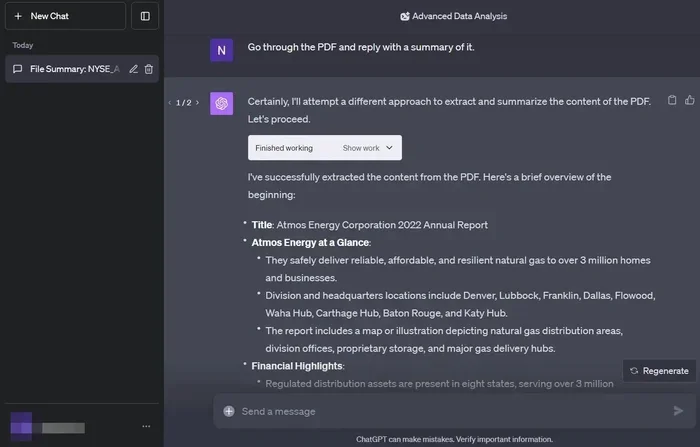
Visual guide about how to summarize a pdf with chatgpt
Image source: techjunkie.com
Step 1: Open a new chat
Start a new conversation in ChatGPT so the file and your instructions stay focused on one task. A fresh chat helps reduce confusion, especially if you have already discussed other topics in another thread.
Step 2: Upload the PDF
Look for the upload button or attachment option in the chat bar. If you see it, attach your PDF file. If the interface does not show an upload option, you will need to use the copy-and-paste method instead.
Once the file is attached, ChatGPT can usually read the document text and use it as part of the conversation. That means you do not always have to paste the content manually.
Step 3: Ask for the kind of summary you want
A vague request often leads to a vague result. Instead of saying “summarize this,” try a more specific prompt. For example, you might say:
- “Summarize this PDF in 3 to 5 bullet points.”
- “Give me a short overview of the main argument and the conclusion.”
- “Summarize each section in one sentence.”
- “What are the most important takeaways for a beginner?”
The more clearly you define the output, the more likely you are to get something useful. If you have a preferred length, say so. If you want a business-style summary, ask for that. If you want a simple explanation, request plain language.
Step 4: Review the summary and refine it
After ChatGPT generates the summary, read it against the original PDF. Check whether the main points are accurate and whether anything important seems missing. If the summary is too short, ask for more detail. If it is too long, ask for a shorter version.
You can also ask follow-up questions like:
- “What evidence does the document use to support its main claim?”
- “Can you simplify this summary for a non-expert?”
- “List the action items or recommendations mentioned in the PDF.”
This back-and-forth is one of the biggest advantages of using ChatGPT. You are not stuck with the first result. You can shape it until it matches your needs.
Method 2: Copy and Paste the PDF Text
If you cannot upload a PDF, or if you want more control over which parts get summarized, copying and pasting the text is a reliable alternative. This method takes a little more effort, but it works in many situations.
Step 1: Open the PDF and select the text
Open the document in a PDF reader and highlight the section you want to summarize. If the whole document is short enough, you can select all of it. If it is long, start with the most important part rather than trying to paste everything at once.
If the PDF is image-based and you cannot select text, you may need a free OCR tool or a PDF reader that can extract text from scanned pages. That extra step is worth mentioning because it can save you from frustrating copy-paste problems later.
Step 2: Paste the text into ChatGPT in manageable chunks
Large documents can be difficult to paste all at once. If the text is very long, break it into sections. For example, you might summarize one chapter at a time or one set of pages at a time. This helps keep the summary focused and reduces the chance of cutting off important content.
When you paste the text, it often helps to include a short instruction above it, such as:
- “Please summarize the following text in bullet points.”
- “Read this section and give me the main ideas in plain English.”
- “Summarize this excerpt and note any recommendations.”
Step 3: Keep context between chunks
If you are summarizing a long document in parts, it helps to keep the same chat open so the context carries over. That way, ChatGPT can better understand how the sections relate to each other. You can also remind it of the overall topic between chunks if needed.
For example, you might say:
“Here is the next section of the same report. Please summarize it in the same style as before.”
That small bit of continuity can make the final result feel more organized.
Step 4: Combine the section summaries if needed
Once you have summarized the separate parts, you can ask ChatGPT to combine them into one overall summary. This is useful when you want a complete picture without losing the detail from each section.
A good follow-up prompt might be:
- “Combine these section summaries into one concise overview.”
- “Turn these notes into a short executive summary.”
- “Merge the key points into a single list of takeaways.”
This approach is especially helpful for reports, study materials, and long articles where the structure matters.
How to Write Better Prompts for PDF Summaries
The quality of your summary depends a lot on the prompt. A good prompt tells ChatGPT what to focus on, how long the summary should be, and who it is for. That is why learning a few prompt patterns can make a big difference.
Be specific about the output
If you want a quick snapshot, ask for a short summary. If you want a study-friendly version, ask for key concepts. If you want action-oriented notes, ask for recommendations or next steps. Clear instructions produce clearer results.
Examples of useful prompt details include:
- Summary length: one paragraph, five bullets, or a short list
- Audience: beginner, student, manager, or technical reader
- Focus: main argument, key data, conclusions, or action items
- Tone: simple, professional, or casual
Ask for structure
Structured summaries are easier to scan. You can ask ChatGPT to organize the answer with headings, bullets, or numbered points. This is especially helpful when the PDF itself has clear sections.
For instance, you might say:
“Summarize the document and use bullet points for the main ideas, then add a one-sentence conclusion at the end.”
That kind of instruction gives you a predictable format, which is useful if you are comparing several documents.
Request the level of detail you actually need
Some summaries are too shallow, while others are too detailed. If you need a middle ground, say so. You can ask ChatGPT to keep the summary concise but still include the most important supporting points.
If the first result is too generic, do not stop there. You can say:
- “Include the main examples used in the document.”
- “Mention the key numbers or findings.”
- “Keep the summary short, but do not leave out the conclusion.”
What to Do With Long or Complex PDFs
Long PDFs can be challenging because they may contain more text than you can comfortably paste or summarize in one pass. Complex documents can also include tables, footnotes, or mixed formatting that makes the summary less clean. The good news is that you can still handle them with a few practical habits.
Summarize in sections
For long documents, section-by-section summarization is often the best approach. Instead of asking for everything at once, focus on the introduction, body, and conclusion separately. This gives you more control and usually produces a better summary.
If the document has chapter titles or headings, use them as your guide. Ask ChatGPT to summarize one heading area at a time, then review the results before moving on.
Focus on the parts that matter most
Not every page deserves equal attention. If you only need the core message, prioritize the summary, abstract, conclusion, or recommendations. If you are researching a specific topic, concentrate on the sections that discuss that topic directly.
This is a smart way to use ChatGPT because it saves time without forcing you to read every word. You still get the key ideas, but you do not have to wade through unnecessary detail.
Watch for tables and special formatting
Tables, charts, and heavily formatted sections may not summarize well when pasted as plain text. In those cases, it can help to describe what you need from the table instead of relying on the AI to interpret everything perfectly.
For example, you might ask:
- “What is the main trend shown in this data?”
- “Summarize the table in plain language.”
- “Extract the most important figures from this section.”
If precise numbers matter, always check the original PDF. AI is useful for summarizing ideas, but it should not replace careful review when exact values are important.
Common Problems and How to Fix Them
Even when the process is simple, you may run into a few common issues. Most of them are easy to work around once you know what to expect.
The summary is too vague
If the result feels generic, your prompt may be too broad. Try adding constraints such as length, focus, or audience. You can also ask ChatGPT to base the summary only on the provided text and avoid adding outside assumptions.
A stronger prompt might be:
“Summarize the attached PDF in 6 bullet points. Focus only on the main arguments and the conclusion. Keep each bullet to one or two sentences.”
The summary is too long
If ChatGPT gives you a wall of text, ask for a shorter version. You can request a one-paragraph summary, a bullet list, or a fixed number of key points. Shortening the request usually shortens the output.
You can also say:
- “Make this shorter.”
- “Reduce this to the top 3 ideas.”
- “Rewrite this as a quick overview I can read in under a minute.”
Important details are missing
When key information is left out, the issue may be that the document was summarized too aggressively. Ask for the missing type of detail directly. For example, request the main examples, findings, or recommendations that were not included.
If you are working with a long document, it may also help to summarize smaller sections instead of the whole file at once. That gives the model more room to preserve important points.
The PDF text cannot be selected
If the PDF is scanned or image-based, you may not be able to copy the text easily. In that case, use a free OCR tool or a PDF reader that can extract text from images. Once the text is extractable, you can paste it into ChatGPT and summarize it.
If OCR is not perfect, expect to clean up the text a little. Small formatting errors are common, but the overall content can still be summarized effectively.
The response cuts off or feels incomplete
If the output stops suddenly, the text may have been too long for one message. Try pasting a smaller chunk, or summarize the document in parts. You can also ask ChatGPT to continue, though it is often cleaner to start with a smaller section.
For very long documents, the section-by-section method is usually more reliable than one huge paste.
A Simple Workflow You Can Reuse
If you want a repeatable process, this workflow works well for many PDFs:
- Step 1: Decide what kind of summary you need.
- Step 2: Check whether you can upload the PDF or whether you need to copy the text.
- Step 3: Paste or upload the content in a focused chat.
- Step 4: Use a specific prompt with length, style, and focus.
- Step 5: Review the summary against the original document.
- Step 6: Ask follow-up questions to fill gaps or shorten the result.
Once you use this a few times, it becomes quick and predictable. You can even save your favorite prompts for future documents.
Practical Tips for Better Results
A few small habits can improve the quality of your summaries:
- Start with a clear goal: Know whether you want a quick overview, study notes, or action items.
- Keep the original PDF nearby: That makes it easier to verify details.
- Use plain instructions: Simple language often works better than complicated phrasing.
- Ask for the same format repeatedly: Consistent prompts make it easier to compare summaries later.
- Check numbers, names, and quotes: AI is helpful, but careful review still matters.
If you are using ChatGPT for school, work, or research, these habits can help you move faster without sacrificing accuracy.
When Free Use Makes Sense
Using ChatGPT to summarize a PDF for free makes sense when you need a fast overview, a first draft of notes, or a way to understand a document before reading it more closely. It is especially useful when the PDF is readable text and the main ideas are what matter most.
It may be less ideal when you need a perfectly precise summary of a legal document, a technical specification, or a paper where every detail matters. In those cases, AI can still help, but it should be paired with careful reading and verification.
Conclusion
Learning how to use ChatGPT to summarize a PDF for free is mostly about choosing the right method and asking clear questions. If your interface supports uploads, attaching the file is the easiest path. If not, copying and pasting the text in manageable sections works well too. Either way, the biggest improvement usually comes from better prompts and a little follow-up.
The best part is that you do not need a complicated setup. With a free ChatGPT account, a readable PDF, and a specific request, you can turn a long document into a useful summary in just a few minutes. As long as you review the result and adjust your prompts when needed, this can be a very practical way to save time.