
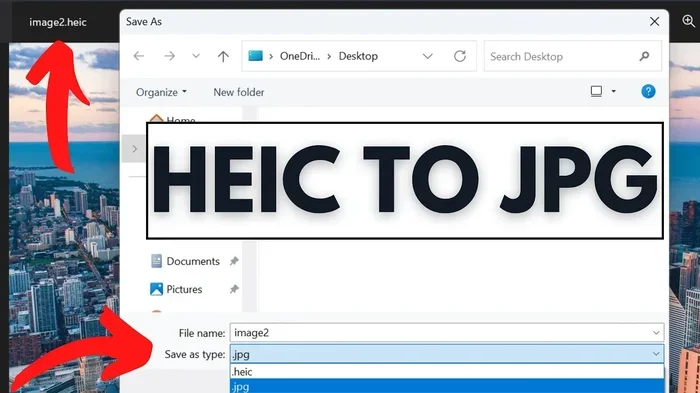
Featured image for how to convert heic to jpg windows 11
Image source: i.ytimg.com
If you have ever tried to open an iPhone picture on a Windows PC, you may have noticed the HEIC format causing problems. This guide shows you easy ways to convert HEIC to JPG on Windows 11 using built-in tools, free software, and online converters. By the end, you will know which method fits your workflow and how to avoid common issues.
If you are wondering how to convert HEIC photos to JPG on Windows 11, you are not alone. Many people notice that photos from an iPhone or other Apple device do not always open smoothly on a Windows computer. Sometimes the image opens in a preview, sometimes it does not open at all, and sometimes you cannot use it in the app you want. That is where converting to JPG can help.
This guide walks you through the most practical options for turning HEIC files into JPG files on Windows 11. You will learn what HEIC is, why JPG is still so widely used, and which method makes the most sense for your situation. We will cover built-in support options, desktop converter tools, online converters, and batch conversion tips so you can pick the approach that fits your workflow.
📑 Table of Contents
- What Is HEIC, and Why Does It Cause Trouble on Windows?
- Why Convert HEIC to JPG on Windows 11?
- Before You Start: Check Your Windows 11 Setup
- Method 1: Use the Microsoft Store HEIF Extension
- Method 2: Convert with a Free Desktop Converter App
- Method 3: Use an Online HEIC-to-JPG Converter
- Method 4: Batch Convert Many HEIC Files at Once
- Tips for Better JPG Results
- Troubleshooting Common HEIC-to-JPG Problems
- Which Method Should You Use?
- Final Thoughts on Converting HEIC to JPG on Windows 11
What Is HEIC, and Why Does It Cause Trouble on Windows?
HEIC is a modern image format that is often used by Apple devices. It is known for storing high-quality images in smaller file sizes compared with older formats. That sounds great, and in many ways it is. The challenge is that not every program, website, or device handles HEIC files in the same way.
Windows 11 can work with HEIC files more smoothly than older versions of Windows, but compatibility still depends on what you are trying to do. You might be able to view a photo, yet still struggle to edit it, email it, upload it, or place it into a document. JPG, on the other hand, is one of the most widely supported image formats in the world. That is why converting HEIC to JPG is such a common task.
In simple terms, HEIC is efficient and JPG is widely compatible. If your main goal is to share a photo, use it in a Windows app, or make sure it opens everywhere, JPG is often the safer choice.
Why Convert HEIC to JPG on Windows 11?
There are several reasons people choose to convert these files. The right reason depends on how you use your photos, but the most common ones are practical and easy to understand.
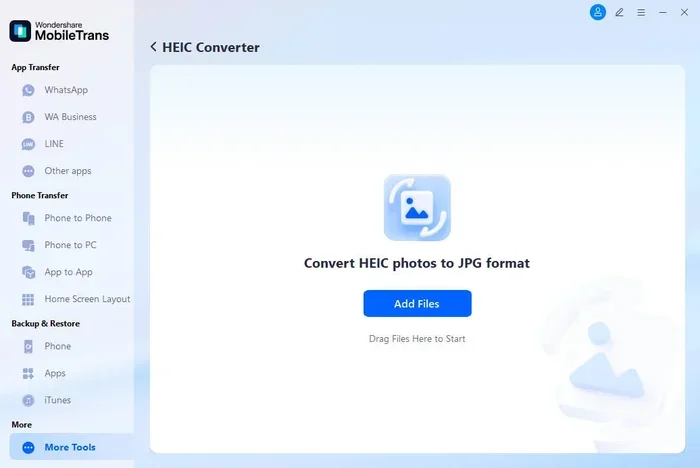
Visual guide about how to convert heic to jpg windows 11
Image source: mobiletrans.wondershare.com
Better compatibility with apps and websites
Many Windows programs were built with JPG in mind. If you are working with documents, presentations, email attachments, or web uploads, JPG is usually the easiest format to use. Converting can save you from unexpected errors or missing-image problems.
Easier sharing with other people
If you send photos to friends, coworkers, or clients who use different devices, JPG is more likely to open without extra steps. Not everyone has the same photo viewer or the same extensions installed. A JPG file is a safer default when you want the image to just work.
Simpler editing in some Windows tools
Some photo editors and built-in Windows tools handle JPG more smoothly than HEIC. If you plan to crop, resize, adjust colors, or combine images, converting first can reduce friction.
More predictable file behavior
JPG files are familiar and widely understood. When you save a photo as JPG, you usually know what to expect when opening it again later. That predictability can be helpful if you store lots of images or organize them for work and personal use.
Before You Start: Check Your Windows 11 Setup
Before you jump into conversion, it helps to know what your computer already supports. Windows 11 may already be able to view HEIC files, depending on your setup. Even so, viewing a file and converting it are not always the same thing.
Check whether HEIC files open on your PC
Try opening a HEIC photo with the default Photos app or another image viewer you already use. If it opens normally, your system already has some level of support. If it does not open, or if you see an error, you may need an extension or a different conversion method.
Think about how many files you need to convert
Are you converting one photo, a few photos, or hundreds? That matters because some methods are better for quick one-off tasks, while others are better for batch work. If you only need to convert a single image, an online tool or a simple desktop app may be enough. If you have a large folder of photos, a batch-friendly method will save time.
Decide whether you want quality, speed, or privacy
Different methods have different strengths. Online converters are convenient, but you may not want to upload sensitive images. Desktop tools can be faster for large batches, but they may require installation. Built-in options may be the simplest if they already work for your needs.
Method 1: Use the Microsoft Store HEIF Extension
One of the first things many Windows 11 users try is adding HEIF support through the Microsoft Store. This can improve how Windows handles HEIC files and may make conversion easier depending on your workflow.
Install the extension if needed
Open the Microsoft Store and search for the HEIF image extension or related HEIC support option. Install it if your system does not already have it. This step can help Windows display and work with HEIC images more reliably.
Open the photo in the Photos app
After installing the extension, try opening the HEIC file in the Windows Photos app. If the app supports exporting or saving in another format, you may be able to use that option directly. This is often the simplest path when it is available.
Save or export as JPG if the app allows it
Some versions of the Photos app let you save a copy in a different format. If you see an export or save-as option, choose JPG and store the new file in the folder you want. If the app only lets you view the image, then this method may not complete the conversion by itself.
This method is appealing because it uses tools that are already connected to Windows 11. The tradeoff is that it does not always provide a direct, one-click convert-to-JPG workflow in every situation. If that happens, another method may be a better fit.
Method 2: Convert with a Free Desktop Converter App
If you want a more direct conversion process, a desktop converter app can be a strong option. These tools are designed to take HEIC files and output JPG files, often with controls for quality and batch processing.
Choose a converter that matches your needs
Look for a converter that is easy to use and supports the kind of work you do. If you only need to convert a few files, a simple interface may be enough. If you need to process many images at once, batch conversion becomes more important.
Import your HEIC files
Most converter apps let you add files by dragging them in, browsing for them, or selecting a folder. Start by loading the HEIC photos you want to convert. If you have many files, look for a folder-based option so you do not have to add each image one by one.
Select JPG as the output format
Choose JPG as the destination format. Some apps may also let you adjust settings such as image quality, resolution, or file naming. If quality matters, take a moment to review those settings before converting.
Convert and check the results
Start the conversion and wait for the app to finish. Once it is done, open a few of the new JPG files to make sure they look right. Check for any unexpected cropping, color changes, or missing files.
Desktop converter apps are often the most straightforward choice when you need control and consistency. They can also be useful when you do not want to upload images to a website.
Method 3: Use an Online HEIC-to-JPG Converter
Online converters are popular because they are quick and do not require installation. If you only need to convert a small number of photos, this can be the easiest route.
Find a reputable online converter
Search for an online HEIC to JPG converter and choose one that looks trustworthy. Read the page carefully to understand any limits on file size, number of conversions, or privacy. If the site asks for more access or permissions than you are comfortable with, move on to another option.
Upload your HEIC file or files
Most online tools let you upload one or more HEIC images. Use the upload button or drag-and-drop area, then wait for the files to be processed. If you have a slow connection, large files may take longer.
Download the converted JPG files
After the conversion is complete, download the JPG versions to your PC. Save them in a folder where you can find them easily. If you uploaded multiple files, make sure you download all of the converted images.
Use online tools carefully
Online converters are convenient, but they are best for images that are not sensitive or private. If the photo contains personal details, confidential work content, or anything you would rather not upload, a local desktop method may be a better choice.
For occasional use, online conversion can be very practical. For frequent use, you may prefer a method that stays entirely on your computer.
Method 4: Batch Convert Many HEIC Files at Once
If you have a large set of HEIC photos, converting them one by one can become annoying very quickly. Batch conversion is the smarter option when you are dealing with a full folder of images.
Pick a batch-friendly tool
Choose a converter or workflow that explicitly supports multiple files. Some desktop apps are built for batch work and let you convert an entire folder in one pass. That can save a lot of time compared with handling each image separately.
Organize your files first
Before converting, put the HEIC photos you want to process into one folder. This makes it easier to select them all and keeps your output organized. You may also want to separate the images you need right away from ones you can convert later.
Set output preferences
If the tool allows it, choose a consistent output folder, naming pattern, and JPG quality setting. Consistent settings help keep your converted files uniform, which is especially useful if you are preparing images for a project, website, or document.
Review a sample before converting everything
If you have a very large batch, test the process with a few files first. That way, you can confirm the output looks good before spending time converting everything. If something looks off, adjust the settings and try again on a small sample.
Batch conversion is one of the best ways to make HEIC-to-JPG work feel manageable. It reduces repetitive clicks and helps you process images more efficiently.
Tips for Better JPG Results
Converting the file is only part of the job. If you want the best results, it helps to think about quality, organization, and how you will use the images afterward.
Choose a sensible quality setting
JPG uses compression, which means quality and file size are often connected. Higher quality usually means a larger file. Lower quality can make the file smaller, but too much compression can make the image look soft or blocky. If you are not sure, start with a balanced setting and adjust only if needed.
Keep the original HEIC files when possible
It is often smart to keep the original photos until you are sure the converted versions are what you need. That way, if you later want the higher-efficiency HEIC file or need to convert again with different settings, you still have the source image.
Watch for changes in color or cropping
Some conversion tools may alter color appearance or image dimensions more than you expect. After converting, compare a few JPG files with the originals. If the images are for professional use, this extra check is especially important.
Use consistent file names and folders
If you are converting many photos, consistent naming can save time later. You may want to keep the original file name and add a note that the file is now in JPG format, or place all converted images in a clearly labeled folder.
Troubleshooting Common HEIC-to-JPG Problems
Even when the process is simple, small issues can pop up. Here are some common problems and practical ways to handle them.
The HEIC file will not open at all
If Windows cannot open the file, start by checking whether the HEIF extension or related support is installed. If that does not help, try a different viewer or use a converter app instead of relying on the default photo viewer.
The converted JPG looks different from the original
If the image looks off, review the converter settings. Some tools may resize the image, change color handling, or apply heavy compression. Try a higher quality setting or a different tool, then compare the results again.
Online conversion fails or times out
Large files can be slow to upload, and some online tools have limits. If a conversion fails, try a smaller file first to see whether the issue is related to size or connection. If the file is very large, a desktop tool may work better.
The converter creates odd file names or duplicates
Some methods may add prefixes, suffixes, or extra copies. If that becomes messy, set a clear output folder and check whether the tool lets you control naming. A little organization up front can prevent a lot of confusion later.
You converted the files, but the images still do not work in your app
In that case, the issue may not be the format itself. The app may have its own limits on file size, color profile, or image dimensions. Try opening the JPG in a different Windows app to see whether the problem is with the file or with the program you are using.
Which Method Should You Use?
The best method depends on what you need most: simplicity, privacy, speed, or batch handling.
If you want the most integrated experience and your Windows 11 setup already supports HEIC well, the built-in Photos app or Microsoft Store extension may be enough for basic tasks. If you need a direct conversion workflow, a desktop converter app is often the most reliable choice. If you only need to convert a few images quickly and do not mind uploading them, an online converter can be very convenient. And if you have many photos to process, batch conversion will usually be the most efficient path.
A simple way to decide is to ask yourself three questions: How many files do I have? Do I want to keep them offline? Do I need consistent quality and organization? Once you answer those, the right method usually becomes clear.
Final Thoughts on Converting HEIC to JPG on Windows 11
Learning how to convert HEIC photos to JPG on Windows 11 is a useful skill because it makes images easier to share, store, and use across different apps. HEIC has real advantages in efficiency, but JPG still wins when broad compatibility matters. The good news is that you have several practical ways to make the switch.
For occasional needs, an online converter may be all you need. For regular use, a desktop tool can give you more control and better privacy. For large collections, batch conversion can save time and keep your files organized. And if you want the smoothest experience on Windows 11, checking your HEIC support first can save you from unnecessary frustration.
Whichever method you choose, the goal is the same: get a JPG file that opens easily, looks the way you expect, and fits your workflow. Once you find the process that works best for you, converting HEIC images on Windows 11 becomes a quick, routine task instead of a repeated headache.