
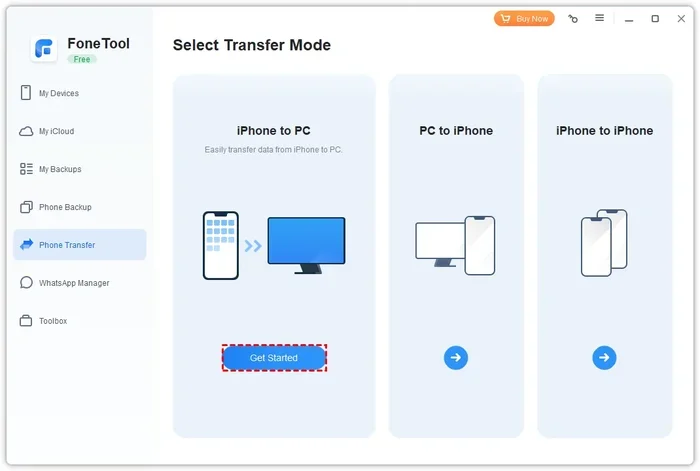
Featured image for how to transfer photos from iphone to windows pc without itunes
Image source: fonetool.com
Moving pictures from your iPhone to a Windows computer does not require iTunes. You can use File Explorer, the Windows Photos app, cloud services, or email to copy your images quickly. This guide walks you through each method so you can choose the easiest option for your workflow.
Moving pictures from your iPhone to a Windows computer should feel simple. Many people assume they need iTunes, but that is not true. You can transfer photos from iPhone to Windows PC without iTunes using a few built-in tools and common cloud services. This guide explains each method in plain language, so you can pick the one that fits your situation.
You will learn how to use a USB cable with File Explorer, how to import images with the Windows Photos app, how to sync through cloud storage, and how to send small batches by email. You will also find troubleshooting tips for common snags, like HEIC files, trust prompts, and missing folders. By the end, you will know how to move your pictures quickly and safely.
📑 Table of Contents
- Method 1: Use File Explorer With a USB Cable
- Method 2: Import Photos With the Windows Photos App
- Method 3: Use Cloud Storage for Wireless Transfers
- Method 4: Send Small Batches by Email or Chat
- Understanding HEIC Files and Format Settings
- Troubleshooting Common Transfer Problems
- How to Choose the Best Method for Your Situation
- A Simple Workflow You Can Repeat
- Final Thoughts
Method 1: Use File Explorer With a USB Cable
This is the fastest way to copy photos when you have a cable and a few minutes. Windows can see your iPhone as a storage device, but only after you approve the connection on the phone. Once that happens, you can browse folders and copy images just like any other USB drive.
Step 1: Connect your iPhone to the PC
Use a Lightning or USB-C cable, depending on your phone. Plug one end into the iPhone and the other into a USB port on your computer. If your cable only charges, try a different one that supports data transfer.
Step 2: Unlock and trust the computer
Wake your iPhone and unlock the screen. A prompt may appear asking whether you trust this computer. Tap Trust and enter your passcode if needed. Without this step, Windows may not show your photos.
Step 3: Open File Explorer
On your PC, open File Explorer and look for your iPhone under This PC or in the left sidebar. It may appear as a portable device. Click it, then open the Internal Storage section.
Step 4: Find the DCIM folder
Inside the device, open the DCIM folder. This is where the camera usually stores images. You may see several subfolders with names like 100APPLE or 101APPLE. Each folder can hold photos and videos from different dates or albums.
Step 5: Copy the files you want
Select the images you need, then copy and paste them into a folder on your PC. You can also drag and drop them. If you have many files, give the transfer time to finish before disconnecting the phone.
Tip: If you want to keep your library organized, create a new folder on your desktop before copying. Name it by date or event so you can find the pictures later.
Method 2: Import Photos With the Windows Photos App
If you prefer a guided import process, the Windows Photos app can pull images from your iPhone without iTunes. This method is helpful when you want to select a large batch and have Windows sort the files for you.

Visual guide about how to transfer photos from iphone to windows pc without itunes
Image source: mobi.easeus.com
Step 1: Connect the iPhone
Plug your phone into the computer with a data-capable cable. Unlock the screen and trust the device if prompted.
Step 2: Open the Photos app
Launch the Photos app on Windows. If you do not see it, search for Photos in the Start menu. Once it opens, look for an import option. In many versions, you can find it by clicking Import or From a connected device.
Step 3: Select the images
The app may display thumbnails from your iPhone. Choose the pictures you want, or select all of them if you plan to import everything. Some versions let you filter by date, which can save time.
Step 4: Choose a destination
Pick a folder or default library where Windows should save the images. You can usually keep the default setting or change it to a custom location. Confirm the import and wait for the process to finish.
Tip: If the import seems slow, close other heavy programs while the transfer runs. That helps the computer focus on copying the files.
Method 3: Use Cloud Storage for Wireless Transfers
Cables are not always handy. If you prefer wireless transfer, cloud storage can move your images over Wi-Fi. This works well when you already use a cloud service or want to keep a backup at the same time.
Option A: iCloud for Windows
If you already use iCloud on your iPhone, you can sign in on your PC and let photos sync. Install iCloud for Windows, sign in with the same Apple ID, and turn on Photos. Once sync completes, your images may appear in a folder you can copy from.
Option B: OneDrive or Google Photos
You can also upload pictures from your iPhone to OneDrive or Google Photos, then download them on your PC. On the phone, add the images to the app, wait for the upload to finish, and log in on your computer to retrieve them.
Option C: Other cloud folders
Some people prefer Dropbox or similar services. The process is similar: upload from the phone, then open the service on your PC and save the files locally.
Tip: Cloud transfer depends on your internet speed and the size of your library. For very large batches, a cable is usually faster.
Method 4: Send Small Batches by Email or Chat
If you only need a few photos, email or messaging apps can be the quickest solution. This is not ideal for hundreds of images, but it works well for a handful of pictures you need right away.
Use email
Open the Photos app on your iPhone, select the images, and choose the share option. Send them to your own email address. On the PC, open the email and download the attachments to a folder.
Use a chat app
You can also send the images to yourself in a chat app that supports file sharing. After the transfer, open the app on your computer and save the files.
Tip: Email services often limit attachment sizes. If the photos are large, you may need to send them in smaller groups.
Understanding HEIC Files and Format Settings
Some iPhones save photos in HEIC format to save space. Windows may not open these files by default, which can make a transfer feel confusing. You have a few ways to handle this.
Check the transfer format on your iPhone
On the iPhone, go to Settings, then Photos. Near the bottom, you may see an option related to keeping the original format or converting to a more compatible format when transferring to a PC. If you choose a more compatible format, the files may transfer as JPEGs, which Windows reads easily.
Open HEIC files on Windows
If your images arrive as HEIC, you may need a previewer or converter. Some Windows setups support HEIC with extra components, while others need a third-party viewer. If you are not sure, try opening one file first before copying a large batch.
Convert when needed
If you want JPEG files for easier sharing, convert the images after transfer. Many free tools can do this on a PC, or you can change the iPhone setting before the next transfer.
Tip: If compatibility matters more than storage space, choosing a widely supported format can save time later.
Troubleshooting Common Transfer Problems
Even simple transfers can hit a snag. Here are some common issues and practical fixes.
iPhone does not show up in File Explorer
Make sure the cable supports data transfer. Try a different USB port, preferably one directly on the computer rather than a hub. Unlock the iPhone and approve the trust prompt if it appears.
Photos are missing from the DCIM folder
Some images may be stored in different folders or in a recently deleted album. Check the folder structure carefully. If a photo was taken recently, it may be in the latest DCIM subfolder.
Transfer is very slow
Large video files can slow things down. Give the process time and avoid unplugging the phone early. If you are using cloud storage, check your internet connection.
Files will not open after transfer
This often happens with HEIC files. Confirm the format on the iPhone or convert the files on the PC. If a file looks incomplete, try the transfer again with a stable connection.
Trust prompt does not appear
Disconnect the phone, unlock it, and reconnect. If needed, tap the iPhone screen to wake it fully. Some computers also show better results with a different cable.
How to Choose the Best Method for Your Situation
The right method depends on how many photos you have and how often you transfer them. Here is a simple way to decide.
- Use File Explorer when you want a quick copy and already have a cable.
- Use the Photos app when you want a guided import for a larger batch.
- Use cloud storage when you want wireless transfer or an automatic backup.
- Use email or chat when you only need a few images right away.
If you transfer photos often, it helps to create a repeatable routine. For example, you might use a cable once a month for a full backup and cloud storage for daily shots. That way, you keep your library organized without extra hassle.
A Simple Workflow You Can Repeat
If you want a process that is easy to remember, try this routine. First, connect your iPhone and unlock it. Second, choose your method based on the size of the batch. Third, copy the files to a clearly named folder. Fourth, check a few images to make sure they opened correctly. Fifth, back up the folder if the pictures matter to you.
This routine keeps things consistent. It also reduces the chance of losing track of files after a transfer.
Final Thoughts
You do not need iTunes to move pictures from an iPhone to a Windows PC. File Explorer, the Photos app, cloud storage, and email all give you practical ways to get the job done. The best choice depends on your cable availability, internet connection, and the number of photos you want to move.
If you want speed, use a cable. If you want convenience, use a cloud service. If you want a quick share of a few images, email works well. Whichever method you choose, a little preparation makes the process smoother.
If you want a simple starting point, try File Explorer first. It is direct, familiar, and useful for most everyday transfers. From there, you can explore the other options and build a routine that fits your workflow.