

Featured image for how to microsoft copilot not working in edge
Image source: easytweaks.com
If Microsoft Copilot not working in Edge is disrupting your workflow, the issue is usually a browser setting, an extension conflict, or a sign-in problem. This guide walks you through clear, practical fixes you can try right away, from refreshing the sidebar to checking your Microsoft account status. You will also learn when to reset Edge and how to prevent the same problem from returning.
If you rely on AI assistance while browsing, it can be frustrating when Microsoft Copilot not working in Edge suddenly becomes part of your day. One minute you are asking questions, summarizing pages, or drafting quick replies, and the next minute the sidebar is blank, unresponsive, or missing entirely. The good news is that this problem is usually fixable without advanced technical skills.
In this guide, you will learn how to troubleshoot the most common causes, step by step. We will cover quick checks you can do in under a minute, settings that often get missed, and the deeper fixes that help when the basic steps do not work. You will also see how to tell whether the issue is likely on your end or related to a temporary service problem.
By the end, you should have a clear path to get Copilot back into action and a better sense of what to do if it happens again.
📑 Table of Contents
- 1. Confirm the basics before changing anything
- 2. Make sure you are signed in correctly
- 3. Check Edge sidebar and app settings
- 4. Look for extension conflicts
- 5. Clear cache and browsing data
- 6. Update Microsoft Edge
- 7. Test your network and browser connection
- 8. Reset Microsoft Edge settings when smaller fixes fail
- 9. Decide whether the issue may be service-related
- 10. Practical tips to prevent Copilot problems
- Troubleshooting checklist for stubborn cases
- When to stop troubleshooting and ask for help
- Final thoughts
1. Confirm the basics before changing anything
Before you spend time adjusting settings, it helps to rule out the simplest possibilities. Many Copilot problems are temporary and can be solved with a small refresh or a short restart.
Check whether the sidebar is actually open
Copilot in Edge usually lives in the sidebar, so the first thing to confirm is whether the panel is visible. If it is hidden, the AI tool may not be missing at all. Open the sidebar and look for the Copilot icon. If you see it, try selecting it again. Sometimes the panel is open but not fully loaded, especially after a slow connection or a quick browser restart.
Refresh the page and reopen the sidebar
A simple refresh can clear a stuck loading state. Reload the current page, then close and reopen the Copilot sidebar. This helps when the browser has loaded an outdated version of the panel or when a temporary script error is preventing the interface from appearing.
Restart Microsoft Edge completely
If a refresh does not help, close Edge fully and open it again. Do not just close the window if the browser is still running in the background. A full restart can clear minor internal issues that affect sidebar tools and extensions.
2. Make sure you are signed in correctly
Copilot is tied to your Microsoft account experience, so sign-in problems are one of the most common reasons the tool stops working as expected. If your account session has expired, is paused, or is not syncing properly, the sidebar may not respond the way you expect.
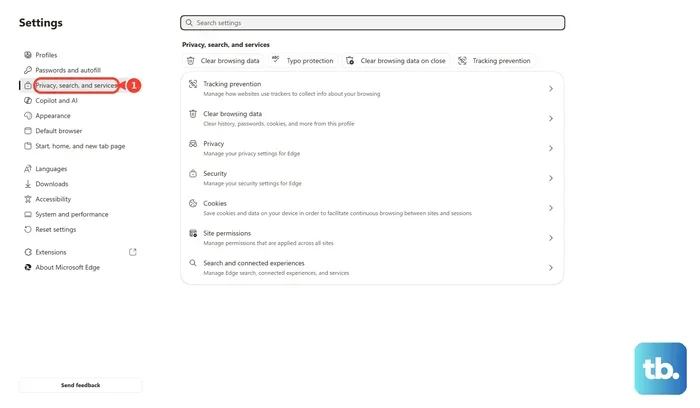
Visual guide about how to microsoft copilot not working in edge
Image source: cdn.technobezz.com
Check your Microsoft account status in Edge
Open Edge settings and review your account information. If you see a sign-in prompt, an expired session, or a warning about sync, that is a strong clue. Sign out and sign back in if needed. This can refresh the connection between Edge and the Microsoft services that support Copilot.
Try a different Microsoft account if relevant
If you have access to another Microsoft account, you can test whether Copilot behaves differently there. This helps you understand whether the issue is tied to one account or to the browser itself. If the other account works normally, the problem may be account-related rather than a browser bug.
Look for account-related messages
Pay attention to any on-screen notes about verification, subscription status, or account limits. Sometimes the interface will not function fully because the account needs a refresh, a password update, or another simple confirmation.
3. Check Edge sidebar and app settings
Edge gives you several ways to control the sidebar and its tools. If one of these settings is turned off or restricted, Copilot may not appear or may not load correctly.
Confirm the sidebar is enabled
Open the sidebar settings and make sure the sidebar itself is enabled. If the sidebar is disabled, Copilot will not be available in the usual way. Re-enable it, then return to the browser and check whether the panel appears.
Review sidebar tool visibility
Some versions of Edge let you choose which sidebar tools are visible. If Copilot is turned off in that list, it may not show up even when the sidebar is open. Scan the available tools and make sure Copilot is selected or active where applicable.
Check for accidental hiding or docking changes
If the sidebar position or display behavior was changed recently, it may look missing even though it is still active. Try adjusting the sidebar view or resetting its placement so you can see whether Copilot reappears.
4. Look for extension conflicts
Extensions can be incredibly useful, but they can also interfere with browser panels and scripts. If Copilot stopped working after you installed, updated, or enabled an extension, that is worth investigating.
Open Edge in extension-free mode
One of the easiest ways to test for conflicts is to run Edge without extensions temporarily. If Copilot starts working normally in that state, an extension is likely part of the problem. This does not always mean the extension is bad; it may simply be incompatible with the Copilot panel in certain situations.
Disable suspect extensions one by one
If you have several extensions, disable them one at a time and test Copilot after each change. This method helps you identify the specific add-on causing trouble without removing everything at once. Pay special attention to ad blockers, privacy tools, script blockers, and other extensions that modify page behavior.
Re-enable extensions carefully
Once you find the likely culprit, you can decide whether to keep it disabled, update it, or look for an alternative. If you still need the extension, check whether there is a newer version or a different configuration that works better with Copilot.
5. Clear cache and browsing data
Old cached files can sometimes cause odd behavior in browser-based tools. If Copilot is loading incompletely, showing old content, or failing to respond, clearing some browsing data may help.
Start with a targeted cleanup
You do not always need to clear everything. Focus first on cache and cookies that may be affecting the sidebar or Microsoft services. This is often enough to resolve display or loading issues without losing important saved data.
Use a broader clear only if needed
If a targeted cleanup does not help, you can try a wider clear of temporary data. Before you do that, make sure you understand what will be removed, especially if you rely on saved logins or site preferences. A broader clear is more disruptive, so it is best reserved for cases where simpler steps have not worked.
Test Copilot again after clearing data
Once the data is cleared, restart Edge and open Copilot again. Check whether the panel loads more cleanly or responds more consistently. If the issue was related to stale cache or corrupted temporary files, this may be enough to fix it.
6. Update Microsoft Edge
Running an outdated version of Edge can lead to compatibility issues with newer features, including AI tools. If Copilot is not working, it is worth checking whether your browser is up to date.
Check for available updates
Open the Edge update section and look for pending updates. If an update is available, install it and restart the browser. Many issues are caused by small version mismatches that are resolved once the latest build is installed.
Restart after updating
Do not assume the update is finished just because the download completed. Restart Edge so the new version can load fully. After the restart, test Copilot again and see whether the panel behaves better.
Watch for repeated update failures
If updates are not installing correctly, that may point to a different issue altogether. In that case, the problem may not be Copilot alone. You may need to troubleshoot the browser update process itself before expecting AI features to work reliably.
7. Test your network and browser connection
Sometimes the issue is not the browser settings at all. A weak connection, restrictive network settings, or a temporary internet problem can make Copilot seem broken when it is actually struggling to communicate with the service.
Try another page or another AI feature
If other online services are also slow or failing, the network may be the issue. Try loading a few different sites and see whether the problem is limited to Copilot or affecting the browser more broadly.
Check for proxy, DNS, or firewall interference
If you are on a work, school, or otherwise managed network, certain settings may interfere with Microsoft services. This is especially true if the network blocks or redirects certain traffic. If possible, test on a different network to see whether Copilot behaves differently.
Disable VPNs or privacy tools briefly for testing
If you use a VPN or similar tool, try turning it off temporarily and test Copilot again. Some tools can affect how Microsoft services are reached or how the sidebar communicates. If the tool works without the VPN, that gives you a useful clue.
8. Reset Microsoft Edge settings when smaller fixes fail
If you have tried the basic steps and Copilot still is not working, resetting Edge settings can help. This is a more significant step, so it is best used after the simpler checks have not solved the issue.
Understand what a reset changes
A reset usually returns browser settings to a more default state. That can help when a hidden configuration change is causing trouble. Before resetting, it is smart to review what will be affected so you are not surprised by changes to your setup.
Use reset as a careful last resort
Do not rush into a reset if you have not yet checked account status, sidebar settings, updates, and extensions. Those steps solve many cases. Reserve the reset for situations where the browser seems stuck in a problematic configuration that you cannot easily undo piece by piece.
Rebuild your workflow afterward
After a reset, you may need to reapply some preferences or re-enable certain tools. Once that is done, test Copilot again and confirm that the sidebar is loading and responding the way you expect.
9. Decide whether the issue may be service-related
Not every Copilot problem is caused by something on your computer. Sometimes the issue is temporary and related to the service itself. If that is the case, repeated browser troubleshooting may not help right away.
Watch for consistent patterns
If Copilot is failing in the same way across multiple accounts or multiple browsers, the problem may be broader than your local setup. That pattern suggests you should wait and check for service status updates rather than keep changing browser settings.
Give it time when appropriate
Temporary outages or maintenance can make AI features unavailable for a while. If everything else looks normal on your end, the most practical move may be to wait and test again later.
Document what you see
If the issue keeps returning, note when it happens, what you were doing, and what error or behavior you observed. That information can help you describe the problem more clearly if you need support, and it can help you spot recurring triggers.
10. Practical tips to prevent Copilot problems
Once you get Copilot working again, a few good habits can reduce the chances of it acting up again.
Keep the browser current
Regular updates are one of the easiest ways to avoid compatibility problems. If you make updating Edge part of your routine, you are less likely to run into older bugs that affect sidebar tools.
Be mindful with extensions
Every extension adds another layer to the browser environment. If you install a new extension and Copilot starts behaving strangely, test the connection between the two instead of assuming the AI tool is broken.
Do not ignore sign-in freshness
If you step away from the browser for a long time, your session may expire. A quick sign-in refresh can prevent confusion later, especially if you rely on Copilot during daily browsing.
Use a clean testing approach when something breaks
When Copilot stops working, change one thing at a time and test after each change. That approach makes it much easier to find the real cause instead of guessing.
Troubleshooting checklist for stubborn cases
If you are still dealing with Microsoft Copilot not working in Edge after the main steps, use this quick checklist to stay organized:
- Confirm the sidebar is open and Copilot is visible.
- Refresh the page and restart Edge.
- Check your Microsoft account sign-in and sync status.
- Review sidebar and tool visibility settings.
- Test without extensions, then isolate any conflicting add-on.
- Clear cache and cookies if the panel is stuck or incomplete.
- Install any pending Edge updates and restart again.
- Test on another network or with VPN tools turned off.
- Reset Edge settings only if the issue remains unresolved.
- Consider service-related delays if the problem appears widespread.
This checklist is useful because it keeps you from jumping randomly from one fix to another. When you move through the steps in order, you can spot patterns and avoid wasting time on changes that are unlikely to help.
When to stop troubleshooting and ask for help
There are times when the smartest move is to pause and get additional support. If the problem continues after you have tried the likely fixes, or if the same issue appears on multiple devices and accounts, you may be dealing with something that needs deeper investigation.
Also, if you are on a managed device or a restricted network, some settings may not be fully under your control. In those cases, it may make more sense to contact the person or team responsible for the device or network rather than keep adjusting local browser settings.
Final thoughts
When Microsoft Copilot not working in Edge interrupts your routine, it helps to approach the problem calmly and systematically. In many cases, the fix is simple: reopen the sidebar, refresh the browser, check your account, or update Edge. When those steps do not work, a more careful review of extensions, cache, network settings, and browser configuration usually gets you closer to the cause.
The most important habit is to test one change at a time. That way, you are not just fixing the symptom; you are learning what actually caused it. With a little troubleshooting, most users can get Copilot back to normal and reduce the chances of the same issue coming back.