
Featured image for how to transcribe audio to text free windows
Image source: i.ytimg.com
Transcribing audio to text on Windows no longer requires expensive software. You can use built-in tools, free desktop apps, or browser-based services to turn recordings into clean text. This guide walks you through practical methods, setup steps, and editing tips so you can choose the fastest free option for your workflow.
If you have ever sat through a recording and wished you could just turn it into text, you are not alone. Students, journalists, creators, and office workers all ask the same question: how to transcribe audio to text for free on Windows without paying for premium software. The good news is that Windows gives you several practical paths, and many free tools can handle everyday transcription tasks well enough. The catch is that no single method is perfect for every situation. Some options are fast but rough. Others are more accurate but require a little setup. This guide explains the most useful free methods, shows you how to use them step by step, and helps you decide which one fits your workflow.
You will learn how to prepare your audio, which Windows-friendly tools are worth trying, how to move from recording to editable text, and what to do when the transcript needs cleanup. The focus is on free, realistic options you can start using today. If you only need quick notes, you may not need much more than voice typing. If you are working with interviews or longer recordings, you may want a tool that exports text you can edit later. Either way, the process is easier when you know what each method does well and where it falls short.
📑 Table of Contents
- Start With Better Audio, Because That Changes Everything
- Use Windows Voice Typing for Quick, Free Dictation
- Try Free Browser-Based Transcription Tools
- Use Google Docs Voice Typing as a Free Windows-Friendly Option
- Consider Open-Source and Local Speech Recognition for More Control
- Edit the Transcript so It Actually Works for You
- Troubleshooting Common Free Transcription Problems
- Choose the Right Free Method for the Job
- A Simple Free Transcription Workflow You Can Reuse
- Final Thoughts on Transcribing Audio to Text for Free on Windows
Start With Better Audio, Because That Changes Everything
Before you pick a tool, it helps to understand one simple rule: transcription quality depends heavily on recording quality. Even the best free speech-to-text system struggles when people talk over each other, the room echoes, or a fan hums in the background. If you can improve the recording first, you will spend less time fixing the transcript later.
Record in a quieter space
Choose a room with soft surfaces if possible. Curtains, rugs, and furniture reduce echo. If you are using a laptop microphone, keep it close to the speaker and away from keyboards, fans, and open windows. A quiet room often improves results more than switching tools.
Speak clearly and avoid overlap
One speaker at a time is easier to transcribe. If you are recording a conversation, try to pause between turns instead of interrupting. Clear pacing helps free tools separate words more cleanly. If the recording includes multiple speakers, it may still work, but expect more editing.
Use a decent microphone when you can
You do not need professional gear, but a basic external microphone usually beats a built-in laptop mic. Even a small USB microphone can reduce distance and room noise. If you are transcribing an existing file, this step does not apply, but it matters if you are creating the recording yourself.
Save the file in a usable format
Most free tools handle common audio files, but it is still smart to keep things simple. If your recording is buried in a strange container format, you may need to convert it first. A widely supported format is easier to work with when you are moving between apps.
Use Windows Voice Typing for Quick, Free Dictation
Windows includes a built-in voice typing feature that can turn spoken words into text in supported text fields. This is one of the simplest free options on Windows, especially if you want to dictate notes or capture speech in real time. It is not a full transcription studio, but it can be surprisingly useful for short tasks.
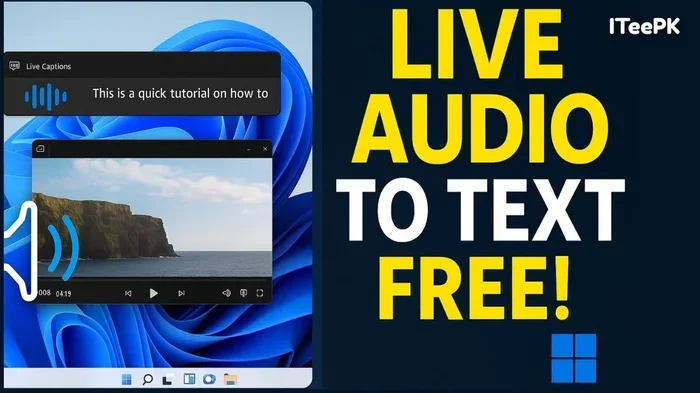
Visual guide about how to transcribe audio to text free windows
Image source: i.ytimg.com
How to open voice typing
On many Windows setups, you can start voice typing in a text box by using the keyboard shortcut for dictation. Once it is active, a small microphone interface appears and begins listening. If the shortcut is not working on your device, check your keyboard settings or search Windows for dictation or voice typing to confirm the feature is available in your version.
Best uses for this method
Voice typing works well when you want to:
- Capture ideas as you speak
- Draft a quick summary from a recording by playing it and repeating key lines
- Create a rough transcript of a short clip by listening and dictating the main points
This method is especially handy when you do not want to install anything. The tradeoff is that it is designed more for live dictation than for processing an audio file automatically. If your goal is to transcribe an existing recording, you may need to play the audio and speak along with it, or use a different tool that can accept a file directly.
Helpful tips for better results
Speak at a steady pace and avoid mumbling. If the system mishears a word, correct it right away so your text stays usable. Punctuation may need to be spoken or added later, depending on the setup. If you are working from a recording, pause often enough to keep up without losing accuracy.
Try Free Browser-Based Transcription Tools
If you want to upload an audio file and get text back without installing software, browser-based tools are a popular choice. Some offer free tiers, free trials, or limited free transcription that may be enough for short clips or occasional use. These tools can be convenient because they run in a browser and often handle the speech-to-text process for you.
What to look for in a free web tool
Not every free tool is equally useful. Before you upload anything, check:
- Whether the free plan has a time or length limit
- What audio formats it accepts
- Whether it can export a plain text file
- How it handles speaker separation, if that matters to you
- Its privacy policy, especially for sensitive recordings
A tool that looks free at first may still restrict export options or limit how much audio you can process. Read the limits carefully so you do not spend time uploading a file only to discover you cannot download the result without paying.
A simple workflow for browser transcription
Here is a straightforward way to use these tools:
- Open the tool in your browser
- Sign in if required
- Upload the audio file or link the recording if the service supports it
- Wait for the transcription to process
- Review the text and correct obvious mistakes
- Copy or export the result into a Windows text editor
This approach is easy, but it depends on the service’s free limits and privacy settings. If the recording contains private or confidential information, it is worth reading the terms before uploading.
When browser tools make sense
Browser-based transcription is a good fit when you want speed and convenience. It can help with short interviews, class recordings, voice memos, and similar files. It may be less ideal for very long recordings, heavy background noise, or situations where you want full control over the local processing.
Use Google Docs Voice Typing as a Free Windows-Friendly Option
Google Docs includes a voice typing feature that works in the Chrome browser. While it is not a file-uploading transcription tool, it can still help you create text from speech on a Windows machine. Many people use it for dictation, and it can also support a manual transcription workflow when you play audio and speak the content into the document.
How to use it
Open a new or existing Google Doc in Chrome, then start voice typing through the tool’s dictation option. When the microphone is active, speak into the document. If you are transcribing from a recording, play the audio on Windows and repeat or summarize the speech as needed. This takes more effort than automated file transcription, but it gives you direct control over the final text.
Why people like this method
Google Docs is familiar, free, and easy to edit. The text is already in a document you can revise, share, or export. For some users, that convenience outweighs the fact that it is not an automatic audio-to-text converter for uploaded files.
Limitations to keep in mind
This method depends on your ability to listen and speak along with the audio. It also depends on microphone quality and internet connectivity. If you need a direct file upload solution, this may not be the best fit. If you simply need a free way to turn speech into editable text on Windows, it can still be very practical.
Consider Open-Source and Local Speech Recognition for More Control
Some free, locally run speech recognition tools can give you more privacy and flexibility than online services. These options are often better for users who want to avoid uploading audio or who like to experiment with different settings. They are not always as polished as commercial tools, but they can be powerful if you are comfortable with a little setup.
When local tools are worth it
Local recognition may be a good choice if:
- You want to keep audio on your own machine
- You are dealing with sensitive recordings
- You want to test different models or configurations
- You are comfortable following installation steps
The tradeoff is that local tools may require more technical effort and may not always match the convenience of a polished web service. Accuracy can also vary depending on the model, language, and audio quality.
A practical approach
If you explore local tools, start with a small test file. Check whether the tool supports your language and audio format. Run a short clip first to see how much cleanup is needed. If the results are usable, you can then try longer recordings. This trial approach saves time and helps you decide whether the setup is worth it for your needs.
Edit the Transcript so It Actually Works for You
Free transcription rarely produces a perfect final draft. Even when the words are mostly right, you may still need to fix punctuation, names, repeated phrases, or speaker labels. A little editing goes a long way toward making the text useful.
Do a first pass for obvious errors
Read through the transcript once and correct the clearest mistakes. Look for repeated words, broken sentences, and words that were clearly misheard. If the tool produced a wall of text, break it into paragraphs so it is easier to read.
Fix names, terminology, and numbers
Automated tools often struggle with proper nouns, technical terms, and numbers. If the recording includes names of people, places, products, or specialized vocabulary, verify them manually. This is especially important for interviews, meetings, and research notes.
Add structure if the tool did not
If the transcript lacks punctuation or paragraph breaks, add them during editing. Clear structure helps you scan the text later. If multiple speakers were involved and the tool did not separate them, you may want to label speakers by hand for clarity.
Keep the original audio nearby
When you are unsure about a line, replay the original recording. It is faster to check a few seconds of audio than to guess. Keeping both the text and the audio open side by side can make editing much smoother on Windows.
Troubleshooting Common Free Transcription Problems
Even with good tools, you may run into predictable issues. Here are some common problems and practical ways to handle them.
The transcript is inaccurate
If accuracy is poor, start with the audio. Lower background noise, reduce overlap, and try a clearer recording if possible. If the tool supports it, check language settings and microphone placement. Sometimes the issue is not the tool but the recording conditions.
The tool will not accept the file
If an upload fails, check the file format, size limit, and browser compatibility. Some free tools only accept certain formats or lengths. Converting the audio to a more common format may solve the problem. If the file is very large, you may need to split it into smaller segments.
The text is hard to read
A raw transcript can feel messy. Add paragraph breaks, fix punctuation, and remove filler if you want a cleaner version. If you only need the main points, consider turning the transcript into a summary instead of trying to preserve every word.
Privacy feels uncertain
If you are using an online service, review what happens to the audio after upload. For sensitive content, a local option or a more carefully chosen service may be a better fit. When in doubt, read the privacy policy and avoid uploading information you would not want stored or processed elsewhere.
The process feels too slow
Manual transcription can be tiring. If you are short on time, focus on the most important sections first. You do not always need a word-for-word record. For many tasks, a clean summary or a partial transcript is enough. Choosing the right level of detail can save a lot of effort.
Choose the Right Free Method for the Job
The best free transcription method depends on what you are trying to do. There is no single winner for every case. Instead, match the tool to the task.
For quick notes and dictation
Windows voice typing or Google Docs voice typing may be enough. These options are simple, free, and easy to use when you are speaking live or working with short audio.
For existing recordings
A browser-based transcription tool or a local speech recognition setup may be more appropriate. These approaches are better suited to uploaded files, longer clips, and recordings you want to convert without repeating everything yourself.
For sensitive content
Local tools or carefully reviewed services may be preferable. If privacy matters, do not assume every free upload-based tool is equally safe for your use case. Check the terms and choose accordingly.
For messy or multi-speaker audio
Expect more editing. Free tools can still help, but you will likely need to clean up speaker changes, overlapping speech, and difficult terminology. If the recording is especially challenging, improving the audio or transcribing only the most important parts may be the smartest move.
A Simple Free Transcription Workflow You Can Reuse
If you want a repeatable process, this one works well for many Windows users:
- Prepare the audio by reducing noise and checking the file format
- Pick the free method that matches your task: dictation, browser upload, or local recognition
- Run the transcription on a short test clip first
- Review and edit the text for accuracy, punctuation, and structure
- Save the final version in a Windows editor or document you can search later
This workflow keeps things manageable. You are not trying to make the transcript perfect in one pass. You are trying to get a usable draft quickly, then refine it only as much as needed.
Final Thoughts on Transcribing Audio to Text for Free on Windows
Learning how to transcribe audio to text for free on Windows is mostly about choosing the right balance of speed, accuracy, and privacy. Built-in dictation tools are great for quick text capture. Browser-based services can handle uploaded files with little setup. Local tools offer more control for users who want it. No matter which path you take, clean audio and a short editing pass will improve the result more than you might expect.
If you only need occasional transcripts, start with the simplest free option and see whether it meets your needs. If you transcribe regularly, test a couple of methods and keep the one that fits your workflow. The goal is not to find a magical perfect tool. The goal is to turn speech into text in a way that saves you time and gives you something you can actually use.