
Featured image for how to turn photo into pdf android
Image source: pdfgear.com
If you need to turn a photo into a PDF on Android, you can do it quickly without buying extra software. This guide walks you through built-in options, trusted apps, and smart scanning habits so your documents look clean and professional. You will also learn how to fix common problems and choose the best method for your situation.
If you have ever needed to send a signed form, store a receipt, or keep a document in a more flexible format, you probably wondered how to turn a photo into a PDF on Android. The good news is that this is a common task, and you usually do not need a complicated setup. In many cases, your phone can already do most of the work.
This guide explains the most practical ways to convert a photo into a PDF on an Android phone. You will learn how to use built-in sharing and printing options, when a free app makes more sense, and how to improve the quality of the final file. The focus is on simple steps you can repeat whenever you need them.
📑 Table of Contents
- What You Should Know Before You Start
- Method 1: Use Your Phone’s Built-in Share or Print Option
- Method 2: Use a Free Document Scanner or PDF App
- Method 3: Combine Several Photos Into One PDF
- Tips for Better Results When Converting a Photo to PDF
- When OCR Can Be Helpful
- How to Handle Common Problems
- Choosing the Right Method for Your Situation
- A Simple Workflow You Can Reuse
- Final Thoughts on Converting Photos to PDFs on Android
What You Should Know Before You Start
Before you convert anything, it helps to understand what kind of result you want. A single photo turned into a PDF is different from several photos combined into one document. A quick snapshot for personal use is also different from a document you plan to submit online or print later.
A few things are worth checking first:
- One photo or many photos: One image may only need a quick conversion. Multiple images may be better handled as a single PDF.
- Text or mainly pictures: If the photo contains printed text, you may want an app that can make the file searchable.
- How you will share the PDF: Email, messaging apps, upload forms, and cloud storage may all have different size or format needs.
- Your phone’s storage space: Large images and PDFs can take up more room than you expect.
If you are only trying to save a photo in a more document-friendly format, the process is usually straightforward. If you need a cleaner, more professional result, a little preparation goes a long way.
Method 1: Use Your Phone’s Built-in Share or Print Option
Many Android phones include a built-in way to turn a photo into a PDF without installing a separate app. The exact steps can vary by phone brand and version, but the general idea is often the same. You open the image, choose a share or print option, and save the result as a PDF.
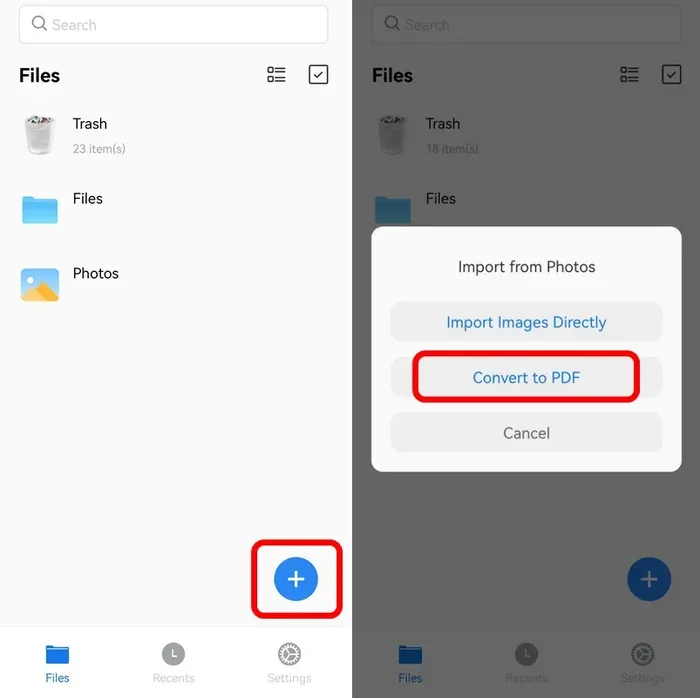
Visual guide about how to turn photo into pdf android
Image source: img.swifdoo.com
Step 1: Open the photo you want to convert
Start in your phone’s gallery or photos app and open the image you want to use. If the photo is part of a longer scroll of images, make sure you have the right one before moving on. A quick check now can save time later.
If the photo includes important details near the edges, zoom in briefly and confirm that nothing important is cut off. This matters more for documents, receipts, and forms than for casual pictures.
Step 2: Look for the share or print menu
Next, tap the share button or the menu option that lets you send or export the image. On some phones, the print option is available through the share menu. On others, you may need to open the image and look for a print icon or a save-as option.
If you see a print option, that is often the easiest path. Even if you do not actually intend to print the file, the print menu frequently gives you the chance to save the image as a PDF.
Step 3: Choose the PDF save option if available
When the print or export screen appears, look for a file format choice or a save option. In many cases, the phone will let you select PDF instead of printing to a physical printer. If that option appears, choose it and then save the file to a location you can find later.
If your phone does not show a PDF option right away, do not assume it is impossible. Some devices hide the feature inside a different menu, and some gallery apps handle it in a slightly different way.
Step 4: Save the file to an easy-to-find folder
Once the PDF is created, save it somewhere obvious. A dedicated documents folder, downloads folder, or a folder you use for scans can make future searches easier. If you plan to convert photos often, consistent storage habits help a lot.
It is also smart to give the file a clear name. A name like “Receipt-2026-02-14” is much easier to find than a generic image name or a long string of random characters.
Method 2: Use a Free Document Scanner or PDF App
If you want more control, a free document scanner or PDF app can be a better fit. These apps are especially helpful when you have multiple photos, need to reorder pages, or want a cleaner result than a simple image export.
A good app can also help with common problems such as tilted images, uneven lighting, and unwanted background edges. Instead of just saving a photo, the app may let you crop, straighten, and combine pages before creating the final PDF.
Step 1: Install a trusted app from a reputable source
Choose an app from a source you trust and read the store listing carefully. Look for an app that clearly describes PDF creation, image-to-PDF conversion, or document scanning. If the app asks for more permissions than it seems to need, pause and review the request before continuing.
It is also worth checking whether the app includes ads, in-app purchases, or limits on the number of files you can create. Many apps are free in a practical sense, but some still place restrictions on larger documents or advanced features.
Step 2: Import the photo or take a new scan
Once the app is ready, you can either import an existing photo or capture a new image directly in the app. If the photo already exists, importing it is usually faster. If you are photographing a document, taking the picture inside the app may give you better guidance on framing and lighting.
For documents, try to place the paper on a flat surface and avoid shadows if possible. A steady hand and a clear view of the edges make the final PDF much easier to read.
Step 3: Adjust cropping, order, and page layout
After the image loads, many apps let you trim the edges, rotate the page, or change the order if you are working with more than one photo. This is useful when a picture was taken at an angle or when the background caught extra clutter.
If you are combining several photos into one PDF, check the page order before saving. A document with pages in the wrong sequence can be frustrating to fix later, especially if you only realize the problem after sending it.
Step 4: Export the result as a PDF
When everything looks right, use the app’s export or save option to create the PDF. Some apps let you choose the destination folder, file name, and sharing method in one step. Others may save the file first and then ask you to share it afterward.
If the app offers quality or compression settings, choose the option that best matches your needs. Higher quality usually means a larger file, while stronger compression can make sharing easier but may reduce clarity.
Method 3: Combine Several Photos Into One PDF
Sometimes the goal is not just to convert one image, but to gather several photos into a single document. That can be useful for multi-page forms, a series of receipts, class notes, or a short report made from pictures.
Step 1: Decide on the page order
Before you start combining files, think about the order you want them to appear in. If the photos are already numbered or arranged in a folder, the process may be simple. If not, it helps to plan the sequence first so you are not guessing later.
A logical order makes the PDF easier to use. For example, a receipt followed by a card payment confirmation may make more sense than the reverse order.
Step 2: Use an app or built-in tool that supports multiple images
Not every conversion method handles multiple photos well. If you need a single PDF from several images, choose a tool that explicitly supports that task. Some gallery sharing options are better for one image at a time, while scanner-style apps are often designed for multi-page documents.
If you are not sure whether a method supports more than one image, test it with two photos first. That is usually faster than trying to discover the limitation after you have already selected ten files.
Step 3: Review the combined document carefully
After the PDF is assembled, scroll through the whole file before sharing it. Check for missing pages, repeated images, upside-down pages, or sections that became blurry during conversion. A quick review can prevent a lot of back-and-forth later.
If something looks off, it is usually easier to rebuild the PDF than to patch it afterward. That may sound tedious, but it is often quicker than trying to explain a mistake after the file has been sent.
Tips for Better Results When Converting a Photo to PDF
The conversion process is simple, but the quality of the result depends a lot on the original photo. A few small habits can make a big difference.
Here are some practical tips:
- Use good lighting: Natural light or a bright, even lamp usually works better than a dim room or a strong shadow across the page.
- Keep the camera steady: Blurry images often produce blurry PDFs, especially when the photo contains small text.
- Fill the frame with the important content: Try to avoid too much empty background around the document or object you want to save.
- Capture text straight on when possible: A skewed angle can make a page look uneven and harder to read.
- Clean the camera lens: A smudged lens can soften the image and reduce sharpness.
- Avoid unnecessary filters: A plain photo is usually better for documents than one with strong color changes or contrast effects.
These tips matter most when the PDF will be printed, uploaded to a form, or shared with someone who needs to read small details. For casual storage, the requirements are usually less strict.
When OCR Can Be Helpful
OCR stands for optical character recognition, and it is a feature that can turn printed text in an image into searchable text inside a PDF. Not every photo-to-PDF task needs this, but it can be very useful when you are working with documents, letters, printed notes, or forms.
If a PDF is searchable, you can usually search for a word or phrase inside it instead of just looking at the image. That can save time when you are trying to find a specific line in a longer document. It may also make the file more useful if you plan to keep it for reference.
If OCR matters to you, look for an app or method that mentions text recognition or searchable PDFs. Keep in mind that OCR results depend on the quality of the original photo. A clear, well-lit image with readable text is much easier to process than a dark or blurry one.
How to Handle Common Problems
Even a simple conversion can run into small issues. Here are some common problems and practical ways to deal with them.
The PDF looks blurry
A blurry result usually starts with a blurry photo. If possible, retake the image with better focus and more light. If the photo is already fixed, try exporting at a higher quality setting if the app allows it.
Also check whether the image was zoomed too far during conversion. Some tools resize the file in ways that reduce sharpness, especially if compression is turned on.
The file size is too large
Photos with high resolution can create larger PDFs than you want, especially when you combine several images. If size matters, look for a compression or quality option and choose a smaller setting. You can also try reducing the number of images or removing pages you do not need.
Before shrinking the file, make sure the result will still be clear enough for its purpose. A smaller PDF is helpful only if it is still readable.
The pages are rotated or upside down
Rotation problems happen often, especially when photos are taken quickly. Many apps let you rotate pages before saving. If your phone’s built-in option does not offer that control, a scanner-style app may be a better choice.
When you review the file, check the first and last pages especially carefully. Those are the pages people often notice first.
Important parts are cut off
If edges are missing, the original photo may have been cropped too tightly or the conversion tool may have trimmed the image automatically. Retake the photo with a little more margin around the document, then crop more precisely afterward if needed.
For documents, it is usually better to capture a slightly larger area and trim it cleanly than to risk losing a corner of the page.
The app asks for more access than you expected
Some apps request access to storage, files, or camera features. That is not always a problem, but it is worth paying attention. If an app’s requests seem excessive for a simple conversion task, consider trying a different option.
Stick to apps that explain their purpose clearly and use permissions that match the task. When in doubt, start with a well-known app and test it with a non-sensitive photo first.
Choosing the Right Method for Your Situation
There is no single best way to turn a photo into a PDF on Android. The right choice depends on what you are trying to do.
If you only need a quick conversion for one image, your phone’s built-in share or print option may be enough. If you want cleaner edges, page control, or multi-page support, a free app is often more convenient. If the document contains printed text and you want to search it later, an app with OCR may be worth considering.
It also helps to think about where the PDF will go after you create it. A file you are keeping for yourself does not need the same level of polish as a document you are submitting to a school, workplace, or online form. Match the method to the task instead of using the same approach for everything.
A Simple Workflow You Can Reuse
If you convert photos to PDFs often, a repeatable workflow can save time. Here is one simple process you can adapt:
- Prepare the photo: Check lighting, focus, and framing before converting.
- Choose the method: Use built-in sharing for speed, or an app for more control.
- Preview the result: Look for blur, rotation, missing edges, and file order.
- Name and store the file clearly: Save it in a folder you can find later.
- Share or upload only after reviewing: A quick final check reduces mistakes.
Once this becomes a habit, the process feels much easier. You spend less time fixing avoidable problems and more time finishing the task.
Final Thoughts on Converting Photos to PDFs on Android
Learning how to turn a photo into a PDF on Android is one of those small skills that comes in handy more often than you might expect. Whether you are saving a receipt, sending a form, or organizing a few pictures into one document, the process does not have to be complicated.
Start with the simplest method that meets your needs. If that works, great. If not, move to an app with more features and test it with a non-critical photo first. With a little practice, you can create clean, usable PDFs without much effort and without needing a complicated setup.