
Featured image for how to laptop wont connect to 5ghz wifi
Image source: i.ytimg.com
If your laptop won’t connect to a 5GHz WiFi network, the issue is often a missing driver, a router band setting, or a compatibility limit on your device. This guide walks you through clear, safe steps to check hardware support, update wireless settings, and restore a stable 5GHz connection. Follow the troubleshooting flow to narrow down the cause and get back online faster.
📑 Table of Contents
- Introduction
- Step 1: Confirm the 5GHz Network Is Actually Available
- Step 2: Check Whether Your Laptop Supports 5GHz WiFi
- Step 3: Update the Wireless Driver and System Software
- Step 4: Review Network Adapter Settings
- Step 5: Test the Connection in the Right Environment
- Step 6: Troubleshoot When the Laptop Still Will Not Connect
- Step 7: Decide When the Real Fix Is Hardware or Router Replacement
- Practical Tips and Examples
- Conclusion
Introduction
When a laptop won’t connect to a 5GHz WiFi network, it can feel frustrating fast, especially if the same router works on 2.4GHz or other devices connect without trouble. The good news is that this problem usually has a practical cause. In many cases, the issue is not a broken laptop at all. It may be a missing driver, a router setting that hides the 5GHz band, or a device that simply does not support that frequency.
This guide explains how to troubleshoot the problem step by step. You will learn how to check whether your laptop can use 5GHz, how to review router settings, how to update wireless drivers, and how to test the connection in a way that makes the real cause easier to spot. The goal is to help you fix the issue without guessing.
If you are trying to solve this problem right now, start with the simplest checks first. Confirm that the router is actually broadcasting a 5GHz network, then verify that your laptop can see and join it. If those basics look fine, move on to drivers, adapter settings, and power management. By the end, you should have a clear idea of what is blocking the connection and what to do next.
A few notes before you begin. 5GHz WiFi is often faster and less crowded than 2.4GHz, but it usually has a shorter range and can be more sensitive to walls, distance, and interference. That means some connection problems are not about settings at all. They are about signal strength or device support. Keep that in mind as you work through the steps below.
Step 1: Confirm the 5GHz Network Is Actually Available
Before changing anything on the laptop, make sure the router is sending out a 5GHz signal and that the network is visible. If the router is not broadcasting the band, or if the 5GHz network has a hidden name, your laptop may never get the chance to connect.
Visual guide about how to laptop wont connect to 5ghz wifi
Image source: i.ytimg.com
Check the router admin page
Log in to the router’s admin interface if you can. The exact address varies, but it is often found on a label on the router or in the router’s documentation. Once you are in, look for wireless settings and confirm that the 5GHz band is enabled. Some routers let you set separate names for the 2.4GHz and 5GHz networks. Others combine them under one name and let devices choose the band automatically.
If the 5GHz band is turned off, enable it. If it is already on, confirm that the network name and password are what you expect. A mistyped password or a changed network name can make a working network look broken.
Look for band separation or smart connect settings
Some routers use a feature that decides which band a device should use. That can be helpful, but it can also confuse troubleshooting. If your laptop keeps connecting to 2.4GHz even when 5GHz is available, try separating the bands temporarily. Give the 5GHz network a distinct name, then connect the laptop to that exact network. This makes it easier to tell whether the laptop is refusing 5GHz or simply choosing the other band.
Verify other devices can use 5GHz
If possible, test another device that you know supports 5GHz, such as a newer phone or tablet. If that device also cannot see or join the 5GHz network, the problem may be the router rather than the laptop. That is a useful clue because it changes where you should focus your effort.
Step 2: Check Whether Your Laptop Supports 5GHz WiFi
This step matters more than many people realize. A laptop cannot connect to a 5GHz network if its wireless hardware does not support that frequency. Older adapters, some budget devices, and certain older laptops may only work on 2.4GHz.
Find your wireless adapter details
On Windows, open Device Manager and expand the network adapters section. Look for the wireless adapter listed there. The name often includes useful clues, such as the manufacturer and model family. If you can identify the exact adapter, you can check its specifications more accurately.
On other systems, the process is different, but the idea is the same. Find the wireless adapter, note its name, and compare it with the device’s official specifications. If the specifications say the adapter supports 5GHz, then the hardware is likely capable. If they do not, the laptop may be limited to 2.4GHz.
Review the laptop’s documented specs
If you are unsure about the adapter, check the laptop’s official product page or manual. Look for WiFi specifications that mention dual-band support or 5GHz capability. A laptop that lists only 2.4GHz WiFi is unlikely to connect to a 5GHz network, even if everything else is configured correctly.
Understand the difference between support and visibility
Even when a laptop supports 5GHz, it may not always show the network right away. Distance, interference, outdated drivers, and router settings can all affect visibility. That is why this step is about capability, not final diagnosis. If the laptop truly does not support 5GHz, no amount of settings changes will create that ability. In that case, the practical fix may be a USB WiFi adapter that supports the band you want.
Step 3: Update the Wireless Driver and System Software
Outdated or corrupted wireless drivers are a common reason a laptop struggles with WiFi in general, and 5GHz in particular. A driver is the software that lets the operating system talk to the wireless adapter. If it is old, missing, or damaged, the adapter may not behave correctly.
Update the driver through the device manager
In Device Manager, right-click the wireless adapter and choose the update option. Let the system search for a driver. If a newer driver is available through the operating system, install it and then restart the laptop. A restart helps the new driver load cleanly.
Get the driver from the manufacturer when possible
If the built-in update does not help, visit the laptop manufacturer’s support page or the adapter manufacturer’s site. Download the driver that matches your exact model and operating system. Installing the manufacturer’s driver can be especially useful if the generic driver lacks full feature support.
Update router firmware if relevant
While you are troubleshooting, it is also worth checking whether the router has firmware updates available. Router firmware is not the same as a laptop driver, but an outdated router can still create connection problems. If the router’s update process is available and you are comfortable using it, install updates according to the manufacturer’s instructions.
Avoid random driver downloads
Use official support pages or trusted system tools whenever possible. Downloading drivers from unknown sites can create more problems than it solves. If you are not sure which file is correct, compare the file name, version, and model information carefully before installing anything.
Step 4: Review Network Adapter Settings
Sometimes the adapter is fine, but one of its settings is getting in the way. Wireless adapters have options that can affect performance, power use, and how they handle different networks.
Open the adapter properties
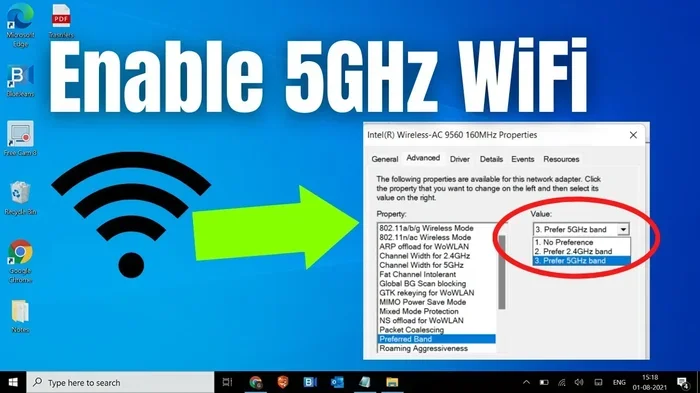
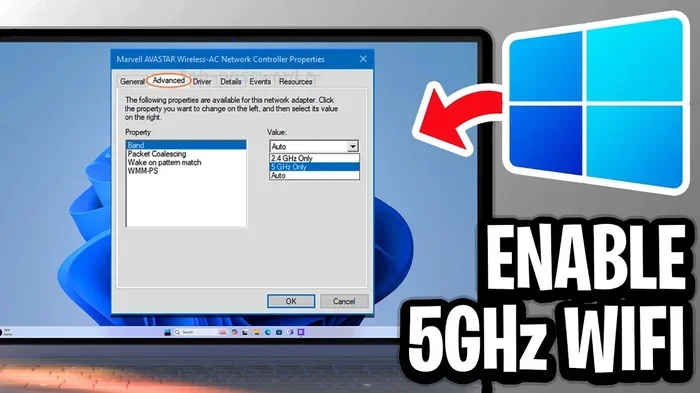
In the network adapter settings, open the properties for your wireless adapter. You should see several tabs or advanced options depending on the system. Look for settings related to wireless mode, preferred band, roaming, throughput, or power management.
Check band and wireless mode options
Some adapters include a preferred band setting. If it is set to favor 2.4GHz, the laptop may ignore 5GHz even when it is available. If there is an option to prefer 5GHz or to set a specific wireless mode, try adjusting it carefully. After changing a setting, test the connection again before making more changes.
Review power management settings
Power saving features can sometimes interrupt WiFi activity. If the adapter is allowed to turn off to save power, it may cause connection drops or make the network harder to join. If you see a power management option, try disabling the setting that allows the device to shut off the adapter to save power, then test again.
Reset network settings if needed
If the laptop has been tinkered with a lot, or if previous fixes did not work, resetting the network settings can help. This clears out stale configurations and can remove conflicting preferences. After a reset, reconnect to the 5GHz network and check whether the problem remains.
Step 5: Test the Connection in the Right Environment
5GHz signals are more sensitive to distance and obstacles than 2.4GHz signals. A laptop may be perfectly capable of using 5GHz, but still fail to connect if the signal is too weak or too unstable at the current location.
Move closer to the router
For testing, place the laptop closer to the router than usual. If the connection works better nearby, the issue may be range rather than configuration. That is useful because it tells you the laptop is likely fine and the problem is signal quality.
Reduce interference during the test
Other electronics, thick walls, and crowded signal environments can all affect 5GHz performance. Try testing in a room with fewer obstacles and fewer active devices if possible. If the laptop connects more reliably in one spot, you have a strong clue about the cause.
Try a clean network profile
If the laptop has tried and failed many times, the saved network profile may be causing trouble. Remove the network from the saved list if your system allows it, then reconnect from scratch. Enter the password carefully and see whether the laptop joins the 5GHz network cleanly.
Watch for frequency confusion
If the router uses the same name for both bands, the laptop may connect to 2.4GHz without making the choice obvious. If you want to be sure you are testing 5GHz, use a separate network name for the 5GHz band during troubleshooting. That removes guesswork and helps you confirm what is actually happening.
Step 6: Troubleshoot When the Laptop Still Will Not Connect
If the basics are covered and the laptop still will not connect, work through the remaining possibilities in a calm, orderly way. The goal is to narrow the problem, not to change ten settings at once.
Confirm the password and security type
A wrong password is an obvious issue, but it is worth checking because it can look like a band problem. Also make sure the security settings on the router and laptop are compatible. If the router uses an older security setup or an unusual configuration, some devices may have trouble joining.
Restart the router and laptop
Restart both devices. It is simple, but it clears temporary glitches and gives both sides a fresh start. After the restart, try connecting again. If the issue was a temporary state problem, this may be enough.
Disable and re-enable the wireless adapter
Turning the wireless adapter off and back on can force the system to re-scan for networks. This is a small step, but it can help if the adapter is stuck or not refreshing its network list properly.
Test with a different network
If possible, try connecting the laptop to another 5GHz network, such as a mobile hotspot that supports 5GHz. If the laptop connects elsewhere, the issue is likely with the original router or its configuration. If it fails on multiple 5GHz networks, the laptop side is more likely to be the cause.
Check for system updates
Operating system updates sometimes include networking improvements or compatibility fixes. If the laptop is overdue for updates, install them and then test the connection again.
Step 7: Decide When the Real Fix Is Hardware or Router Replacement
Not every problem can be solved with settings. Sometimes the laptop’s wireless adapter simply does not support 5GHz, or the router has a hardware issue that prevents the band from working properly.
Consider a compatible USB WiFi adapter
If the laptop lacks 5GHz support, a USB WiFi adapter that supports the band you want can be a practical workaround. This is often easier than replacing the whole laptop. Just make sure the adapter is compatible with your system and actually supports 5GHz according to its documentation.
Evaluate the router’s health
If multiple devices cannot use 5GHz and the router settings look correct, the router itself may be the issue. In that case, a reset, update, or replacement may be the next logical step. A router that repeatedly fails on one band is not always a laptop problem.
Weigh convenience against cost
Before buying new hardware, think about what you actually need. If 2.4GHz works well enough for your everyday use, you may not need to force 5GHz everywhere. If you need faster speeds or less interference, then upgrading the adapter or router may be worth it. Match the solution to the real use case.
Practical Tips and Examples
Here are a few practical habits that make 5GHz troubleshooting easier.
- Separate the bands during testing. A distinct 5GHz network name makes it much easier to tell what the laptop is actually doing.
- Change one thing at a time. If you adjust the driver, the router, and the adapter settings all at once, you will not know which change mattered.
- Keep notes on what you tried. A short list of steps and results can save time if you need to repeat the process or ask for help.
- Test at close range first. If 5GHz works near the router but not across the room, you may have a range or interference issue rather than a settings issue.
- Use official driver sources. The safest path is usually the laptop maker’s support page or the system’s own update tools.
For example, imagine a laptop that sees the 2.4GHz network but never lists the 5GHz one. In that case, the first checks should be router band settings and laptop support. If the router is broadcasting 5GHz and the laptop truly supports it, the next likely culprits are drivers and adapter settings. On the other hand, if the laptop connects to 5GHz when placed next to the router but drops the connection across the room, the issue may be signal strength rather than configuration.
Conclusion
When a laptop won’t connect to a 5GHz WiFi network, the cause is usually something specific and fixable. Start by confirming that the router is broadcasting 5GHz and that the laptop can actually use that band. Then update the wireless driver, review adapter settings, and test the connection in a clean environment. If the laptop works on other 5GHz networks but not yours, focus on the router. If it fails everywhere, focus on the laptop’s hardware and software.
The best approach is patient and systematic. 5GHz WiFi can be a great way to get faster speeds and less congestion, but it also depends on compatible hardware, good signal quality, and correct settings. Once you know which part of that chain is failing, the fix becomes much easier to choose.
If you have worked through these steps and still cannot connect, decide whether the issue is worth a hardware upgrade or professional help. In some cases, a supported USB adapter or a better router is the simplest path forward. In others, a careful reset and driver update is all that is needed.