
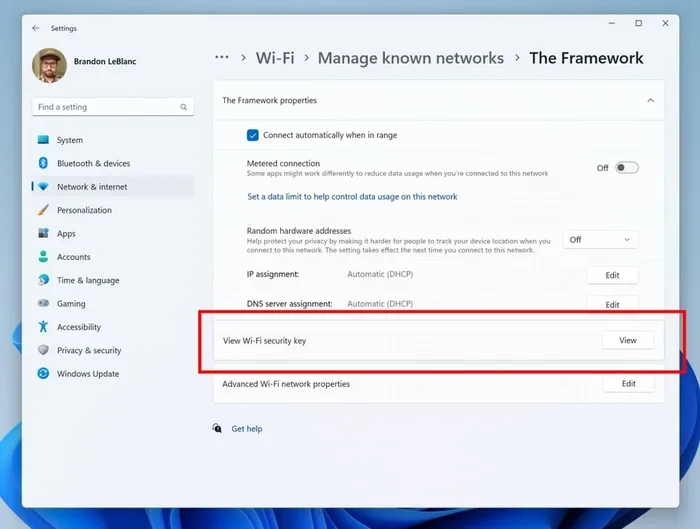
Featured image for how to find saved wifi password windows 11
Image source: ghacks.net
If you need to find saved WiFi passwords on Windows 11, you can do it quickly using built-in tools without third-party software. This guide walks you through the easiest methods, including Settings, Command Prompt, and PowerShell, so you can retrieve passwords for networks you have previously connected to. Whether you are helping a friend join your network or reconnecting a new device, these steps will save you time.
📑 Table of Contents
- Introduction
- What You Should Know Before You Start
- Method 1: Find Saved WiFi Passwords Through Windows Settings
- Method 2: Use Command Prompt to Reveal Saved Passwords
- Method 3: Use PowerShell for a Flexible Approach
- Which Method Should You Use
- Tips for Handling Saved WiFi Passwords Safely
- Troubleshooting Common Issues
- When You Cannot Recover the Password
- Final Thoughts
Introduction
Have you ever needed to reconnect a tablet, phone, or new laptop, but the WiFi password is buried in a router label that has faded or vanished? You are not alone. Many people set up a network once, save the password on one device, and then lose track of it when another device needs access. The good news is that if your Windows 11 computer has already joined that network, the password is likely stored on the system in a way you can retrieve it.
In this guide, you will learn how to find saved WiFi passwords on Windows 11 fast using methods that are built into the operating system. You do not need special software, and you do not need to guess whether a tool is safe. We will start with the easiest graphical option, then move to command-line methods for users who want speed or need to check several networks at once.
This article is written for everyday users, but it also includes details that are useful if you are comfortable with Command Prompt or PowerShell. You will see where to click, what commands to run, and how to interpret the results. If something does not look right on your device, the troubleshooting section should help you figure out the next step.
Before we begin, keep one important point in mind: you can generally only recover passwords for networks your computer has already connected to and saved. If a network has never been joined from this device, Windows will not have its credentials stored in the same way. That limitation is normal, and it is part of how operating systems protect saved credentials.
What You Should Know Before You Start
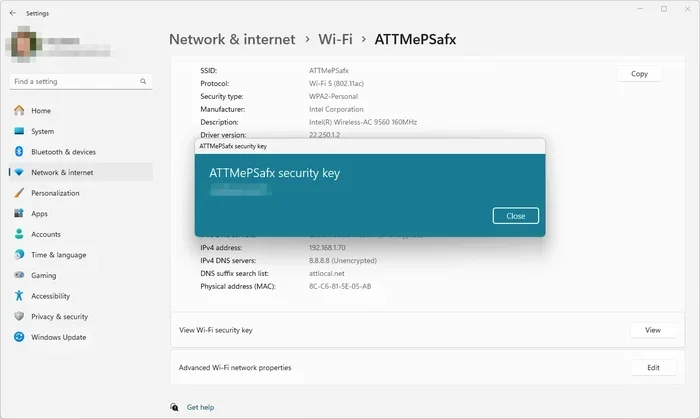
Visual guide about how to find saved wifi password windows 11
Image source: lifewire.com
Windows stores WiFi credentials in a protected area of the system. That means retrieval is usually possible, but it is also tied to your user permissions and the specific network profile. In many cases, the process is quick. In others, you may need administrator access or a different method if the interface does not display the password directly.
If you are doing this on your own computer, you are usually fine. If you are helping someone else, make sure you have permission to access their device and their saved network information. Accessing credentials on a device you do not own or manage can raise privacy and security concerns, even if the technical steps are simple.
It also helps to know that different methods may show slightly different details. One method may display the network name and password clearly. Another may show additional profile information. The underlying goal is the same: recover the password you need without making unnecessary changes to the system.
If you are preparing to share the password with another person or device, write it down carefully. WiFi passwords are case-sensitive, and a single mistyped character can keep a device from joining the network. If the password looks long or complex, copy it exactly as it appears.
Method 1: Find Saved WiFi Passwords Through Windows Settings
The easiest way to retrieve a saved password is through the Settings app. This method is ideal if you only need one password and you prefer clicking through menus instead of using commands.
Open the WiFi Settings Page
Start by opening Settings. You can do this by selecting the Start button and choosing Settings, or by using the keyboard shortcut if you prefer. Once Settings opens, look for the network-related options. On most Windows 11 setups, WiFi settings are found under Network & internet.
Select WiFi from the left pane or main list, depending on your view. Then find the section that shows known networks or current connection details. The exact wording can vary slightly by version, but the general path stays familiar.
Find the Saved Network You Want
Look for the network name, also called the SSID, that you want the password for. If you are currently connected, that network is usually easy to identify. If you need a password for a network you have used before but are not connected to now, check the list of previously used networks if your system displays it.
Select the network to open its details. Windows may show connection status, security type, and other profile information. This is the point where many users can view the saved password directly.
Show the Password
In many cases, there is an option to reveal the password. This may appear as a button, a toggle, or a field that shows the characters after you confirm your permission. If the system asks for permission, it is usually checking that you are allowed to view stored credentials.
Once the password is visible, copy it or write it down exactly. If you plan to share it, double-check the characters before sending it. A small typing error can cause connection problems later.
Method 2: Use Command Prompt to Reveal Saved Passwords
Command Prompt is a faster option if you are comfortable with a few basic commands. It can also be helpful when you want to check several saved networks without navigating through menus.
Open Command Prompt With the Right Permissions
Search for Command Prompt in the Start menu. Before running the command, make sure you open it with administrator privileges if needed. Some systems require elevated permissions to display stored WiFi credentials.
If you are unsure whether you need administrator access, try opening it normally first. If the command does not return the expected result, close it and reopen Command Prompt as an administrator.
Run the Command to List Saved Networks
Use the command that displays WiFi profiles. This command asks Windows to show the names of networks your computer has saved. Review the list and identify the exact network name you need.
Seeing the correct network name matters because the next step requires you to specify it precisely. If the name includes spaces or special characters, type it exactly as it appears.
Display the Password for the Selected Network
Once you know the network name, run the command that reveals the key. This command asks Windows to show the password associated with that saved profile. After you enter it correctly, the password should appear in the results.
If the command returns an error, check the spelling of the network name and confirm that the profile exists on the system. Also make sure you used the correct command syntax. Small mistakes in quotation marks or spacing can prevent the command from working.
Method 3: Use PowerShell for a Flexible Approach
PowerShell is another built-in option that can be useful if you prefer a scripting approach or want to work with saved network details in a more structured way. The exact commands can vary depending on your system and the version of PowerShell you are using, so it is best to treat this as a flexible method rather than a single fixed recipe.
Open PowerShell Appropriately
Search for PowerShell in the Start menu. As with Command Prompt, you may need to run it with administrator rights depending on your device and the commands you plan to use. Open it in the way that gives you the access you need.
Query the Saved WiFi Profile
PowerShell can be used to retrieve details about saved network profiles. Depending on the approach, you may be able to view the network name, authentication type, and the stored password. If you are retrieving a single network, focus on the exact profile name.
If you want to check multiple networks, you can adapt the command to list more than one profile. This can save time if you are managing several devices or documenting a home or office network.
Read the Output Carefully
When the command returns results, check that the network name matches the one you intended. Then locate the password field in the output. Because saved credentials are sensitive, handle the result carefully and avoid leaving it visible on screen longer than necessary.
If the output is confusing, compare it with the network name and security type. Sometimes the relevant information is displayed in a structured format, and reading it carefully helps you avoid copying the wrong value.
Which Method Should You Use
If you only need one password and want the simplest experience, start with Settings. It is the most visual method and usually the easiest for beginners. If you are comfortable with commands, Command Prompt is often faster, especially when you already know the network name. PowerShell is a good choice if you want more flexibility or plan to work with multiple profiles.
A practical rule is to choose the method that matches your comfort level and the task at hand. There is no need to use all three methods every time. Pick one, verify the password, and move on.
Tips for Handling Saved WiFi Passwords Safely
Once you retrieve a password, treat it like any other sensitive credential. Avoid posting it in chats, emails, or public notes unless you are sharing it securely with the intended recipient. If you write it down, store the note somewhere safe.
It is also smart to keep your computer protected. A locked screen, a secure account password, and updated system settings all help reduce the risk of unauthorized access. If someone can log into your device, they may be able to view saved network information, so device security matters as much as the password itself.
If you are setting up a guest network or sharing access with visitors, consider whether a temporary password or separate guest network is a better fit. That can make it easier to control access without sharing your main credentials indefinitely.
Troubleshooting Common Issues
Sometimes the password does not appear right away, or the command returns an unexpected message. Here are a few common issues and what to try next.
The Password Is Not Showing in Settings
If the reveal option is missing or the field stays blank, make sure you are looking at the correct network profile. Some versions of Windows may not display the password for every network in the same way. If that happens, try the Command Prompt method instead.
The Command Returns an Error
Check the network name carefully. If the name is wrong, even by one character, the command may fail. Also confirm that you opened Command Prompt with the necessary permissions. If the command still fails, the profile may not be stored on the device in the expected way.
The Network Does Not Appear in the List
If the network is not listed, your computer may not have saved it. That can happen if you connected only briefly, if the profile was removed, or if the device never stored the credentials. In that case, you may need the password from the router, the network administrator, or another device that has it stored.
You Are Using a Work or Managed Device
On some managed devices, access to saved credentials may be restricted. If that is the case, you may not be able to view the password through standard methods. If so, check with the device owner or IT support before trying further steps.
When You Cannot Recover the Password
If none of the built-in methods work, the password may not be stored on that device. In that situation, the most reliable options are to check the router label, log into the router’s admin interface if you have access, or ask the person who manages the network. You can also check another device that has successfully joined the same network, if one is available.
This is not a failure of the process so much as a limitation of what the device can show. Windows can only reveal what it has saved. If the credentials are not there, you will need to get them from another source.
Final Thoughts
Learning how to find saved WiFi passwords on Windows 11 fast can save you a lot of frustration when you are adding a new device or helping someone connect. The built-in methods are practical, and you can usually complete the task without installing anything extra. Start with Settings if you want the simplest route, and use Command Prompt or PowerShell when you need speed or more control.
Just remember to handle the password carefully once you retrieve it. Verify the characters, share it only with the intended recipient, and keep your device secure. With those basics in mind, you should be able to recover saved WiFi passwords quickly whenever the need comes up.