
Featured image for how to stop chrome opening on startup windows 11
Image source: shareus.com
If Google Chrome opens automatically every time you turn on your computer, it can slow down your system and feel frustrating. This guide shows you how to stop Chrome from opening on startup in Windows 11 using simple, reliable methods that anyone can follow. You will also learn how to manage other startup apps and keep your PC running smoothly.
If you turn on your computer and Google Chrome appears before you even ask for it, you are not alone. Many Windows 11 users notice their browser launching automatically, and that can feel annoying when you want a clean, quiet startup. More importantly, it can also slow down your system, especially if several other programs are doing the same thing.
In this guide, you will learn how to stop Chrome from opening on startup in Windows 11 using straightforward steps that do not require advanced technical skills. We will walk through the most common causes, show you where startup settings live, and explain what to do if Chrome keeps coming back. By the end, you should have a faster, more predictable startup routine and better control over which apps open on their own.
📑 Table of Contents
- Why Chrome May Open Automatically on Windows 11
- How to Check Which Startup Apps Are Active
- How to Disable Chrome in Task Manager
- How to Remove Chrome From the Startup Folder
- How to Adjust Chrome Settings That May Trigger Auto-Launch
- How to Use Windows Settings to Manage Startup Behavior
- What to Do If Chrome Still Opens After You Disable It
- Helpful Tips for a Cleaner Windows 11 Startup
- Common Mistakes to Avoid
- When Chrome Auto-Launch Might Actually Be Useful
- Conclusion
Why Chrome May Open Automatically on Windows 11
Before you remove the behavior, it helps to understand why it happens. Chrome is not always launching because Windows itself decided to open it. Often, something else created a startup entry, a shortcut, or a background setting that tells Windows to launch the browser when you log in.
Here are the most common reasons:
- A startup entry was created: Some programs add Chrome to the list of apps that open when you sign in.
- A shortcut sits in the startup folder: If a Chrome shortcut was placed there, Windows may launch it automatically.
- Chrome background settings are enabled: Even if the window does not open, Chrome may continue running in the background and reopen quickly.
- A third-party app or extension triggered it: Certain tools, sync features, or automation utilities can cause Chrome to start with Windows.
- Malware or unwanted software is involved: Less commonly, rogue software can force a browser to launch at startup.
The good news is that most of these causes are easy to check and fix. You do not need to guess. You can inspect the startup list, look for shortcuts, and adjust Chrome settings in a logical order.
How to Check Which Startup Apps Are Active
The first step is to see whether Chrome is actually listed as a startup app. Windows 11 makes this fairly simple, and Task Manager is one of the best places to look.

Visual guide about how to stop chrome opening on startup windows 11
Image source: isunshare.com
Open Task Manager
To begin, press Ctrl + Shift + Esc on your keyboard. That opens Task Manager directly. If that does not work for some reason, you can also right-click the taskbar and choose Task Manager from the menu.
When Task Manager appears, you may see a compact view first. If so, look for a button or option that expands the window into more detailed mode. You want the full interface, not the minimal one.
Find the Startup List
Once Task Manager is open, look for the Startup apps section. On many Windows 11 setups, this appears as a tab or category on the left or top of the window. If you do not see it immediately, click through the available tabs until you find the list of programs that can launch when you log in.
This list usually shows:
- The app name
- The publisher
- Whether it is enabled or disabled
- Its impact on startup performance
If Chrome appears here, that is a strong clue. It means something has registered Chrome as a startup program. You may not need to dig further before disabling it.
Check the Status Carefully
Do not assume every app in the list is guilty. Some startup entries are useful, especially if you rely on certain tools immediately after logging in. The goal is not to disable everything. The goal is to disable what you do not want.
If you see Chrome, note whether it is enabled. If it is enabled, that is likely part of the problem. If it is already disabled and Chrome still opens on startup, the cause may be a shortcut, a background setting, or another automation tool.
How to Disable Chrome in Task Manager
If Chrome is listed in your startup apps, the fastest fix is often to disable it right there. This is a clean, built-in method, and it usually takes only a minute.
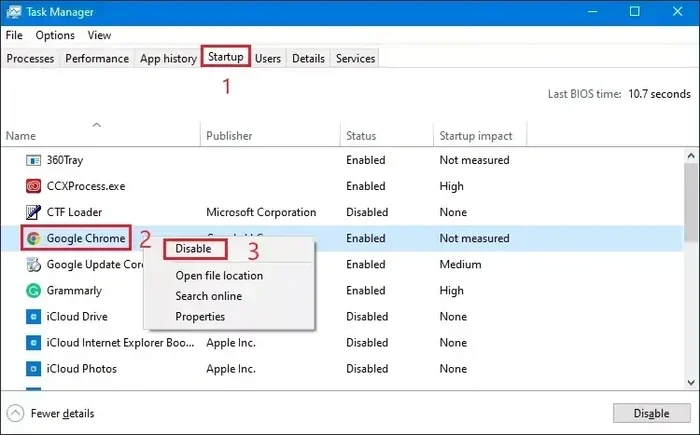
Select Chrome in the Startup List
Find Google Chrome in the startup list and click it once so it is highlighted. Make sure you are selecting the correct entry. If you see multiple Chrome-related entries, pay attention to the names and publisher details.
Disable the Entry
With Chrome selected, choose the Disable option. In many versions of Windows 11, this button appears near the top of the Task Manager window or in a right-click menu. Once you disable the entry, Chrome should no longer launch automatically from that startup registration.
A disabled entry does not remove Chrome from your computer. It simply tells Windows not to start it automatically when you sign in. That is usually exactly what you want.
Restart and Confirm the Change
After disabling the entry, restart your computer and watch what happens. If Chrome no longer opens on its own, you have likely solved the issue. If it still opens, move on to the next checks, because another mechanism may be involved.
How to Remove Chrome From the Startup Folder
Sometimes Chrome opens automatically not because of Task Manager, but because a shortcut lives in the Windows startup folder. That folder is a special location where Windows looks for programs to launch when a user logs in.
Open the Startup Folder
You can reach it quickly by pressing Windows Key + R, typing shell:startup, and pressing Enter. This opens the current user’s startup folder. If you want to check for all users, there is also a system-level startup location, but the user folder is the best place to begin.
Look for Chrome Shortcuts
Inside the folder, look for any shortcuts or files related to Chrome. A shortcut may be labeled Google Chrome or something similar. If you find one, that could explain the automatic launch.
If you are unsure whether a file belongs to Chrome, do not delete it blindly. Check the name, the icon, and the target path if available. A shortcut often points to the Chrome executable.
Delete or Move the Shortcut
If you confirm the shortcut is for Chrome and you do not want Chrome to launch at startup, you can delete it from the startup folder. Deleting the shortcut here does not remove Chrome from your system. It only removes the automatic launch instruction.
After removing it, restart your computer and see whether Chrome still opens by itself. If the shortcut was the cause, the behavior should stop.
How to Adjust Chrome Settings That May Trigger Auto-Launch
Sometimes the issue is not a Windows startup entry at all. Chrome has its own settings that can make it feel like it is opening automatically, especially if background processes remain active or if the browser is set to reopen previous pages.
Check Background App Settings
Open Chrome and go to its settings. Look for options related to background activity or continuing to run after the browser is closed. If Chrome is allowed to keep running in the background, it may reopen faster or appear more often than you expect.
If you do not need background running, turning that option off can help reduce unwanted behavior. This is especially useful if you want Chrome fully closed when you exit it.
Review On-Startup Settings
Chrome also includes settings that control what happens when it opens. While these settings usually affect the browser itself rather than Windows startup, they can still matter if something is launching Chrome and you want to control what it does next.
For example, Chrome may be set to reopen the previous session. If that is combined with an auto-launch trigger, it can feel like Chrome is forcing itself into your workflow every time you log in.
Sign Out of Unneeded Sync or Extensions
Some users experience extra automation because of extensions, cloud sync, or connected tools. If an extension or external service is designed to launch Chrome for a specific purpose, it may create the impression that Chrome is starting on its own.
If you suspect this, review your extensions and remove any you do not recognize or no longer use. Also check whether any external apps on your PC are tied to Chrome launching for notifications, updates, or background tasks.
How to Use Windows Settings to Manage Startup Behavior
Task Manager is usually the fastest tool, but Windows Settings also gives you another way to review startup behavior. Some users prefer the Settings interface because it feels more guided.
Open Settings
Press the Windows Key, type Settings, and open the app. Then look for the Apps section. Startup options are often grouped there in Windows 11.
Find Startup Options
Inside the Apps area, look for a Startup page or list. You should see a set of apps that can open when you sign in. If Chrome appears there, you can turn it off from this interface as well.
This method is useful if you want a more visual overview. It also helps if you want to review several apps at once instead of checking them one by one in Task Manager.
Turn Off Unneeded Apps
If you find Chrome listed here, switch it off. While you are there, you may also notice other apps you do not need at startup. Disabling a few unnecessary entries can make your computer feel noticeably quicker when you log in.
Remember that the aim is control, not deletion. You are deciding what starts automatically, not removing programs you might still use later.
What to Do If Chrome Still Opens After You Disable It
Sometimes the first fix is not enough. If Chrome keeps opening on startup after you disable it in Task Manager and remove any startup shortcuts, do not assume the problem is unsolvable. It usually means there is another trigger somewhere.
Recheck the Startup List
Go back to Task Manager and the Settings startup list. Look again for Chrome or Chrome-related entries. Sometimes an app creates more than one registration, or a new entry appears after a Windows update or software change.
Look for Scheduled Tasks
Windows includes a task scheduler that can launch programs automatically at certain times or events. If Chrome is being started by a scheduled task, disabling startup entries alone may not solve it.
You can open Task Scheduler and browse through the task list if you are comfortable doing so. Look for tasks that mention Chrome, browser launch, or related actions. If you find one that should not be there, you can disable or remove it.
Check for Unwanted Software
If the behavior seems persistent and strange, run a scan with a trusted security tool. Unwanted programs can sometimes create auto-launch behavior without your permission. A scan helps rule out a more serious cause.
If you are unsure which tool to use, choose one from a reputable vendor or the built-in Windows security tools already on your system. The important part is to check, not to guess.
Review Recent Installs
Think about whether the issue started after a new program was installed. Some apps request browser integration or ask to launch Chrome for setup, login, or notifications. If that is the case, the solution may be to change that program’s settings or uninstall it if you no longer need it.
Helpful Tips for a Cleaner Windows 11 Startup
Stopping Chrome from opening on startup is a good first step, but a few broader habits can make your system easier to manage over time.
- Review startup apps occasionally: Apps can re-enable themselves after updates or new installations.
- Keep only essential apps at startup: This reduces boot time and makes your login experience calmer.
- Close Chrome fully when you are done: If you do not want it lingering, make sure it is not set to remain active in the background.
- Watch for shortcuts in special folders: Startup folders are a common place for hidden auto-launch behavior.
- Check extensions and connected apps: Browser-related automation often comes from an extension or external utility rather than Windows itself.
A little regular maintenance goes a long way. You do not need to micromanage every setting every day. A periodic check is usually enough.
Common Mistakes to Avoid
When people try to fix auto-launch behavior, they sometimes make the process harder than it needs to be. Here are a few mistakes worth avoiding.
Disabling Everything Blindly
It can be tempting to turn off every startup app at once. That may seem efficient, but it can also disable useful tools you rely on. A better approach is to review each entry and decide based on what you actually use.
Deleting Files Without Checking
If you see a file named Chrome in a folder, do not rush to delete it. Make sure it is a shortcut or startup entry, not a core component you might need. When in doubt, inspect it first.
Assuming One Fix Will Always Work
Different computers behave differently. On one PC, disabling a Task Manager entry may be enough. On another, the cause may be a startup folder shortcut or a scheduled task. If the first method does not work, keep checking calmly.
Ignoring Background Settings
Even if Chrome’s window does not appear at login, background processes can still make the browser feel present. If your real goal is to stop Chrome from running automatically in any form, check both Windows startup settings and Chrome’s own background options.
When Chrome Auto-Launch Might Actually Be Useful
Not every automatic startup is a problem. In some cases, users want Chrome to open quickly because they depend on it for work, email, calendar access, or a specific web-based tool. If that describes you, then the goal is not necessarily to stop Chrome entirely, but to control when and how it starts.
For example, you might want:
- Fast access to a daily dashboard
- A browser that reopens your most-used pages
- A specific web app ready immediately after login
If that is your situation, you can keep Chrome available while still removing unnecessary startup clutter. The key is intention. You should decide what starts automatically instead of letting it happen by default.
Conclusion
Learning how to stop Chrome from opening on startup in Windows 11 is mostly about checking the right places in the right order. Start with Task Manager, then look at the startup folder, then review Chrome’s own settings, and finally investigate scheduled tasks or unwanted software if the issue persists.
Once you know where to look, the process becomes much less frustrating. You gain faster boot times, fewer surprises when you log in, and better control over your browser. That is usually exactly what most people want from a cleaner startup routine.
If Chrome still opens after your first attempt, do not panic. Follow the checks again, one step at a time. In most cases, the cause is one of a few common startup mechanisms, and the fix is simply a matter of finding which one is active on your system.