
Featured image for how to windows 11 search not working fix
Image source: lifewire.com
When the search bar stops responding, your workflow slows down quickly. This guide shows you how to restore functionality without calling tech support. Follow these steps to fix Windows 11 search not working issues today.
📑 Table of Contents
Introduction
Finding files fast is a key part of using your computer. When the search bar stops working, it feels frustrating. You might try to find a document or an app. Nothing happens. The cursor spins. The screen stays blank. This problem is common. Many users face this issue after an update. Sometimes a setting changes by accident. Other times a file gets corrupted. You do not need to be a tech expert to solve this. There are several ways to restore function. We will walk through each method. You can try them in order. Most fixes take only a few minutes. Let us get your system running smoothly again.
Restart Your Computer
The first step is often the best one. A restart clears the memory. It stops stuck processes. Many glitches vanish after a reboot. You should save your work first. Then shut down the machine. Wait for a few seconds. Turn it back on. Try the search bar again. If it works, you are done. If not, move to the next step. This step costs nothing. It takes little time. It is worth the effort.
Visual guide about how to windows 11 search not working fix
Image source: lifewire.com
Check Windows Search Service
Services run in the background. They keep features working. The search function needs a specific service. If it stops, search breaks. You can check this easily.
Open Services Menu
Press the start button. Type services.msc. Hit enter. A list will appear. Look for Windows Search. Click on it.
Start the Service
Check the status. If it says stopped, click start. If it is running, try restarting it. Click the restart button. Close the window. Test the search bar. This often fixes the issue.
Run the Troubleshooter
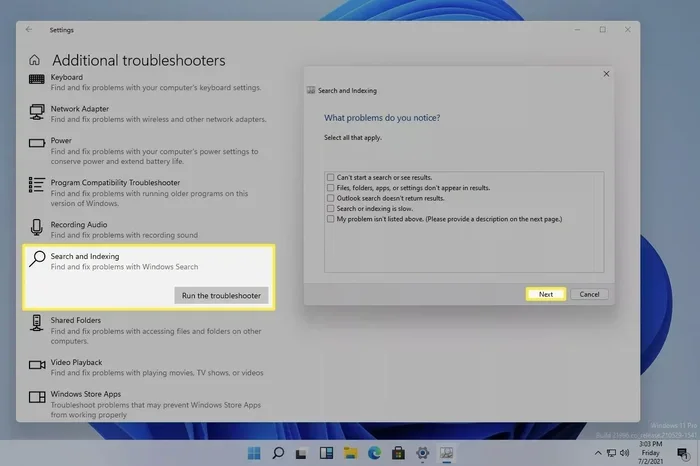
Windows has built-in tools. They find problems automatically. The troubleshooter scans for errors. It suggests fixes. You do not need to guess.
Access Settings
Go to the start menu. Select settings. Look for system. Find troubleshoot options.
Run the Tool
Click on other troubleshooters. Find search and indexing. Run the tool. Follow the prompts. Let it finish. It may apply fixes automatically. Check if search works now.
Update Windows System
Updates bring new features. They also fix bugs. An old version might have errors. Microsoft releases patches often. You should install them.
Check for Updates
Open settings again. Go to windows update. Click check for updates. Download any available files.
Install and Reboot
Install the updates. This may take time. Your computer might restart. After it loads, test search. Many users find this solves the problem.
Rebuild the Search Index
The index helps find files fast. It stores data about your content. If the index breaks, search fails. Rebuilding it helps.
Open Indexing Options
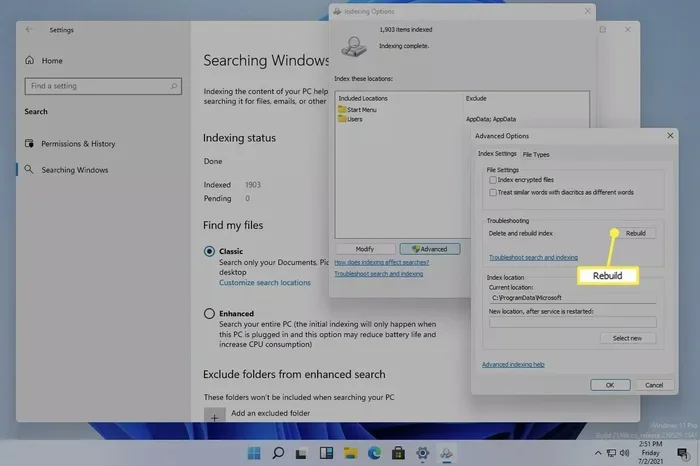
Type indexing options in the start menu. Open the result. You will see a panel.
Rebuild Process
Click the advanced button. Find the rebuild button. Click it. Confirm the action. This takes time. Do not turn off the PC. Wait for it to finish. Then try searching again.
Clear Temporary Files
Temp files can cause issues. They might corrupt data. Cleaning them helps stability.
Use Disk Cleanup
Search for disk cleanup. Open the app. Select your drive. Usually, it is the C drive.
Select Files to Delete
Check the boxes. Look for temporary files. Click ok. Delete the files. Empty the recycle bin too. This frees up space. It may fix search errors.
Check Antivirus Software
Security tools protect your PC. Sometimes they block features. They might stop search from working. You should check settings.
Review Protection Settings
Open your antivirus app. Look for settings. Check if search is blocked. Allow the search function.
Temporarily Disable
You can test this safely. Turn off protection for a minute. Try search. If it works, change settings. Turn protection back on. Keep your PC safe.
Create a New User Account
Profile corruption happens. Your user settings might be broken. A new account fixes this.
Add a User
Go to settings. Select accounts. Choose family and other users. Add a new person.
Test the New Account
Log into the new account. Try the search bar. If it works, your old profile is the issue. You can move files to the new account. This is a strong fix.
Troubleshooting Additional Issues
Some problems need more care. If steps above fail, check drivers. Graphics drivers matter too. Update them from the manufacturer site. Also check your hardware. A failing hard drive causes errors. Listen for strange noises. Back up your data often. This protects your files. If all else fails, reset the PC. This is a last resort. Save everything first.
Conclusion
Fixing search issues is possible. You have many tools at hand. Start with a restart. Check services next. Update your system regularly. Rebuild the index if needed. Clear temp files to clean up. Check your antivirus settings. Try a new user account. These steps cover most causes. You can solve the problem fast. Do not let a broken search bar slow you down. Take action today. Your computer will feel new again. Stay calm and follow the guide. You will find your files soon.