
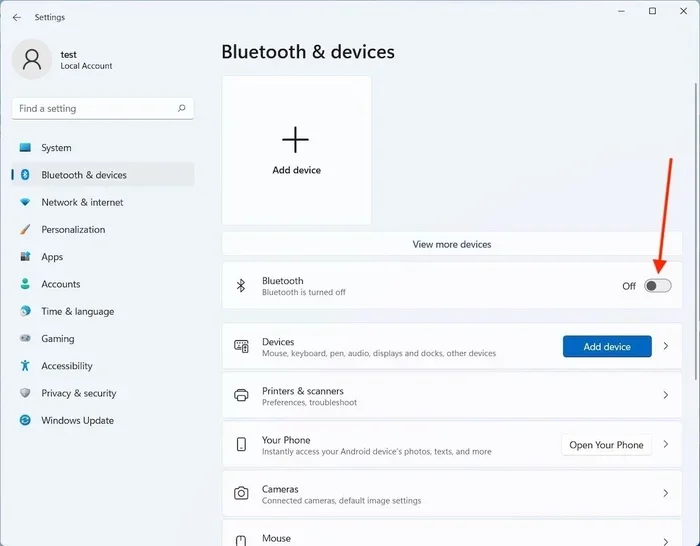
Featured image for Windows 11 Bluetooth connectivity
Image source: imag.malavida.com
Is your Windows 11 Bluetooth not detecting devices? You are not alone. Many users face this frustrating issue when trying to connect headphones, mice, or keyboards. This guide walks you through simple fixes to get your Bluetooth working again. We will cover driver updates, settings checks, and troubleshooting tips. Read on to restore your connections quickly.
Connecting your gadgets should be easy. You click a button, and your headphones pair. Your mouse starts working. But sometimes, Windows 11 Bluetooth not detecting devices becomes a real headache. It stops you from working or listening to music. You might feel stuck.
This problem happens often. Windows 11 is great, but it has bugs. Sometimes drivers get old. Sometimes settings get mixed up. Other times, the hardware just needs a rest. Do not worry. You can fix this. You do not need to be a tech expert. We will show you easy steps.
In this guide, we cover everything. We talk about drivers. We talk about settings. We talk about hardware checks. By the end, you will know how to fix Bluetooth issues. Let us dive in and get your devices connected again.
Key Takeaways
- Check Bluetooth Settings: Ensure the Bluetooth toggle is turned on in the Windows 11 settings menu.
- Update Drivers: Outdated Bluetooth drivers often cause detection issues on Windows 11.
- Run Troubleshooter: Use the built-in Windows Troubleshooter to find and fix common errors.
- Restart Services: Restarting the Bluetooth Support Service can resolve connectivity glitches.
- Check Device Power: Make sure your peripheral device is charged and in pairing mode.
- Remove Interference: Keep devices close and away from USB 3.0 ports or Wi-Fi routers.
- Reset Network Settings: Resetting network settings can clear hidden configuration conflicts.
📑 Table of Contents
- Why Is Windows 11 Bluetooth Not Detecting Devices?
- How to Fix Windows 11 Bluetooth Not Detecting Devices
- Advanced Fixes for Bluetooth Detection Issues
- Hardware and Device Checks
- Comparison of Bluetooth Fix Methods
- Expert Insights on Bluetooth Issues
- Common Mistakes to Avoid
- Key Takeaways for Fixing Bluetooth
Why Is Windows 11 Bluetooth Not Detecting Devices?
First, let us understand the problem. Bluetooth is a wireless signal. It needs clear paths. It needs power. It needs software to talk to hardware. When one part fails, the connection breaks. Windows 11 Bluetooth connectivity issues usually stem from a few common causes.
Outdated or Corrupted Drivers
Drivers are like translators. They help Windows talk to your Bluetooth card. If the translator is old, they misunderstand each other. This leads to detection failures. You might see the Bluetooth toggle missing. Or you might see unknown devices. Updating drivers is often the first fix.
Settings Glitches
Sometimes the setting gets turned off by accident. A Windows update might change defaults. You might have toggled it off and forgot. The Bluetooth settings in Windows 11 need to be active. If the switch is gray, it will not work.
Hardware Interference
Wireless signals get blocked. Walls matter. Other electronics matter. USB 3.0 ports can create noise. Wi-Fi routers can crowd the signal. If your device is far away, it will not show up. Keep devices close during pairing.
Power Saving Modes
Windows tries to save battery. It might turn off Bluetooth to save power. This is good for laptops. But it can cause connection drops. The Bluetooth support service might stop running. You need to check power settings.
How to Fix Windows 11 Bluetooth Not Detecting Devices
Now let us look at solutions. We start with the easiest steps. Then we move to harder fixes. Try them in order. You will likely solve the problem quickly.
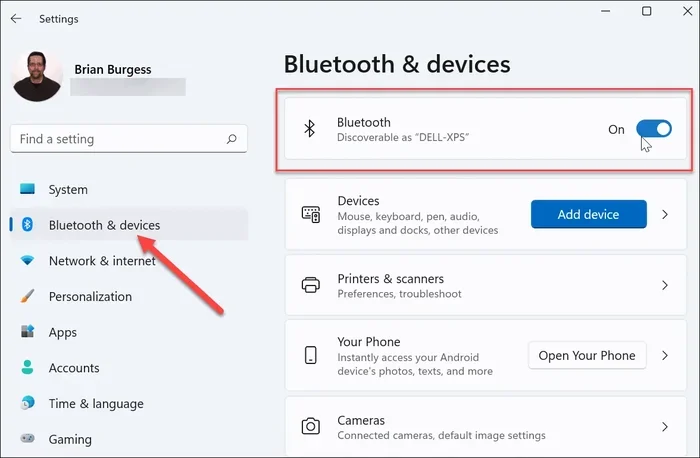
Visual guide about Windows 11 Bluetooth connectivity
Image source: groovypost.com
Check Basic Bluetooth Settings
Start with the basics. Click the Start button. Go to Settings. Look for Bluetooth & devices. Make sure the toggle is On. If it is Off, click it to turn it On. Wait a few seconds. See if your device appears.
Also, check the Airplane mode. If Airplane mode is on, Bluetooth is off. Turn it off. This is a common mistake. Many users forget this step.
Restart Your Computer
Restarting fixes many bugs. It clears the memory. It resets the services. Shut down your PC. Wait ten seconds. Turn it back on. Try to pair your device again. This simple step works often.
Update Bluetooth Drivers
Drivers need updates. Go to Device Manager. Find Bluetooth in the list. Right-click your adapter. Select Update driver. Choose Search automatically. Windows will find new drivers.
If that fails, go to the manufacturer website. Download the latest driver. Install it. Restart your PC. This ensures Bluetooth driver update Windows 11 is done correctly.
Run the Bluetooth Troubleshooter
Windows has a built-in tool. It finds errors automatically. Go to Settings. Select System. Click Troubleshoot. Choose Other troubleshooters. Find Bluetooth. Click Run.
Follow the prompts. The tool will suggest fixes. Apply them. This is a great way to fix Bluetooth pairing issues without guessing.
Advanced Fixes for Bluetooth Detection Issues
If basic steps fail, try advanced fixes. These steps dig deeper. They change system settings. They require a bit more care. But they work well for stubborn problems.
Restart Bluetooth Support Service
Services run in the background. The Bluetooth Support Service must be running. Press Win + R. Type services.msc. Hit Enter. Find Bluetooth Support Service. Right-click it. Select Properties.
Set Startup type to Automatic. Click Start if it is stopped. Click Apply. Restart your PC. This ensures the service stays on.
Reset Network Settings
Network settings affect Bluetooth. Resetting them clears conflicts. Go to Settings. Select Network & internet. Click Advanced network settings. Choose Network reset. Click Reset now.
Your PC will restart. You may need to rejoin Wi-Fi. But Bluetooth often starts working again. This clears hidden errors.
Check for Windows Updates
Windows 11 gets regular updates. These updates fix bugs. Go to Settings. Click Windows Update. Click Check for updates. Install everything. Restart your PC.
Updates often include driver fixes. They improve Windows 11 Bluetooth troubleshooting. Keep your system current.
Hardware and Device Checks
Sometimes the problem is not Windows. It is the device itself. Check your headphones, mouse, or keyboard. Make sure they have power. Make sure they are ready to pair.
Ensure Device Is in Pairing Mode
Devices need to be visible. Headphones often need a button hold. Mice might have a switch. Check the manual. Put the device in pairing mode. Then check Windows.
If the device is not in pairing mode, Windows cannot see it. This is a common mistake. Always check the device first.
Remove Old Pairings
Old connections can confuse Windows. Go to Settings. Click Bluetooth & devices. Find old devices. Click the three dots. Select Remove device.
This clears the list. Try pairing again fresh. This helps with Bluetooth device not showing errors.
Check Battery Levels
Low battery causes issues. Devices might not broadcast signals. Charge your headphones or mouse. Try again. A full battery works best.
Comparison of Bluetooth Fix Methods
Different fixes work for different problems. Here is a quick look at methods. Use this table to choose your path.
| Method | Difficulty | Success Rate | Best For |
|---|---|---|---|
| Restart PC | Easy | High | Minor glitches |
| Update Drivers | Medium | High | Old software |
| Run Troubleshooter | Easy | Medium | Unknown errors |
| Reset Services | Medium | High | Service stops |
| Network Reset | Hard | High | Deep conflicts |
As you see, restarting is the easiest. Network reset is harder. Start with easy steps. Move to hard steps if needed.
Expert Insights on Bluetooth Issues
Experts agree on a few things. First, keep drivers updated. Second, avoid interference. Third, check hardware often. These habits prevent problems.
Keep Drivers Updated
Do not wait for errors. Check drivers monthly. Use Windows Update. Or visit manufacturer sites. This keeps Bluetooth adapter Windows 11 running smooth.
Avoid Interference
Keep devices close. Stay away from USB 3.0 ports. Turn off Wi-Fi if needed. Test in different rooms. Find the best spot.
Check Hardware Health
Bluetooth cards can fail. If nothing works, test hardware. Try a USB Bluetooth dongle. If the dongle works, your internal card may be dead. Replace it if needed.
Common Mistakes to Avoid
People make mistakes when fixing Bluetooth. Avoid these errors. They save you time. They prevent more issues.
- Ignoring Updates: Skipping Windows updates causes bugs.
- Forgetting Pairing Mode: Devices must be visible to pair.
- Too Much Distance: Keep devices within 10 meters.
- Not Restarting: Always restart after changes.
- Ignoring Battery: Low power stops signals.
Key Takeaways for Fixing Bluetooth
Let us recap the main points. Fixing Windows 11 Bluetooth not detecting devices takes patience. Follow the steps. Check settings. Update drivers. Restart services. Check hardware.
Most issues are simple. A restart often works. Driver updates help most. Troubleshooters find hidden errors. If all fails, check hardware. You can solve this.
Take action now. Try the first step. Move to the next if needed. Your devices will connect soon. Enjoy your wireless freedom again.
Frequently Asked Questions
Why is my Bluetooth not finding devices in Windows 11?
This usually happens due to outdated drivers or settings glitches. Try updating your Bluetooth drivers and ensure the Bluetooth toggle is turned on in Settings. Restarting your PC can also clear temporary errors.
How do I reset Bluetooth on Windows 11?
You can reset Bluetooth by going to Settings, selecting Network & internet, and choosing Network reset. This clears network configurations and often fixes detection issues. Restart your computer after the reset completes.
What does the Bluetooth troubleshooter do?
The troubleshooter scans your system for common Bluetooth errors. It automatically applies fixes for driver issues or service stops. Run it from the Troubleshoot section in System settings.
Can USB 3.0 ports interfere with Bluetooth?
Yes, USB 3.0 ports can create radio frequency interference. This noise blocks Bluetooth signals. Try moving your Bluetooth dongle or device away from these ports.
How do I update Bluetooth drivers manually?
Open Device Manager and find your Bluetooth adapter. Right-click it and select Update driver. You can also download the latest driver from your PC manufacturer website. Install it and restart your PC.
Why does my Bluetooth device keep disconnecting?
This often happens due to low battery or power saving settings. Check your device battery and disable power saving for the Bluetooth adapter in Device Manager. Keeping devices close also helps stability.