
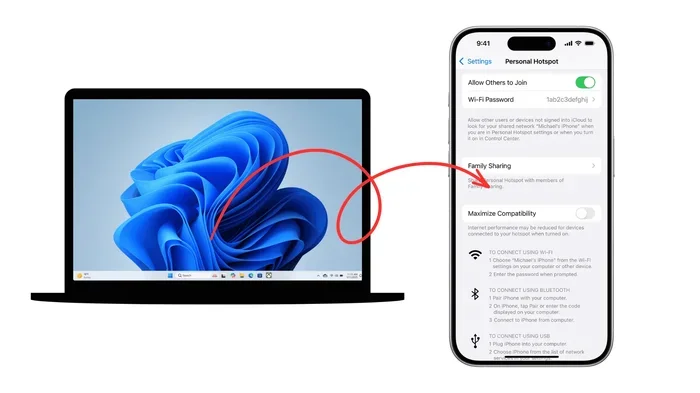
Featured image for iPhone hotspot laptop connection
Image source: macobserver.com
Nothing is more frustrating than when your iPhone hotspot not showing up on laptop during an urgent work session. You need internet access immediately, but your computer refuses to see the phone. This guide walks you through simple fixes to restore your connection quickly. We cover settings, signals, and software updates to get you back online. Read on to solve this common tech headache today.
You are working on a crucial project. Your home Wi-Fi dies suddenly. You turn to your phone for backup internet. But your laptop does not see the connection. This is a common problem many users face. When your iPhone hotspot not showing up on laptop, it stops your work flow. It feels like a major tech failure. But usually, the fix is simple.
We understand how stressful this situation is. You need to send emails or join a meeting. You do not have time for complex troubleshooting. This article explains why this happens. We also give you step-by-step solutions. You will learn how to fix the visibility issue. We cover settings, updates, and hardware checks. By the end, you will have a stable connection.
Let’s dive into the reasons first. Understanding the cause helps you fix it faster. Sometimes it is a setting on the phone. Other times it is a laptop driver issue. We will look at both sides. You do not need to be a tech expert. These steps are easy to follow. Let’s get your internet back up and running.
Key Takeaways
- Check Personal Hotspot Settings: Ensure the toggle is on and the correct network name is visible.
- Restart Both Devices: A simple reboot often clears temporary software glitches causing visibility issues.
- Update iOS and Drivers: Outdated software on your phone or laptop can block connection signals.
- Disable Power Saving Modes: Battery saver settings may turn off the hotspot feature to save energy.
- Forget and Rejoin Network: Removing the old network profile forces a fresh connection handshake.
- Check Cellular Data: The hotspot requires active cellular data to broadcast a Wi-Fi signal.
- Contact Carrier Support: Some data plans restrict hotspot usage, so verify your plan details.
📑 Table of Contents
- Why Is My iPhone Hotspot Not Showing Up on Laptop?
- Check Your Personal Hotspot Settings
- Restart Your iPhone and Laptop
- Update iOS and Network Drivers
- Disable Power Saving Modes
- Forget Network and Rejoin
- Verify Cellular Data and Plan
- Expert Insights on Connectivity
- Key Takeaways for Fixing Hotspot Issues
- Conclusion
Why Is My iPhone Hotspot Not Showing Up on Laptop?
Before fixing the problem, you need to know the cause. There are several reasons why your computer cannot find the phone. The most common reason is a setting error. You might have forgotten to turn on the hotspot feature. Another reason is signal interference. Walls or distance can block the Wi-Fi signal.
Software bugs also cause this issue. An outdated iOS version might glitch. Similarly, old network drivers on your laptop can fail. Sometimes the phone is in power-saving mode. This mode turns off wireless features to save battery. It is also possible your carrier plan limits hotspot use. You must check these areas one by one.
Here are the most common culprits:
- Personal Hotspot Toggle: The switch might be off in settings.
- Network Visibility: The phone might hide the network from other devices.
- Bluetooth Issues: Some connections require Bluetooth pairing first.
- Outdated Drivers: Your laptop network card might need an update.
- Carrier Restrictions: Your mobile plan might block tethering features.
Now that you know the potential causes, let us fix them. We will start with the easiest checks. Then we will move to more advanced solutions. Follow these steps in order. You will likely solve the problem quickly.
Check Your Personal Hotspot Settings
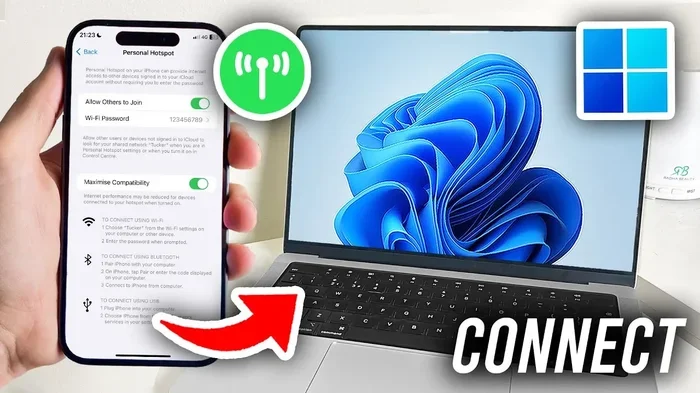
The first place to look is your iPhone settings. You must ensure the feature is active. Many users forget to enable this after using it. Open your Settings app on the iPhone. Look for the Personal Hotspot option. Tap on it to open the menu.
Visual guide about iPhone hotspot laptop connection
Image source: i.ytimg.com
You will see a toggle switch. This switch must be green or on. If it is gray, the hotspot is off. Turn it on immediately. You should also check the Wi-Fi password. Make sure you know the correct password. Your laptop needs this to connect. If the password is too complex, write it down.
Another important setting is “Allow Others to Join.” This option must be enabled. Without this, your phone blocks incoming connections. Even if the hotspot is on, this blocks access. Check this setting carefully. It is a common mistake users make.
Here is what to verify in your settings:
- Personal Hotspot Toggle: Ensure it is switched to the on position.
- Allow Others to Join: Make sure this option is enabled for access.
- Wi-Fi Password: Confirm the password is correct and easy to type.
- Network Name: Check that the device name is visible and clear.
Once you change these settings, wait a moment. Your phone needs to broadcast the signal. Then check your laptop again. Look for the network name in the list. If it still does not show up, move to the next step.
Restart Your iPhone and Laptop
Technology gets tired just like humans. Sometimes devices need a fresh start. A restart clears temporary memory glitches. It resets the network connections too. This is the oldest trick in the book. But it works very often. You should try this before complex fixes.
Start with your iPhone. Hold the side button and volume button. Slide to power off the device. Wait for ten seconds. Then turn it back on. Let it fully load before proceeding. Next, restart your laptop. Close all your open applications first. Save your work to avoid data loss.
Shut down the computer completely. Do not just put it to sleep. A full shutdown clears the network cache. Turn it back on after a minute. Once both devices are ready, try again. Enable the hotspot on the phone. Search for networks on the laptop. You might see the connection appear now.
Restarting helps in these ways:
- Clears Cache: It removes temporary files causing connection errors.
- Resets Network Stack: It refreshes the wireless radio components.
- Applies Updates: It finishes any pending software installations.
- Fixes Glitches: It resolves minor software bugs instantly.
This step takes only a few minutes. It is worth the effort. If the problem persists, do not worry. We have more solutions for you. The next step involves checking your software versions.
Update iOS and Network Drivers
Old software causes many connection problems. Apple releases updates to fix bugs. Your laptop also needs updated drivers. These drivers help the computer talk to the phone. If they are old, they might not recognize the hotspot. You should check for updates regularly.
On your iPhone, go to Settings. Tap on General. Then select Software Update. If you see an update available, install it. Make sure your phone is charged. You need a stable Wi-Fi connection for this. The update might take some time. Be patient during the process.
For your laptop, the process depends on the system. If you use Windows, search for Device Manager. Find the network adapters section. Right-click your wireless adapter. Select Update Driver. Let the system search for new software. If you use a Mac, check System Settings. Look for software updates there.
Keeping software current prevents issues:
- Bug Fixes: Updates resolve known connectivity problems quickly.
- Security Patches: They protect your data during tethering sessions.
- Compatibility: New versions ensure phone and laptop work together.
- Performance: Updates improve overall speed and stability.
After updating, restart your devices again. This ensures the new software loads properly. Then try to connect your hotspot. You should see better results now. If not, we will check power settings next.
Disable Power Saving Modes
Battery life is important for everyone. Both phones and laptops try to save energy. They turn off features when battery is low. This can include the personal hotspot. If your phone is in low power mode, it might hide the network. You need to check this setting.
On your iPhone, look at the battery icon. If it is yellow, low power mode is on. Go to Settings and Battery. Turn off Low Power Mode. This allows all features to run fully. Your hotspot will broadcast stronger signals. This makes it easier for the laptop to find.
Your laptop also has power settings. It might turn off the Wi-Fi card to save power. Go to your control panel or settings. Look for power options. Select High Performance if available. Check the wireless adapter settings. Ensure it allows the computer to stay on.
Power settings to review include:
- Low Power Mode: Turn this off on your iPhone for full access.
- Battery Saver: Disable this on your laptop to keep Wi-Fi active.
- Adapter Settings: Set the network card to maximum performance.
- Screen Brightness: Lowering this saves power without killing hotspot.
Running on full power uses more battery. But it ensures a stable connection. Once you disable these modes, test the connection. You should see the network appear. If it still fails, we have one more technical check.
Forget Network and Rejoin
Sometimes the laptop remembers old settings. It might hold onto a bad configuration. This prevents a new connection from forming. You need to clear the old network data. This forces the laptop to start fresh. It is like clearing a clogged pipe.
On your laptop, go to Wi-Fi settings. Find the list of available networks. Look for your iPhone network name. Select it and choose Forget or Remove. This deletes the saved password and settings. Do not worry, you can add it again. You just need the password ready.
After forgetting the network, turn off Wi-Fi on the laptop. Wait for ten seconds. Turn it back on. Scan for networks again. You should see your iPhone hotspot in the list. Select it and enter the password. This fresh handshake often fixes visibility issues.
Steps to forget and rejoin:
- Open Wi-Fi Settings: Navigate to the network list on your laptop.
- Select iPhone Network: Find the specific hotspot name in the list.
- Choose Forget: Remove the saved profile from your computer memory.
- Reconnect: Search again and enter the password fresh.
This step clears any corrupted data. It is a very effective fix. Most users find success with this method. If you still have issues, check your cellular data.
Verify Cellular Data and Plan
A hotspot needs cellular data to work. You cannot share Wi-Fi via hotspot. The phone must have an active data connection. Check the top corner of your iPhone screen. You should see signal bars and a data icon. If you see only Wi-Fi, turn it off.
Sometimes Airplane Mode is on by mistake. This turns off all wireless signals. Check your control center. Make sure Airplane Mode is gray or off. If it is on, turn it off. Wait for the cellular signal to return. Then try the hotspot again.
Your mobile plan might also restrict tethering. Some carriers charge extra for hotspot use. They might block it on certain plans. Log into your carrier account online. Check your plan details. If tethering is blocked, you need to upgrade. Call customer support if you are unsure.
Data and plan checks:
- Cellular Data Toggle: Ensure mobile data is turned on in settings.
- Airplane Mode: Verify this is turned off completely.
- Plan Restrictions: Confirm your carrier allows personal hotspot usage.
- Data Allowance: Check if you have exceeded your monthly data limit.
Without active data, the hotspot is useless. Make sure you have a strong signal. Move to a window if the signal is weak. This improves the broadcast range. Your laptop will find the network easier.
Expert Insights on Connectivity
Technology experts suggest keeping devices close. Distance affects signal strength significantly. Keep your phone within ten feet of the laptop. Walls and metal objects block signals. Try to connect in the same room. This reduces interference and packet loss.
Experts also recommend using the 5GHz band. Modern iPhones use this for hotspots. It is faster than 2.4GHz. But it has shorter range. If your laptop is far, it might not see it. Move closer if you use 5GHz. You can also change bands in settings if available.
Another tip is to avoid congestion. Too many Wi-Fi networks cause interference. If you are in a crowded place, signals clash. Try changing the Wi-Fi channel on your phone. Some models allow this in hotspot settings. This reduces competition with other networks.
Expert tips for better connection:
- Proximity: Keep devices close for stronger signal reception.
- Band Selection: Use 5GHz for speed or 2.4GHz for range.
- Interference: Avoid crowded Wi-Fi environments when possible.
- Hardware Health: Check if your laptop Wi-Fi card is functioning.
Following these tips improves reliability. You will experience fewer drops. Your internet will feel more stable. This is crucial for video calls or large downloads.
Key Takeaways for Fixing Hotspot Issues
We have covered many solutions today. Here is a quick recap of the most important points. Remember these steps for next time. You can solve most issues with these actions. Keep this list handy for future reference.
- Check Settings First: Always verify the hotspot toggle is on.
- Restart Devices: Rebooting fixes temporary software glitches easily.
- Update Software: Keep iOS and drivers current for compatibility.
- Manage Power: Turn off battery saver modes during tethering.
- Forget Network: Clear old profiles to force a fresh connection.
- Verify Data: Ensure cellular data is active and allowed.
If you follow these steps, you will succeed. Most problems are simple configuration errors. Patience is key during troubleshooting. Do not rush through the steps. Take your time to check each item.
Conclusion
Dealing with an iPhone hotspot not showing up on laptop is frustrating. But it is usually easy to fix. You now have a complete guide to follow. Start with the simple settings checks. Move to restarts and updates if needed. Do not forget to check your carrier plan.
Your connection is vital for modern work. Do not let technical issues stop you. Use these tips to stay connected. You can rely on your phone for internet. Just ensure your settings are correct. Keep your software updated for best results.
We hope this guide helps you today. You should be online very soon. If problems persist, contact Apple support. They can check for hardware issues. Otherwise, try these steps again. You will get your hotspot working. Stay productive and connected.
Frequently Asked Questions
Why does my laptop not see my iPhone hotspot?
Your laptop might not see the network if the Personal Hotspot toggle is off. It could also be a driver issue on the computer. Restarting both devices often fixes this visibility problem quickly.
How do I make my iPhone hotspot visible?
Go to Settings on your iPhone and tap Personal Hotspot. Turn on the Allow Others to Join toggle. Ensure your cellular data is active for the signal to broadcast.
Can low battery mode affect hotspot visibility?
Yes, Low Power Mode can restrict background activity and wireless features. Turn off Low Power Mode in your Battery settings. This ensures the hotspot broadcasts at full strength.
Does my carrier plan affect hotspot usage?
Some mobile plans restrict tethering or charge extra for it. Check your carrier account to verify hotspot permissions. You may need to upgrade your plan for full access.
What should I do if updating iOS does not help?
If updates do not work, try forgetting the network on your laptop. Then rejoin the network with the correct password. You can also reset network settings on your iPhone.
Is there a difference between Wi-Fi and Bluetooth tethering?
Wi-Fi tethering is faster and connects without pairing. Bluetooth tethering is slower but uses less battery. Ensure you select the correct connection method on your laptop.