
Featured image for how to stop apps running in background android
Image source: lifewire.com
If your Android phone feels slow or the battery drains quickly, background apps may be the cause. This guide explains how to stop apps from running in the background on Android using safe, built-in settings. You will learn practical steps, helpful tips, and simple troubleshooting methods that work on most devices.
Your Android phone can feel busy even when you are not using it. That is because many apps keep working in the background. They may check for messages, refresh content, track location, or prepare features for later use. In many cases, that activity is useful. In other cases, it can slow down your phone, waste battery life, and use mobile data.
If you want to regain control, you need to understand how Android handles apps and which tools are safe to use. This guide explains how to stop apps from running in the background on Android without breaking important features. You will learn how to inspect battery usage, restrict apps, force apps to stop, and decide when background activity is actually worth keeping.
The goal is not to shut down every app all the time. The goal is to reduce unnecessary activity while keeping the apps you rely on working properly. Let’s start with the basics.
📑 Table of Contents
- Why Background Apps Matter on Android
- Helpful Tips for Managing Background Apps Without Hurting Functionality
- Troubleshooting Common Background App Problems
- When Background Activity Is Actually Useful
- A Simple Workflow to Stop Background Apps More Effectively
- Final Thoughts on Controlling Background Apps
Why Background Apps Matter on Android
Background apps can affect your phone in several ways. Some apps run briefly in the background and then rest. Others stay active for longer periods. The result may be faster battery drain, slower performance, or more data use than you expect.
At the same time, Android is designed to manage apps intelligently. In many cases, the system pauses apps when they are not needed and lets them resume later. That means you do not always need to intervene. The trick is knowing when an app is misbehaving and when it is simply doing its job.
A good first step is to look at which apps are actually using the most resources. If one app appears repeatedly in battery or data reports, it may deserve closer attention.
How to Check Which Apps Are Active in the Background
Before changing anything, it helps to see what is happening on your device. Android includes built-in tools that show battery usage and app activity. These tools do not show every tiny process, but they are a practical starting point.
Start by opening Settings. Then look for Battery or Battery usage. You should see a list of apps ranked by how much power they have used recently. If an app appears near the top and you rarely use it, that may be a sign it is doing too much in the background.
You can also review data usage if you suspect an app is constantly syncing or downloading content. On many phones, the Network & internet or Data usage section shows which apps have been active over a set period. This can help you spot apps that refresh often even when you are not opening them.
If you want a quicker overview, open the recent apps screen and look for apps you do not recognize or no longer use. That screen does not prove an app is running heavily, but it can reveal apps you may want to clean up.
How to Stop Apps from Running in the Background on Android Using Built-in Settings
Once you identify the apps you want to manage, you can use several built-in options. The best choice depends on whether you want to pause the app temporarily, limit its background activity, or remove its ability to run freely.
Here is a practical sequence you can follow.
Option 1: Force Stop an App Temporarily
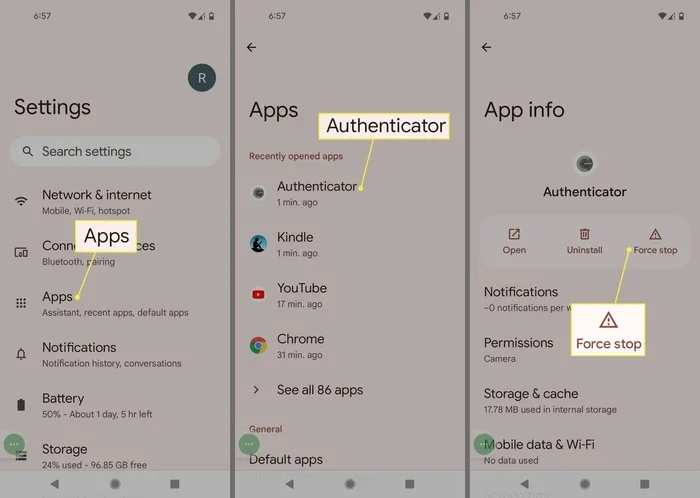
Force stopping is useful when an app seems stuck, repetitive, or overly active. It tells the app to stop immediately. The app may reopen later if it has scheduled tasks, but force stopping is a good short-term fix.
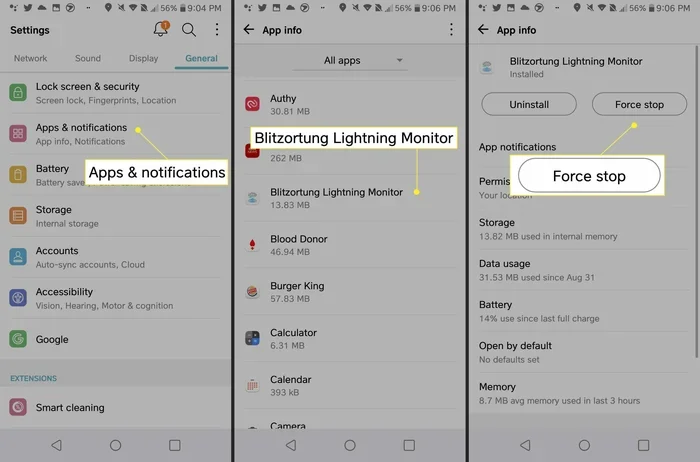
To do this, open Settings and tap Apps or Apps & notifications. Find the app you want to stop, then tap Force stop. Confirm if prompted.
Use this option when:
- The app is lagging or not responding
- The app keeps refreshing when you are not using it
- You want a quick reset before checking other settings
Keep in mind that force stopping is temporary. If the app has background services, notifications, or alarms, it may start again later.
Option 2: Restrict Background Activity
Many Android phones let you limit an app’s ability to run in the background. This is often a better long-term option than repeatedly force stopping the same app.
Go to Settings, open Apps, and select the app. Look for Battery, Background restrictions, Background usage, or a similar option. The exact wording depends on your phone brand and Android version.
In many cases, you can choose a more limited battery mode for that app. This reduces how often the app can work when it is not open. It is especially useful for apps that you use occasionally but that seem to stay busy all day.
This approach works well for:
- Shopping apps that refresh feeds often
- Games you rarely open
- Utility apps that run more than they should
Be careful with apps you rely on for important alerts. If you restrict them too much, you may miss messages or reminders.
Option 3: Change App Notifications and Sync Settings
Some background activity comes from notifications and automatic syncing. If you do not need constant updates, reducing these settings can lower background work.
In Settings, go to Apps and choose the app. Then open Notifications and turn off alerts you do not need. You can often keep important notifications while disabling promotional or noisy ones.
You may also find sync controls in Settings under Accounts or Sync. If an app is syncing contacts, media, or other data too often, adjusting sync frequency or turning off unnecessary sync items can help.
This is a smart middle ground because it reduces activity without fully blocking the app.
Option 4: Put Unneeded Apps to Sleep or Disable Them
Some Android devices include battery-saving features that pause apps when they are not in use. These features may be called battery optimization, app sleep, deep sleep, or something similar. They are helpful for apps you rarely need.
To use this, open Settings and look for Battery or Battery & device care. Then find the section for app power management or sleeping apps. Add the apps you want to limit.
If an app is completely unnecessary, you can also disable it. Disabling removes it from active use and may stop associated background processes. This is useful for preinstalled apps you never use.
Choose this path when:
- You do not need the app at all
- The app keeps running even after you restrict it
- You want a cleaner, simpler phone setup
Option 5: Uninstall Apps That Keep Causing Problems
Sometimes the simplest solution is to remove the app. If an app repeatedly uses too much battery, data, or memory, and you do not depend on it, uninstalling can solve the issue permanently.
Open Settings, tap Apps, select the app, and choose Uninstall. If the uninstall option is grayed out, the app may be a system app or device administrator. In that case, you may only be able to disable it.
Before uninstalling, ask yourself whether the app provides value. If it does not, removing it is often better than repeatedly adjusting settings.
Helpful Tips for Managing Background Apps Without Hurting Functionality
Stopping background apps can help, but it works best when you are selective. Here are a few practical tips.
Visual guide about how to stop apps running in background android
Image source: lifewire.com
Focus on the worst offenders first. Do not try to control every app at once. Start with the apps that show high battery or data usage.
Keep essential apps unrestricted. Messaging apps, calendar apps, alarm apps, health apps, and work tools may need background access to function properly.
Check after updates. A system update or app update can change how an app behaves. If a new update causes extra background activity, revisit the settings.
Restart your phone when needed. A restart can clear temporary glitches and stop apps that are stuck in a loop.
Use Wi-Fi wisely. Some apps use more data or sync more often when connected to mobile networks. If data use is your main concern, review app data settings as well.
Watch for repeat behavior. If an app returns to heavy background activity after you adjust it, the app may be poorly designed or conflicting with another feature.
Troubleshooting Common Background App Problems
Even with the right settings, background activity can sometimes be stubborn. Here are a few common situations and what to try.
An App Keeps Restarting After You Stop It
If an app keeps coming back, it may have alarms, scheduled tasks, or services that relaunch it. In that case, restrict background activity, reduce notifications, and check whether the app has its own internal settings for auto-sync or background refresh.
If the behavior continues and the app is not important, uninstalling is often the cleanest fix.
Battery Still Drains Too Fast
If battery drain continues after you manage apps, look for other causes. Screen brightness, location services, weak signal, and older hardware can all affect battery life. It may also help to check whether a recent update changed power settings.
Phone Lag or Memory Issues
If your phone feels slow, close apps you are not using and restart the device. If the problem keeps happening, check whether one app is using an unusually large amount of memory or cache. Clearing cache may help in some cases, but it is not a permanent solution if the app keeps rebuilding the same data.
Missing Notifications After Restrictions
If you stop receiving alerts from a messaging or calendar app, you may have restricted it too aggressively. Return to the app’s battery or background settings and relax the restriction slightly. You can often find a balance that saves power without blocking important updates.
When Background Activity Is Actually Useful
Not every background process is a problem. Some apps need background access to do their job well. For example, messaging apps may need to listen for new messages, fitness apps may track activity, and navigation apps may need location access while you move around.
Before limiting an app, think about how you use it. If the app provides timely alerts, reminders, or tracking, some background activity may be worth keeping. The best approach is to reduce waste without removing functionality you actually need.
A Simple Workflow to Stop Background Apps More Effectively
If you want a repeatable method, use this order:
- Check battery and data usage to find the most active apps
- Decide whether each app is essential
- Force stop apps that seem stuck or overly active
- Restrict background activity for apps you use occasionally
- Trim notifications and sync settings where possible
- Disable or uninstall apps you no longer need
- Restart the phone and review the results after a day or two
This workflow keeps the process organized and helps you avoid unnecessary changes. It also makes it easier to notice whether a fix actually improved your phone’s behavior.
Final Thoughts on Controlling Background Apps
Learning how to stop apps from running in the background on Android is mostly about balance. You do not need to shut down every app, and you should not disable features that make your phone more useful. Instead, focus on the apps that waste the most battery, data, or attention, and use Android’s built-in tools to manage them carefully.
When you take a measured approach, you can improve performance and battery life without creating new problems. Start with the apps that matter most, test the changes, and adjust as needed. That is usually the safest and most effective way to keep your Android phone running smoothly.