
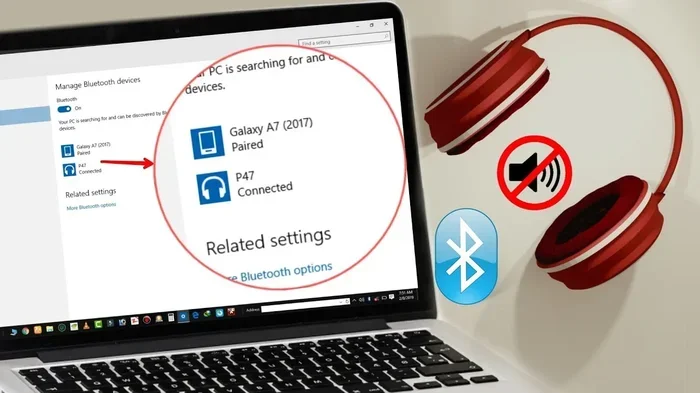
Featured image for how to bluetooth headphones connected but no sound windows 11
Image source: i.ytimg.com
If your Bluetooth headphones are connected but no sound plays on Windows 11, the issue is usually a settings mismatch, a default device problem, or a driver glitch. This guide walks you through simple, step-by-step fixes to get audio working again without guessing. You will learn how to check output settings, update drivers, restart services, and test your headphones on other devices.
📑 Table of Contents
- Why Your Bluetooth Headphones Show Connected but Still Have No Sound
- Start With the Quick Checks That Solve Most Cases
- Set Your Bluetooth Headphones as the Default Playback Device
- Check Volume Mixer, App Settings, and Communication Options
- Update or Reinstall the Bluetooth and Audio Drivers
- Restart Bluetooth Support and Windows Audio Services
- Disconnect, Remove, and Re-pair the Headphones
- Test the Headphones on Another Device
- Use the Windows 11 Troubleshooters for Audio and Bluetooth
- Check for Interference, Range, and Connection Quality
- When the Problem May Be App-Specific or Profile-Related
- Practical Tips to Prevent the Issue From Coming Back
- Final Thoughts on Restoring Bluetooth Audio in Windows 11
Why Your Bluetooth Headphones Show Connected but Still Have No Sound
It can be frustrating when your Bluetooth headphones connect successfully, yet Windows 11 plays nothing through them. The good news is that this problem is usually not a dead headset or a broken computer. In many cases, the system has paired correctly but has not switched the audio path to the right output device. That means the headset is ready, but Windows is still sending sound somewhere else.
Another common reason is a driver issue. Bluetooth audio depends on both the Bluetooth connection and the audio driver stack. If one side is outdated, misconfigured, or temporarily confused, the headphones may appear connected while sound stays silent. Sometimes a Windows update changes default audio behavior, and sometimes a third-party app takes control of the output setting without you noticing.
Before diving into advanced fixes, it helps to understand what you are trying to solve. You want Windows 11 to recognize the headphones as the active playback device, send audio to them reliably, and avoid driver or service interruptions. The steps below are ordered from the easiest checks to the more detailed repairs, so you can fix the issue without wasting time on unnecessary changes.
Start With the Quick Checks That Solve Most Cases

Visual guide about how to bluetooth headphones connected but no sound windows 11
Image source: learn-attachment.microsoft.com
Before changing drivers or settings, confirm the basics. Many no-sound problems disappear after a few simple confirmations.
Make sure the headphones are actually paired and selected
Some headsets connect for calls but do not automatically become the audio output device. On Windows 11, a connected Bluetooth device may still not be chosen for music, video, or game audio. Open the sound settings and confirm that your headphones appear as an available output option. If you see them listed, select them manually instead of assuming Windows has chosen them for you.
Check the physical controls on the headphones
It sounds obvious, but volume controls on the headset itself can be overlooked. Some Bluetooth headphones have separate volume buttons, a mute function, or a power setting that affects audio output. If the headset battery is very low, audio may also cut out even when the connection remains active. Charge the headphones and verify that the volume is turned up.
Confirm the sound is not muted at the system level
Windows 11 can mute output at the speaker icon in the taskbar, in the volume mixer, or inside individual apps. Check the taskbar volume control first. Then open the volume mixer and make sure the app you are using is not muted or set to a very low level. A muted app can make it seem like the headphones are broken when the real issue is app-specific silence.
Set Your Bluetooth Headphones as the Default Playback Device
This is one of the most effective fixes because Windows sometimes keeps using a different output device after a Bluetooth connection is made.
Open sound settings in Windows 11
Go to Settings, then open the sound options. Look for the output section and review the list of available devices. Your Bluetooth headphones should appear there once they are connected. If they are not listed, try disconnecting and reconnecting them so Windows refreshes the device list.
Choose the headphones as the default output device
Select your headphones from the output list and set them as the default if that option is available. After that, play a test sound, such as a video or a system sound. If audio begins playing, the issue was simply a wrong output target.
Use the classic sound control panel if needed
Sometimes the newer Settings interface does not show every option clearly. The older sound control panel can be useful for confirming default devices and checking playback settings. Open it, find your Bluetooth headphones in the playback tab, and make sure they are enabled and set as the default device. This can help when the modern settings page looks correct but audio still does not play.
Check Volume Mixer, App Settings, and Communication Options
Even with the correct default device, audio can disappear if an app or system setting is blocking output.
Review the volume mixer
The volume mixer shows output levels for each app. If the app you are using is muted, turned down, or assigned to another output device, you will not hear anything through the headphones. Raise the volume for the relevant app and confirm it is using the same output device you selected earlier.
Look for communication sound suppression
Windows has a feature that can automatically reduce or silence audio during certain communication activities. If this setting is active, it may affect playback in ways that feel confusing. If you notice sound only dropping in certain situations, check whether communication settings are interfering. Disabling that behavior can restore normal playback.
Test with more than one app
If one app is silent but another plays audio, the problem may be app-specific rather than system-wide. Try a browser, a media player, and a system sound test. This helps you determine whether the headphones are working overall or whether a particular program is causing the issue.
Update or Reinstall the Bluetooth and Audio Drivers
If the basic checks do not help, driver issues become more likely. Bluetooth headphones rely on both the Bluetooth adapter driver and the audio playback stack. If either one is outdated or corrupted, the headset may connect but not deliver sound.
Update the Bluetooth driver
Open the device manager and locate the Bluetooth section. Find your Bluetooth adapter and check whether an updated driver is available. Installing updates from Windows Update or the manufacturer’s support page can resolve compatibility problems. After updating, restart the computer and test the headphones again.
Update audio drivers as well
Bluetooth audio issues are not always caused by the Bluetooth adapter alone. The audio driver stack matters too. Make sure the audio drivers are current and that the sound system is functioning normally. If you recently updated Windows, a driver change may have occurred, so it is worth rechecking the audio device list and driver status.
Reinstall the driver if it seems corrupted
If updating does not help, uninstalling the device and letting Windows rediscover it can clear up odd behavior. In device manager, remove the Bluetooth device or audio device that is causing trouble, then restart the computer. Windows should detect the hardware again and reinstall the driver automatically. This can fix situations where the device is present but not working correctly.
Restart Bluetooth Support and Windows Audio Services
Sometimes the hardware and drivers are fine, but a background service has stalled. Windows uses services to manage audio and Bluetooth behavior, and if one of them stops responding, sound may fail even when the headset is connected.
Restart the Windows audio services
Open the services manager and locate the audio-related services. Restart them if they are running, or start them if they have stopped. This can clear temporary glitches that block playback. After restarting, test the headphones again with a simple audio file or video.
Restart Bluetooth support services
Bluetooth functionality also depends on support services. If those services are not running properly, the connection may look active while audio transfer fails. Restarting Bluetooth services can help the system re-establish a clean communication path. Once that is done, reconnect the headphones and check whether sound returns.
Disconnect, Remove, and Re-pair the Headphones
If the device is connected but acting strangely, a fresh pairing can help. Old pairing data can sometimes cause conflicts, especially after Windows updates or driver changes.
Remove the device from Windows 11
Go to the Bluetooth settings and remove the headphones from the paired device list. This clears the existing connection profile. Do not just disconnect; remove the device so the next pairing starts cleanly.
Put the headphones back into pairing mode
Follow the headset’s pairing instructions and place it into pairing mode again. Then add the device in Windows 11 and reconnect. A new pairing can resolve hidden configuration issues and give the system a fresh audio profile for that headset.
Test the connection immediately after re-pairing
After reconnecting, set the headphones as the output device again if needed. Play audio right away so you can confirm whether the fresh pairing fixed the problem. If sound works now, the issue was likely tied to a stale connection profile.
Test the Headphones on Another Device
If Windows 11 still will not produce sound, test the headphones with another phone, tablet, or computer. This step is important because it helps you determine whether the problem is with the headset or with the Windows setup.
If the headphones work elsewhere
When the headset plays sound on another device, the headphones themselves are probably fine. That points back to Windows settings, drivers, or services. Continue with the earlier fixes and retest after each change.
If the headphones do not work elsewhere
If the headset is silent on multiple devices, the issue may be with the headset battery, internal settings, pairing mode, or hardware itself. In that case, the Windows 11 troubleshooting steps may not be enough, and the headphones may need charging, resetting, or service.
Use the Windows 11 Troubleshooters for Audio and Bluetooth
Windows 11 includes troubleshooters that can catch common configuration problems automatically. They are not magic, but they can save time by spotting simple mistakes.
Run the audio troubleshooter
Open the system settings and start the audio troubleshooter. Let it scan for issues and apply any recommended fixes. This can help when the output device is misconfigured or when Windows detects a playback problem.
Run the Bluetooth troubleshooter if needed
If the audio troubleshooter does not fully resolve the issue, run the Bluetooth troubleshooter as well. It can help identify connection problems that affect audio routing. After both troubleshooters run, reconnect the headphones and test again.
Check for Interference, Range, and Connection Quality
Bluetooth audio can also fail when the connection is unstable. Weak signal quality may allow pairing but cause audio dropouts or complete silence.
Stay within a reasonable range
Move the computer and headphones closer together during testing. Distance, walls, and interference from other devices can weaken the connection. If audio returns when the devices are closer, range or interference may be part of the problem.
Reduce wireless interference
Other wireless devices, USB equipment, and crowded signal environments can affect Bluetooth performance. If possible, test in a quieter wireless environment. A stable connection often improves audio reliability.
When the Problem May Be App-Specific or Profile-Related
Some Bluetooth headsets use different profiles for different tasks. A headset may connect for one type of audio but not behave as expected for another. If sound only fails in certain situations, the issue may be tied to the app, the profile, or the way the device is being used.
Try a different type of audio source
Test with a video, a local music file, and a system sound. If one source works and another does not, focus on the app or file that fails. That narrows the problem down significantly.
Watch for profile switching issues
Some headsets switch between functions such as media playback and calls. If the device seems connected but audio is missing in one context, the profile in use may not be the one you expect. Reconnecting and selecting the correct output device often helps.
Practical Tips to Prevent the Issue From Coming Back
Once your headphones are working again, a few habits can reduce the chance of the same problem returning.
- Keep Windows 11 and drivers updated so Bluetooth and audio components stay compatible.
- Set your headphones as the default output device if you use them often.
- Check the volume mixer after major updates, since output assignments can change.
- Remove and re-pair the headset if it starts acting up instead of letting the problem build.
- Charge the headphones regularly so low battery does not cause silent connections.
- Test with more than one app when something seems wrong, so you can spot app-specific issues faster.
Final Thoughts on Restoring Bluetooth Audio in Windows 11
When Bluetooth headphones are connected but no sound plays on Windows 11, the cause is usually something manageable. In many cases, the headset is working, but Windows is not sending audio to it correctly. In other cases, a driver, service, or connection issue is blocking playback. The best approach is to start with the simplest checks, then move step by step through output settings, drivers, services, and re-pairing.
If you work through the fixes in a calm order, you can usually identify the real cause without guessing. Test the headphones on another device, confirm the default output choice, and refresh the drivers or services if needed. Most of the time, the issue can be resolved with a few targeted changes rather than a major system overhaul.