
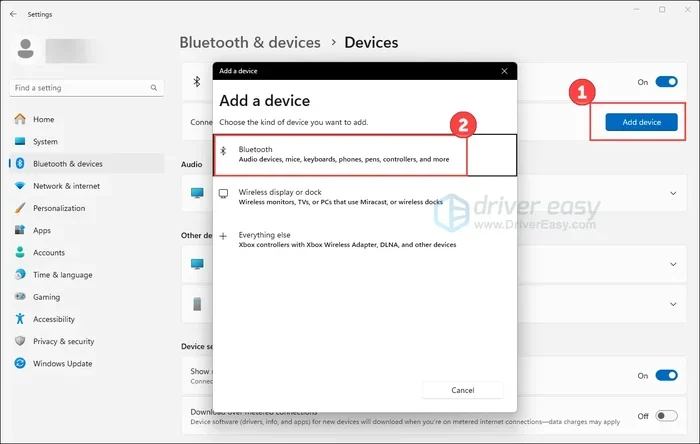
Featured image for how to windows 11 bluetooth not detecting devices
Image source: images.drivereasy.com
If your Windows 11 Bluetooth is not detecting devices, the issue is often a simple settings glitch, a missing driver, or a disabled service. This guide walks you through practical fixes you can try right away, from checking Bluetooth toggles to updating drivers and resetting connections. Follow the steps in order, and you can usually restore reliable device detection without advanced technical skills.
If you are trying to connect a mouse, headset, phone, or speaker and Windows 11 Bluetooth is not detecting devices, it can be frustrating fast. You may see a blank device list, a spinning search, or simply no response when you press the pairing button. The good news is that this problem is usually fixable. In many cases, the issue comes from a setting, a driver, or a connection conflict rather than a serious hardware failure.
This guide explains how to fix Windows 11 Bluetooth not detecting devices in a clear, practical way. You will learn how to check the basics, update drivers, remove old pairings, restart important services, and test whether the problem is with your computer or the device you want to connect. The steps are written for everyday users, so you do not need advanced technical experience to follow them.
Before you begin, keep one thing in mind: Bluetooth problems can come from both sides. Sometimes your PC is the issue. Sometimes the phone, accessory, or peripheral is the issue. That is why it helps to work through the fixes methodically. Start with the easiest checks first, then move to driver and service fixes if needed.
📑 Table of Contents
- 1. Confirm the Basic Bluetooth Settings First
- 2. Remove Old or Stale Bluetooth Pairings
- 3. Update or Reinstall the Bluetooth Driver
- 4. Run the Bluetooth Troubleshooter and Check Services
- 5. Test the Device on Another Computer or Phone
- 6. Fix Interference, Power, and Discovery Issues
- 7. Reconnect, Reset, and Verify the Fix
- Troubleshooting Checklist When Nothing Seems to Work
- When the Problem May Be More Than a Settings Issue
- Final Thoughts on Fixing Windows 11 Bluetooth Detection
1. Confirm the Basic Bluetooth Settings First
The fastest way to solve Bluetooth detection problems is to rule out the simple causes first. Many connection issues happen because Bluetooth is turned off, Airplane mode is on, or the device is not ready to pair.
Make sure Bluetooth is enabled on Windows 11
Open the Quick Settings panel by clicking the battery, volume, or network icons in the bottom-right corner of the taskbar. Look for the Bluetooth icon. If it is grayed out or missing, Bluetooth may be off. Turn it on if needed. You can also open Settings, go to Bluetooth and devices, and confirm the toggle is active.
Check that Airplane mode is off
Airplane mode disables wireless features, including Bluetooth on many PCs. If Airplane mode is on, turn it off and wait a moment before trying to pair again. Even if you think it is already off, it is worth double-checking because it can get enabled by accident.
Put the device into pairing mode
A device may be on, but not discoverable. For example, some headphones require you to hold a button until a light flashes. Some mice and keyboards have a dedicated pairing switch. If the device is not broadcasting a signal, Windows will not find it. Check the device instructions if you are unsure how to enter pairing mode.
Keep the device close during pairing
Bluetooth works best at short range. If the device is in another room, inside a bag, or behind a metal object, discovery can fail. Bring the device within a few feet of the PC while you try to pair it.
2. Remove Old or Stale Bluetooth Pairings
If your computer previously connected to the same device, a corrupted or outdated pairing can interfere with a fresh connection. Removing the old entry gives Windows a clean start.
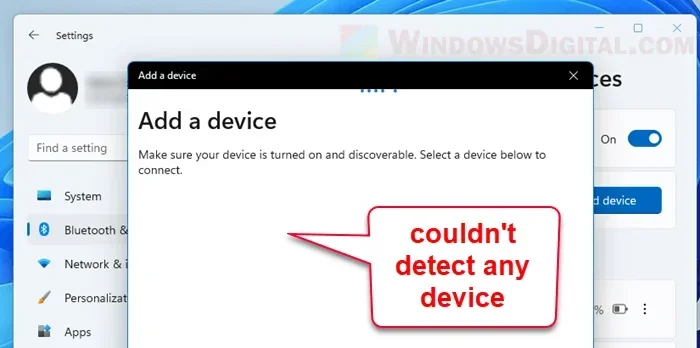
Visual guide about how to windows 11 bluetooth not detecting devices
Image source: windowsdigitals.com
Delete the device from Windows settings
Open Settings, then go to Bluetooth and devices. If you see the device in the list, select it and choose Remove device. After removing it, try pairing again from scratch. This is especially useful if the device appears in the list but will not connect.
Reset the device if needed
Some accessories remember past pairings and may try to reconnect to an old system. If removing the device on the PC does not help, turn the accessory off and on again, then put it back into pairing mode. For phones and tablets, making sure Bluetooth is refreshed can also help.
Avoid pairing conflicts with multiple devices
If you have several Bluetooth accessories, try pairing only one at a time during testing. Too many active connections can make it harder to tell which device is causing the problem.
3. Update or Reinstall the Bluetooth Driver
Driver problems are one of the most common reasons for Bluetooth detection failures. If the driver is outdated, missing, or corrupted, Windows may not communicate properly with the Bluetooth adapter.
Check for Windows Update first
Open Settings, then go to Windows Update and select Check for updates. Install any available updates, including optional driver updates if they appear. Sometimes a system update includes the fix needed for Bluetooth discovery.
Update the driver in Device Manager
Right-click the Start button and open Device Manager. Look for Bluetooth in the list and expand it. If you see your Bluetooth adapter, right-click it and choose Update driver. Select the option to search automatically for drivers. If Windows finds one, install it and restart the PC.
Reinstall the driver if updating does not help
If the device is listed with a warning icon, or if the driver update did not solve the issue, try uninstalling the adapter in Device Manager. After that, restart the computer. In many cases, Windows will reinstall the driver automatically when it boots. This can clear temporary configuration problems.
Use the manufacturer website if needed
If your PC uses a specific Bluetooth module, the manufacturer may offer a dedicated driver. This is more common on some laptops and desktops with add-in adapters. If you go this route, download drivers only from the official support page for your device model.
4. Run the Bluetooth Troubleshooter and Check Services
Windows includes diagnostic tools that can spot common Bluetooth problems. These tools are helpful when the setting looks correct, but the PC still cannot find devices.
Run the built-in troubleshooter
Go to Settings, then System, then Troubleshoot. Open Other troubleshooters, locate Bluetooth, and run it. The troubleshooter may detect a disabled service, a missing adapter, or another basic issue. Follow any suggested fixes if they appear.
Check that Bluetooth services are running
Press the Windows key, type Services, and open the Services app. Look for Bluetooth-related services and confirm they are set to start properly. If a service is stopped, starting it may restore discovery. If the service keeps stopping, that can point to a deeper configuration or driver issue.
Restart the PC after service changes
If you change any service settings or reinstall a driver, restart the computer before testing again. Some Bluetooth changes do not take full effect until the system is rebooted.
5. Test the Device on Another Computer or Phone
One of the best ways to narrow down the issue is to test the same accessory with a different device. This helps you determine whether the problem is with Windows 11 or with the device itself.
Try pairing with a phone or tablet
If the accessory can pair with another device, the accessory is probably working fine. That suggests the issue is on the Windows side. Continue with driver, service, and settings checks there.
Try another Bluetooth device on your PC
If your PC cannot detect any Bluetooth device at all, the problem is more likely with the computer’s adapter, drivers, or settings. If it can detect some devices but not others, the issue may be compatibility or a problem with the specific accessory.
Watch for power or battery issues on the device
Some devices stop broadcasting if the battery is very low. If a mouse, headset, or speaker is nearly dead, it may not enter pairing mode reliably. Charge the device and try again.
6. Fix Interference, Power, and Discovery Issues
Bluetooth can be sensitive to interference and power settings. If the signal is weak or the adapter is being turned off to save power, discovery may fail even when everything else looks correct.
Reduce wireless interference
Other wireless devices, crowded signal environments, and physical obstacles can affect Bluetooth discovery. Try pairing in an open space and away from routers, USB 3.0 hubs, and other electronics that may cause interference.
Check power-saving settings for the adapter
In Device Manager, open the properties for your Bluetooth adapter and look for power-related options. If an option allows the device to be turned off to save power, try disabling it temporarily to see whether discovery improves. This is a useful test when the adapter works sometimes but not consistently.
Turn off unnecessary Bluetooth accessories
If several devices are trying to connect nearby, the discovery process can become confusing. Temporarily disable other Bluetooth accessories and try again with only the target device active.
7. Reconnect, Reset, and Verify the Fix
After you have tried the main fixes, confirm that the device pairs reliably and stays connected. A one-time success is good, but consistency matters more.
Pair the device again from scratch
Put the device into pairing mode, scan from Windows 11, and complete the pairing process. If the device connects, test basic functions such as audio, input, or file transfer depending on the type of accessory.
Restart Bluetooth and the device once more
If pairing works but the connection drops later, restart both the PC and the accessory. This simple step often clears temporary communication errors.
Keep track of what changed
If a specific step fixed the issue, note it. That can save time if the problem returns later. For example, if updating the driver solved it, you will know to check driver updates again after future Windows updates.
Troubleshooting Checklist When Nothing Seems to Work
If you have tried the steps above and Windows 11 still does not detect Bluetooth devices, use this checklist to organize the remaining possibilities.
- Confirm Bluetooth is on, Airplane mode is off, and the device is in pairing mode.
- Remove old pairings and try a fresh connection.
- Install Windows updates and check for driver updates.
- Reinstall the Bluetooth driver through Device Manager.
- Run the Bluetooth troubleshooter.
- Check that Bluetooth services are running.
- Test the device with another computer or phone.
- Test another Bluetooth device with your PC.
- Charge the accessory and rule out low-battery behavior.
- Reduce interference and test in a different location.
If the PC still cannot detect any Bluetooth device after all of this, the adapter itself may be the issue. On a desktop PC, an external Bluetooth adapter may be a practical option. On a laptop, the problem may require hardware support if the internal adapter is failing.
When the Problem May Be More Than a Settings Issue
Most Bluetooth detection problems are solvable with software checks, but not every case is caused by settings alone. If the Bluetooth toggle is missing entirely, the adapter may not be recognized by Windows. If Device Manager shows no Bluetooth section at all, the system may not detect the hardware. If the same PC fails with multiple accessories and the issue persists after driver reinstallation and updates, hardware failure becomes more likely.
In those situations, it helps to back up your troubleshooting steps and seek further support. If the device is under warranty, contact the manufacturer before making any invasive changes. If you are using an external dongle or adapter, try a different one in a known-good USB port to see whether the problem follows the adapter or stays with the PC.
Final Thoughts on Fixing Windows 11 Bluetooth Detection
When Windows 11 Bluetooth is not detecting devices, the best approach is to start simple and work upward. Check the basics first, then remove old pairings, update or reinstall drivers, run the troubleshooter, and test the device on another system. That process usually identifies the cause and gets the connection working again.
If you stay patient and test one change at a time, you can avoid unnecessary frustration. Bluetooth issues often look bigger than they are, especially when the real problem is just a disabled toggle, a stale pairing, or a driver that needs refreshing. With a methodical check, most users can restore detection and get back to using their devices without much trouble.