
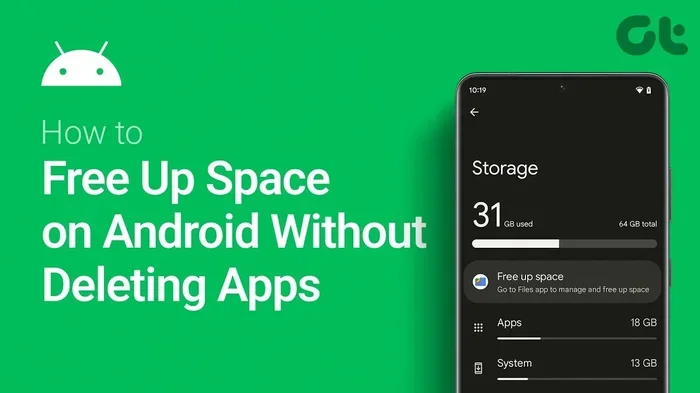
Featured image for how to free up android storage without deleting photos
Image source: i.ytimg.com
Running low on phone space is frustrating, especially when you want to keep every picture you have taken. The good news is that you can free up storage on Android without deleting photos by clearing app cache, removing unused downloads, and managing media files more efficiently. This guide walks you through practical steps that protect your memories while reclaiming valuable space.
Your phone holds a lot more than pictures. Every app you use, every file you download, and every update you install can slowly fill up your storage. When that happens, it feels like the easiest solution is to delete photos, but that is not the only path. If you have ever searched for a way to free up storage on Android without deleting photos, you are in the right place. This guide explains practical steps you can take right now, without risking your favorite memories.
You will learn how to find hidden space hogs, clear safe-to-remove files, and build a simple cleanup habit that keeps your phone running smoothly. The goal is not to delete everything. The goal is to make room for what matters while keeping your photos intact.
📑 Table of Contents
- Start With a Quick Storage Check
- Clear App Cache Safely
- Remove Unused Apps and Their Leftovers
- Clean Up Downloads and Temporary Files
- Manage Music, Videos, and Offline Media
- Tame Large Files and Old Documents
- Use Cloud Sync and Backup Wisely
- Keep Messages and Attachments Under Control
- Do a Final Pass and Build a Maintenance Habit
- Troubleshooting When Storage Does Not Improve
- Conclusion
Start With a Quick Storage Check
Before you remove anything, it helps to see what is actually taking up space. Android makes this easier with a built-in storage screen that breaks your usage into categories. That view gives you a clearer picture than guessing which apps or files are the biggest problem.
Open the storage menu
Go to your phone’s Settings and look for Storage, Device Care, or a similar option. The exact name can vary by manufacturer, but the idea is the same. Once you open it, you should see a summary of what is using space, such as apps, images, videos, audio, documents, and cached data.
Identify the biggest categories
Pay attention to the largest sections first. If apps are the biggest category, you may have a few heavy programs you no longer use. If downloads or documents are high on the list, old files may be sitting there unnoticed. Photos and videos often take up a lot of space too, but this guide focuses on freeing space without removing them.
Use the insight to plan your cleanup
This quick check helps you avoid random deletions. Instead of wiping things one by one, you can target the areas that give you the best results. That makes the whole process faster and safer.
Clear App Cache Safely
App cache is one of the easiest places to start when you want to free up storage on Android without deleting photos. Cache files help apps load faster by storing temporary data, but they can build up over time. Removing them usually does not erase your personal content, though it may reset some app preferences or logged-in states.
Visual guide about how to free up android storage without deleting photos
Image source: techbaked.com
Find which apps use the most cache
In your storage screen, look for a list of apps and their individual storage use. Some of that usage may be cache rather than the app itself. If your phone shows cached data as a separate category, that is a useful clue. If not, you may need to open each app’s storage settings one by one.
Clear cache for heavy apps
Open the app’s storage settings and choose the option to clear cache when available. This is often safe for apps like browsers, social media apps, streaming tools, and shopping apps. After clearing cache, the app may take a little longer to load the next time you open it, but that is normal.
Avoid confusing cache with app data
Cache and app data are not the same thing. Clearing app data can remove logins, saved settings, and locally stored information inside the app. If you are not sure what an app keeps in its data, it is better to leave that alone unless you have already backed up what matters.
Make cache cleanup part of a routine
You do not need to clear cache every day. A periodic check is usually enough, especially if your phone starts feeling crowded again. This small habit can help you keep space available without constant deletions.
Remove Unused Apps and Their Leftovers
Apps can take up much more space than people expect. Some include offline content, extra language files, or cached media that stays behind even after you stop using the app. Removing unused apps is a simple way to free up storage on Android without deleting photos, as long as you check what each app is storing first.
Review your app list
Scroll through your installed apps and ask yourself which ones you actually use. If an app has not been opened in months, it may be a good candidate for removal. This is especially true for games, duplicate tools, and old apps from previous phones or accounts.
Check for offline content
Some apps store downloads inside the app itself. Music, podcasts, videos, maps, and documents can all add up. Before deleting the app, open it and look for any offline files you may want to keep. If you do not need them, removing the app can clear both the program and its stored content.
Uninstall apps you no longer need
Use the uninstall option in your app settings or long-press the app icon and choose the remove option. After uninstalling, it is worth checking your storage screen again. Sometimes the space does not disappear immediately if leftover files remain, so a second look can be helpful.
Watch for app-related folders in file storage
A few apps create folders in your device storage even after they are removed. If you are comfortable browsing your files, look for folders with the app’s name or developer name. If you find old files there and you are sure they are not needed, you can delete them carefully.
Clean Up Downloads and Temporary Files
Downloads are easy to forget. A PDF you needed once, an image you saved for later, or a document you opened and never touched can sit in your downloads folder for a long time. These files often take up more space than people realize, and they are usually safe to remove when you no longer need them.
Open your downloads folder
Use your phone’s file manager or downloads app to view recent files. Sort them by date if possible so you can see older items more easily. Many people are surprised by how many files accumulate over time.
Delete files you no longer need
Look for duplicates, old installers, temporary documents, and saved media that has already been shared or backed up elsewhere. If you are unsure about a file, open it once to confirm what it is before deciding. It is better to check than to delete something important by mistake.
Clear temporary storage where possible
Some phones and apps create temporary files that are meant to be cleaned up automatically. If your device offers a cleanup tool, use it. If not, removing old downloads and clearing cache often reduces the same kind of clutter.
Keep a simple download habit
One of the best ways to free up storage on Android without deleting photos is to avoid letting random downloads pile up. If you save something only because you might need it later, consider whether it is worth keeping on the device. If it can be re-downloaded later, you may not need to store it right now.
Manage Music, Videos, and Offline Media
Media files can grow quietly in the background. Streaming apps, podcast players, and music libraries often let you save content for offline use. That is convenient, but it can also use a lot of storage if you forget what you have already downloaded.
Check your streaming apps
Open music, video, and podcast apps and look for offline or downloaded sections. You may find episodes, songs, or videos you no longer listen to or watch. Removing those downloads can free up space without affecting your account or online library.
Decide what truly needs to be offline
Not every file needs to live on your phone. If you usually have internet access, keeping a smaller set of offline favorites may be enough. This is a practical middle ground when you want to free up storage on Android without deleting photos and still keep some media available.
Remove duplicates in media libraries
Sometimes the same song, episode, or video gets downloaded more than once by accident. If you notice repeated items, remove the extra copies. This is a small step, but repeated across many files, it can add up.
Be careful with personal videos
If you store personal videos outside of streaming apps, check their size before making changes. Videos often take up more space than music or audio files. If you want to keep them, consider moving them to a backup location instead of deleting them.
Tame Large Files and Old Documents
Not all storage problems come from apps or media. Large documents, old project files, saved voicemails, and shared attachments can also take up room. These items are often overlooked because they are not as visible as photos or videos.
Search for large files
If your file manager supports searching by size, use that feature. Large files are usually the easiest to review because they have the biggest impact on storage. A few large files may free up more space than dozens of small ones.
Review documents and attachments
Look through old downloads, email attachments, and saved documents. If a file was only needed for a short-term task, it may no longer be useful. If you are unsure, check the date and open it once before deciding.
Handle old installers and app packages
APK files and other installers are often kept after an app is already installed. If you no longer need them, they can usually be removed safely. This is one of those cleanup tasks that people forget because the files are not part of daily use.
Move important files elsewhere if needed
If a document matters but does not need to stay on your phone, consider saving it to a cloud service, computer, or external storage if you use one. That way you keep the file without letting it crowd your device.
Use Cloud Sync and Backup Wisely
Cloud storage can help reduce what sits on your phone, but it works best when you use it carefully. The idea is not to dump everything into the cloud and hope for the best. It is to keep the files you need accessible while reducing local copies.
Check what is already syncing
If you already use a cloud photo or file service, review its settings. Some services keep copies on the device while also storing them online. If your phone shows duplicate usage, that may be part of the problem.
Choose selective sync when possible
Some apps let you choose which folders or file types sync locally. If you only need certain files available offline, limiting sync can reduce storage pressure. This is especially useful for people who want to free up storage on Android without deleting photos but still want access to important images.
Use backup as a safety net, not just a cleanup tool
Backup is helpful because it protects your data, but it should not be treated as a replacement for organization. If your phone is backed up, you can feel more confident removing local copies of files you no longer need on the device.
Avoid relying on cloud only
Cloud storage is useful, but it is not the same as a thoughtful local cleanup. If your phone is already full, moving files to the cloud may still require some temporary space. That is why it helps to combine cloud use with the other steps in this guide.
Keep Messages and Attachments Under Control
Messaging apps can store more than most people expect. Photos, videos, voice notes, and documents shared in chats may remain on your device long after you viewed them. That can slowly eat into storage, especially if you use the same app every day.
Open your main messaging apps
Check the storage or data settings in your most-used messaging apps. Some of them include options to review large files or manage stored media. If such an option exists, it can be a quick way to spot space-consuming items.
Remove old media from chats
If you no longer need every image or video shared in a conversation, you can often delete those items from the app’s storage. This does not always delete the message itself, but it can remove the attached file from your phone.
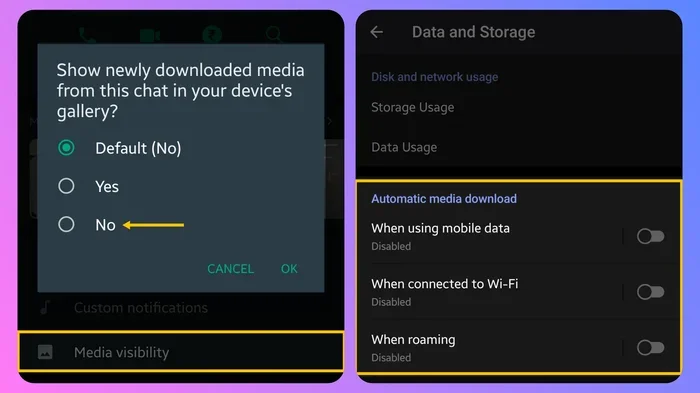
Be selective with auto-download settings
Some apps automatically download media when you receive it. If that setting is on, your phone may keep collecting files without much notice. Adjusting auto-download preferences can reduce future clutter.
Save only what matters
If a photo or document in a message is important, save it somewhere intentional rather than letting it sit in the app forever. That gives you more control over what stays on your device.
Do a Final Pass and Build a Maintenance Habit
Once you have gone through the main areas, do one more storage check. You may be surprised by how much space you reclaimed without touching your photo library. If the phone still feels crowded, repeat the process slowly and carefully rather than rushing to delete more.
Revisit your storage screen
After cleaning cache, downloads, unused apps, and media, look at the storage summary again. This helps you confirm which categories improved and which ones still need attention. It also tells you whether your effort made a real difference.
Keep a simple cleanup routine
A monthly check is often enough for many people. You do not need a complicated system. Just look for old downloads, unused apps, and heavy cache buildup before they become a problem again.
Think before you save
One of the easiest ways to free up storage on Android without deleting photos is to be mindful about what you keep in the first place. If you save every file, link, and attachment “just in case,” storage will fill up faster. A little restraint now can save you time later.
Protect your important data
Before removing anything you are unsure about, make sure it is backed up or stored somewhere safe if it truly matters. A careful cleanup should reduce clutter, not create regret.
Troubleshooting When Storage Does Not Improve
Sometimes storage space does not seem to change much, even after you clean things up. That can be frustrating, but there are a few common reasons why it happens. Understanding them can help you avoid unnecessary worry.
Restart your phone after cleanup
Some changes do not show up immediately. A restart can help the system refresh its storage display and finish removing temporary files. If your storage screen looks stuck, this is a simple first step.
Check for hidden app data
Certain apps keep data in multiple places. If you cleared cache but the app still uses a lot of space, the app itself or its offline content may be the cause. Review the app’s storage details again to see what is actually using space.
Look for large files you missed
If one or two huge files are still on the device, they can make the rest of your cleanup feel less effective. Search by size or sort by storage use to find them.
Remember that some space is always reserved
Your phone needs some storage for system functions, updates, and temporary operations. If your storage is almost full, performance can suffer, so it is smart to keep a little breathing room instead of trying to squeeze out every last byte.
When in doubt, go slower
If you are uncertain about a file or folder, do not delete it immediately. A careful review is better than a rushed cleanup, especially when you want to free up storage on Android without deleting photos and avoid losing something important.
Conclusion
Freeing up space on Android does not have to mean giving up your pictures. By clearing cache, removing unused apps, cleaning downloads, managing offline media, and checking large files, you can make room without deleting photos. The best approach is steady and intentional. Start with a storage check, target the biggest space users, and build a small maintenance routine so your phone stays usable for longer. If you stay mindful about what you save and what you keep locally, you can protect your memories while still giving your device the breathing room it needs.