
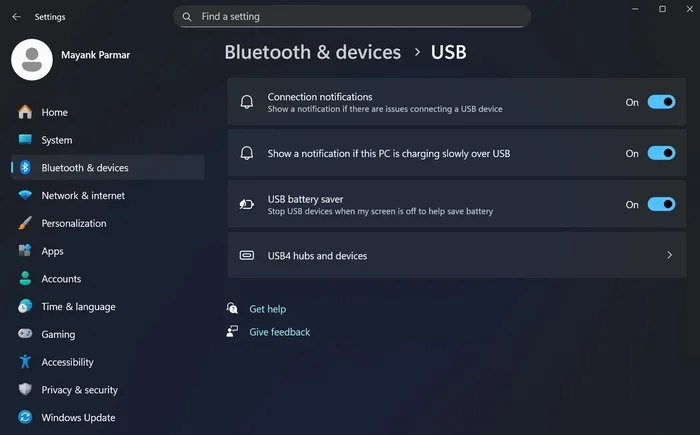
Featured image for Windows 11 USB drive connection
Image source: windowslatest.com
Dealing with a USB drive not showing up Windows 11 can be frustrating, but you do not need to panic. This guide walks you through simple fixes to get your device recognized again. We cover driver updates, disk management, and hardware checks. You will learn how to troubleshoot safely without losing data. Let us get your storage working again quickly.
It is annoying when you plug in a flash drive and nothing happens. You might need to transfer files quickly. Or maybe you want to back up important photos. When USB drive not showing up Windows 11 occurs, it stops your workflow. This problem is common among users. Luckily, most fixes are simple. You do not need to be a tech expert. We will explore easy solutions step by step.
Windows 11 is a great operating system. But sometimes hardware does not play nice. Drivers might be missing. Ports could be loose. Or power settings might be too strict. We will look at all these possibilities. You will learn how to check settings. We will also discuss when to seek professional help. Keep reading to solve this issue today.
Key Takeaways
- Check physical connections: Ensure the USB port and cable are working properly.
- Update device drivers: Outdated drivers often cause recognition issues.
- Use Disk Management: The drive might be hidden but still functional.
- Disable USB selective suspend: Power settings can cut off USB power.
- Test on another PC: This helps identify if the drive or computer is at fault.
- Format as last resort: Formatting fixes errors but erases all data.
📑 Table of Contents
Check Physical Connections and Ports
Before changing software settings, check the hardware. A loose cable is a common culprit. Sometimes the port itself is damaged. You should try different USB ports on your computer. Front ports on desktops can be less reliable than back ports. Try the back of the tower if you have a desktop.
Try Different USB Ports
Windows 11 has many USB ports. They are not all the same. Some are USB 2.0 and some are USB 3.0. A faulty port will not show the drive. Plug the drive into a different slot. Wait a few seconds after plugging it in. Listen for the connection sound. This simple step solves many USB drive not showing up Windows 11 issues.
Inspect the USB Cable and Drive
Cables can wear out over time. Check the USB cable for cuts or bends. If you use an external hard drive, check the power cable too. Some drives need extra power. Try the drive on another computer. If it works there, the issue is your Windows 11 PC. If it fails everywhere, the drive might be broken.
Quick Tip: Clean the USB connector gently. Dust can block the connection. Use a dry cloth to wipe the metal part.
Update or Reinstall USB Drivers
Drivers tell Windows how to talk to hardware. If drivers are old, the drive stays hidden. Windows 11 usually updates drivers automatically. But sometimes it misses things. You can check manually in Device Manager. This is a key step for USB drive not showing up Windows 11 fixes.
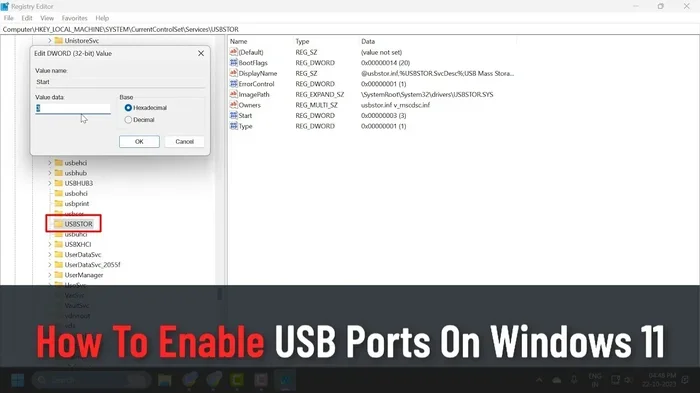
Visual guide about Windows 11 USB drive connection
Image source: i.ytimg.com
Use Device Manager
Press the Windows key on your keyboard. Type “Device Manager” and hit enter. Look for the “Universal Serial Bus controllers” section. Click the arrow to expand it. Find your USB drive in the list. It might have a yellow warning sign. Right-click the device and select “Update driver”.
Choose “Search automatically for drivers”. Windows will look online. If it finds one, it will install it. Restart your computer after the update. This often brings the drive back. If the update fails, try uninstalling the device. Then disconnect and reconnect the USB drive. Windows will reinstall the driver fresh.
Reinstall Drivers Manually
Sometimes automatic updates do not work. You may need to download drivers from the manufacturer. Go to the PC maker’s website. Find the support section. Download the USB chipset drivers. Install them and restart. This ensures compatibility with USB drive not showing up Windows 11.
Use Disk Management to Find Hidden Drives
Sometimes the drive works but does not show in File Explorer. It might be offline or unallocated. Disk Management shows all storage devices. This tool is vital for USB drive not showing up Windows 11 troubleshooting. You can see if the drive has a letter.
Assign a Drive Letter
Right-click the Start button. Select “Disk Management” from the menu. Look for your USB drive in the list. It might be listed as “Removable”. If it has no letter, right-click the partition. Select “Change Drive Letter and Paths”. Click “Add” and choose a letter. Click OK. The drive should appear now.
Format the Drive if Necessary
If the drive shows as “Unallocated”, it needs setup. Right-click the unallocated space. Select “New Simple Volume”. Follow the wizard steps. This will create a new partition. Note that formatting erases all data. Only do this if you do not need the files. This is a strong fix for USB drive not showing up Windows 11.
Table: Common Drive Statuses in Disk Management
- Healthy: Drive is working normally.
- No Drive Letter: Needs a letter assignment.
- Unallocated: Needs partitioning and formatting.
- Offline: Drive is disabled in settings.
Adjust Power Management Settings
Windows 11 saves power by turning off USB ports. This can make the drive disappear. You need to stop Windows from cutting power. This setting is often the cause of USB drive not showing up Windows 11. Adjusting this helps stability.
Disable USB Selective Suspend
Open the Control Panel. Go to “Power Options”. Click “Change plan settings” next to your plan. Select “Change advanced power settings”. Find “USB settings” in the list. Expand “USB selective suspend setting”. Change it to “Disabled”. Click Apply and OK. Restart your computer.
Check Device Power Settings
Go back to Device Manager. Find your USB hub or controller. Right-click and select “Properties”. Go to the “Power Management” tab. Uncheck “Allow the computer to turn off this device”. This keeps power flowing to the port. This step helps resolve USB drive not showing up Windows 11 glitches.
Run Windows Troubleshooter and Updates
Windows 11 has built-in tools. These tools find and fix problems automatically. The hardware troubleshooter is useful. Also, keeping Windows updated is crucial. Updates fix bugs that cause USB drive not showing up Windows 11.
Run Hardware Troubleshooter
Go to Settings. Click “System” then “Troubleshoot”. Select “Other troubleshooters”. Find “Hardware and Devices”. Click “Run” next to it. Follow the on-screen prompts. Windows will scan for issues. It might reset drivers or settings. This is an easy first step for USB drive not showing up Windows 11.
Install Windows Updates
Open Settings again. Go to “Windows Update”. Click “Check for updates”. Install any pending updates. Some updates fix USB controller bugs. Restart after installing. This ensures your system is current. Many users solve USB drive not showing up Windows 11 just by updating.
Test on Another Computer and Format
If nothing else works, test the drive elsewhere. This tells you if the drive is dead. If it works on another PC, your Windows 11 settings are the problem. If it fails everywhere, the hardware is likely broken. You might need a new drive.
Final Formatting Option
If the drive is visible but unusable, format it. Back up any data first. Right-click the drive in File Explorer. Select “Format”. Choose FAT32 or exFAT. Click Start. This wipes errors. It is the last resort for USB drive not showing up Windows 11. Only do this if you accept data loss.
Expert Insight: Always safely eject your USB drive. Pulling it out while data is writing can corrupt the file system. This leads to recognition issues later.
Common Mistakes to Avoid
People often rush when fixing tech issues. Avoid these common errors to save time.
- Ignoring physical damage: Check for cracks before software fixes.
- Forgetting to restart: Many driver changes need a reboot.
- Formatting too soon: Do not erase data unless necessary.
- Skipping power checks: Loose power cables cause failures.
- Using wrong file system: exFAT works best for cross-platform use.
Key Takeaways for Success
Fixing USB drive not showing up Windows 11 takes patience. Start with the physical check. Move to drivers and settings. Use Disk Management to assign letters. Adjust power settings to prevent sleep. Keep Windows updated for best performance. These steps cover most scenarios.
Remember to test the drive on another machine. This isolates the problem. If the drive is dead, replace it. Data recovery services exist for critical files. But for most users, the steps above work. You can get back to work quickly.
We hope this guide helps you. Technology should make life easier, not harder. With these tips, you handle USB issues with confidence. Keep this article handy for next time. Solving USB drive not showing up Windows 11 is now within your reach.
Frequently Asked Questions
Why is my USB drive not showing up in Windows 11?
This often happens due to outdated drivers or a loose connection. It can also be a power setting issue. Check Device Manager to see if the drive is detected there.
How do I make my USB drive visible again?
Try a different USB port and update your drivers. You can also assign a new drive letter in Disk Management. Restarting your computer often helps too.
Will formatting fix the USB drive not showing up issue?
Formatting can fix file system errors but it erases all data. Only format if you have a backup or do not need the files. It is a last resort solution.
Can a virus cause USB drive not showing up Windows 11?
Yes, malware can hide drives or corrupt file systems. Run a full antivirus scan if you suspect this. Keep your security software updated for protection.
What should I do if the USB drive is detected but not accessible?
Check if the drive has a letter assigned in Disk Management. You might also need to change permissions or format the drive. Test the drive on another computer to rule out hardware failure.
How do I prevent USB drive issues in the future?
Always eject the drive safely before unplugging it. Keep your Windows 11 drivers updated. Avoid using damaged cables or ports to ensure longevity.