
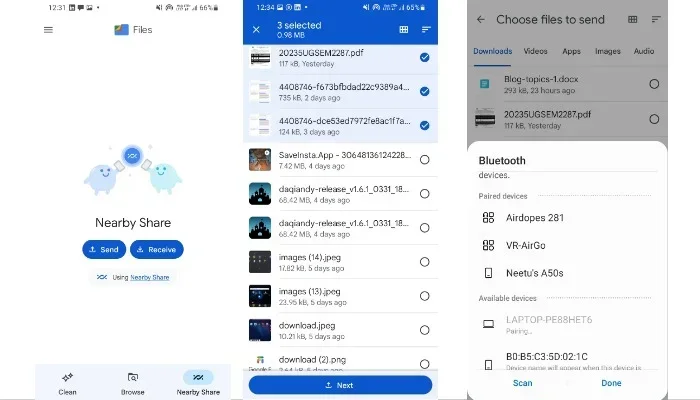
Featured image for how to share files android to windows wirelessly
Image source: technospot.net
Wireless file sharing between Android and Windows is easier than most people think, and it can save time when you need to move photos, documents, or videos without cables. You can use built-in options like Nearby Share, Quick Share, or cloud storage, along with third-party apps, to send files quickly over the same Wi‑Fi network. This guide explains the most reliable methods, what to expect in different situations, and how to troubleshoot common connection problems.
📑 Table of Contents
- Why Wireless File Sharing Makes Sense
- What You Should Check Before You Start
- Using Nearby Share and Quick Share on Windows
- Sending Files Through Google Drive or Another Cloud Service
- Using a Local Wi‑Fi Transfer App for Faster Direct Sharing
- Using Microsoft Phone Link for Integrated Sharing
- Sending Files Through Email or Messaging Apps for Small Items
- Tips for Better Wireless Transfers
- Troubleshooting Common Wireless Sharing Problems
- Which Wireless Method Should You Use
- Final Thoughts on Wireless File Sharing
Why Wireless File Sharing Makes Sense
Moving files between an Android phone and a Windows PC does not always need a cable. In many situations, wireless sharing is simply faster to set up, especially if you are sitting at a desk, working in the same room, or trying to send a few photos and documents without digging for a USB cord. It can also be more convenient when your phone is already connected to Wi‑Fi and you want to avoid plugging and unplugging devices.
Wireless transfer is especially helpful when you want to keep your workspace tidy, move files repeatedly during the day, or send something quickly to a laptop while your phone is in your hand. For larger files, the right wireless method can still be practical, though the speed will depend on your network and the tools you choose.
The main idea is simple: both devices need a way to find each other and a shared path for the file to travel. That path might be a local network, a cloud service, or a direct device-to-device connection. Once you understand the options, it becomes much easier to pick the best method for each situation.
What You Should Check Before You Start
Before you try any wireless transfer method, a few basic checks can save time later. These are small details, but they often explain why a transfer fails or slows down.
Make sure both devices are ready
Start by checking that your Android phone and Windows PC are both powered on, unlocked, and ready to accept connections. If your phone is locked or the screen is off, some discovery features may not work smoothly.

Visual guide about how to share files android to windows wirelessly
Image source: technospot.net
Confirm the network setup
Many wireless transfer methods work best when both devices are on the same Wi‑Fi network. If one device is using mobile data and the other is on Wi‑Fi, some local transfer tools may not detect each other. This does not apply to every method, but it is a common reason for problems.
Check available storage
If you are receiving files on your PC or phone, make sure there is enough free space. Large video files and backed-up photo folders can fill storage faster than expected.
Think about file types and size
A few documents or photos are easy to send with almost any method. A long video recording or a large folder may need a tool designed for bigger transfers. If you know the file size ahead of time, you can choose a more suitable option.
Using Nearby Share and Quick Share on Windows
One of the most natural starting points for wireless sharing is the built-in sharing tools that Google and Android ecosystems have extended to Windows in different ways. Depending on your device and software setup, you may be able to use Nearby Share or Quick Share to send files between Android and Windows over a local connection.
The general idea is similar across these tools. You select a file on one device, choose the sharing option, and then look for the nearby receiving device. If the devices can see each other, the file is sent over a wireless connection rather than through a cable.
Set up the sharing feature on your phone
On your Android phone, open the file you want to share, such as a photo, document, or video. Look for the share option in the menu or toolbar. From there, choose the nearby sharing or Quick Share option if it is available on your device.
Enable discovery on the receiving device
On your Windows PC, make sure the corresponding receiving feature is ready. In many cases, this means the PC needs to be discoverable and the relevant app or system feature should be active. If the PC is not visible, the phone may not be able to send the file.
Select the PC as the destination
Once both devices are ready, select your Windows PC from the list on your phone. After that, confirm the transfer on the receiving side if prompted. The file should then move wirelessly to the chosen folder or location.
When this method works well
This approach is convenient for quick transfers of everyday files. It is especially useful when you are in the same room and want a simple way to move a photo, a PDF, or a short video without opening a cloud service.
When it may be less ideal
If the devices do not appear in each other’s lists, the process can become frustrating. Discovery issues can happen for several reasons, including network settings, visibility settings, or software versions. In those cases, another method may be more reliable.
Sending Files Through Google Drive or Another Cloud Service
Cloud storage is one of the most dependable ways to move files wirelessly, especially when you want access from more than one device later. Instead of sending the file directly from phone to PC, you upload it to a shared storage location and then open it on the other device.
This method is not always the fastest for very large local transfers, but it is often the easiest when the devices are not on the same network or when you want the file saved in a place you can return to later.
Choose the right cloud app
Google Drive is a common choice for Android users, and it works well with Windows through a browser or a desktop app. OneDrive is another strong option, especially if you already use it for Microsoft services. Other cloud services can also work if they have Android and Windows access.
Upload the file from Android
Open the cloud app on your phone and choose the upload or add file option. Select the file you want to share, then wait for the upload to finish. If the file is large, this may take longer on slower connections.
Open the file on Windows
On your PC, sign in to the same cloud account through a browser or the desktop sync tool. Find the file and download it if needed, or open it directly if the service supports that. If the file is already synced, it may appear in your local folders without any extra steps.
Best uses for cloud-based sharing
Cloud storage is useful for documents, photos, and files you want to keep synchronized across devices. It is also a good fallback when local discovery features are not working. If you share files often with coworkers or family members, a cloud folder can be easier than sending each file one by one.
Limitations to keep in mind
Upload and download speeds depend on your internet connection. Very large files may take time, and you need enough cloud storage space. Also, if you are handling sensitive files, make sure you are comfortable with the service’s access and privacy setup.
Using a Local Wi‑Fi Transfer App for Faster Direct Sharing
If you want a more direct wireless transfer without relying on cloud storage, a local Wi‑Fi transfer app can be a good choice. These tools usually create a connection between your phone and PC over the same network, or they may set up a temporary local connection for the transfer.
This can be useful when you want to move larger files and prefer not to upload them to a third-party server first. It can also help when you want more control over the transfer process.
Install a compatible transfer app
Choose an app that supports Android and Windows and clearly explains how it connects. Some apps work through a browser on the PC, while others use a small desktop program. Read the setup steps carefully before starting.
Connect both devices to the same network
For most local transfer apps, both devices should be on the same Wi‑Fi network. After that, open the app on both sides and follow the instructions to pair them or begin the transfer.
Send the file and confirm receipt
Select the file on the sending device, choose the PC as the destination, and start the transfer. Watch for any confirmation prompt on the receiving side. Once the transfer completes, check that the file opens correctly.
Why this can be a strong option
Local transfer apps can be helpful when you want to avoid cloud uploads or when you need to move a batch of files in one session. They are often practical for photos, folders, and larger documents.
Things to verify first
Not every app is equally easy to use, and some require extra setup. Check whether the app needs permissions, whether it works on your version of Windows, and whether it is comfortable to use in your environment. If the app asks for unusual access, take a moment to understand why before proceeding.
Using Microsoft Phone Link for Integrated Sharing
Microsoft Phone Link is another option that can make wireless sharing feel more connected. Depending on your phone and setup, it may help you access photos, notifications, and other content from your Android device on your Windows PC.
This is not always a pure file-transfer tool in the same way as a direct send feature, but it can still be useful when you want a more integrated workflow between the two devices.
Set up Phone Link on Windows
Open the Phone Link app on your PC and follow the pairing steps. You will usually need to connect your phone and PC through a setup process that may involve a QR code or similar method, depending on the version you are using.
Pair the Android phone
On your phone, install or open the companion app if needed and complete the pairing steps. Once connected, the devices can communicate in supported ways, which may include viewing photos or sharing certain content.
Use the supported sharing features
After pairing, explore the options available in the app. In some setups, you can browse recent photos or access files that are ready to share. If a file type is supported, this can be a quick way to move content without leaving the PC environment.
When Phone Link is most useful
This option works best when you want an ongoing connection rather than a one-time transfer. It can be handy if you frequently need to grab photos, messages, or other content from your phone while working on your PC.
What to expect realistically
Phone Link does not always support every file type or every Android device in the same way. Some features depend on the phone model, the software version, and the compatibility of the apps involved. If a file cannot be shared through Phone Link, another method may be needed.
Sending Files Through Email or Messaging Apps for Small Items
For very small files, you do not always need a special transfer tool. Email attachments and some messaging apps can be a quick way to move a document, image, or short note between devices.
This is usually best for lightweight files that are easy to attach and open. It is less practical for large folders or high-resolution videos.
Use email when the file is small
Attach the file to an email from your phone, send it to yourself or the intended recipient, and open it on Windows. This is simple and familiar, and it works well when the file size is within attachment limits.
Use a messaging app if it is faster for your workflow
Some people prefer sending a file through a messaging app they already use. If the app supports file sharing and you can access the same account on both devices, this can be a convenient shortcut.
Keep the file size in check
If the file is too large, email may reject it or compress it in ways you do not want. In that case, a local transfer method or cloud storage may be better.
Tips for Better Wireless Transfers
A few habits can make wireless sharing smoother and more reliable over time. These are not complicated changes, but they can reduce frustration.
Keep both devices updated
Software updates can improve compatibility and fix bugs that affect sharing features. If transfers are unreliable, check whether your phone or PC has pending updates.
Use a stable network
A strong Wi‑Fi connection usually gives better results than a weak or unstable one. If transfers are slow or fail halfway, the network may be part of the problem.
Close unused apps during large transfers
If you are sending a big file, closing unrelated apps can help reduce interruptions. The same is true on the PC if other tasks are using a lot of resources.
Name files clearly
Clear file names make it easier to find transferred content later, especially if you move many files at once. This is a small habit that saves time.
Check the destination folder
Before sending, decide where the file should land on the receiving device. That way, you can confirm the transfer went to the right place and avoid searching for it afterward.
Troubleshooting Common Wireless Sharing Problems
Even with a good setup, wireless transfers can sometimes fail. Here are common issues and practical ways to address them.
Devices do not see each other
If the phone cannot find the PC, or the PC cannot find the phone, start by checking whether both devices are on the same network. Then confirm that discovery or visibility is turned on in the sharing tool you are using. Restarting the app or both devices can also help.
Transfer is very slow
Slow transfers can happen with large files, weak Wi‑Fi, or busy networks. If possible, pause other downloads, move closer to the router, or try again when the network is less crowded. For very large files, a local transfer app may be faster than a cloud upload.
The file will not open after transfer
If the file arrives but will not open, check the file format and whether the PC has a compatible app. Sometimes the transfer succeeds, but the receiving device cannot interpret the file type.
The transfer stops halfway
Interrupted transfers may be caused by network instability, low storage, or an app issue. Check available space, try again on a stronger connection, and make sure the sending and receiving apps stay active during the process.
Permission or access issues
Some sharing features need permissions to work properly. If a transfer fails, check whether the app can access files, storage, or local network features as needed. On Windows, firewall or privacy settings can sometimes interfere as well.
Which Wireless Method Should You Use
The best method depends on what you are sending and where you are sending it from. For a quick photo or document in the same room, a built-in nearby sharing option may be the simplest. For files you want to keep synchronized, cloud storage is often more practical. For larger files or more direct control, a local Wi‑Fi transfer app can be a strong choice. For a connected workflow, Phone Link may be useful if your devices support it well.
A simple way to decide is to ask three questions: How large is the file? Do both devices share the same network? Do you need the file stored long term or just moved once? Once you answer those, the right approach usually becomes clear.
Final Thoughts on Wireless File Sharing
Sharing files between Android and Windows wirelessly is not difficult once you know which tools fit your situation. The best choice may be different for a single photo, a large video, a work document, or a folder full of files. By starting with the simplest option and keeping a few backup methods in mind, you can move content without much hassle.
The most important thing is to choose a method that matches your needs instead of forcing one tool for every situation. With a little setup and a few good habits, wireless sharing can become a normal part of your daily workflow.