
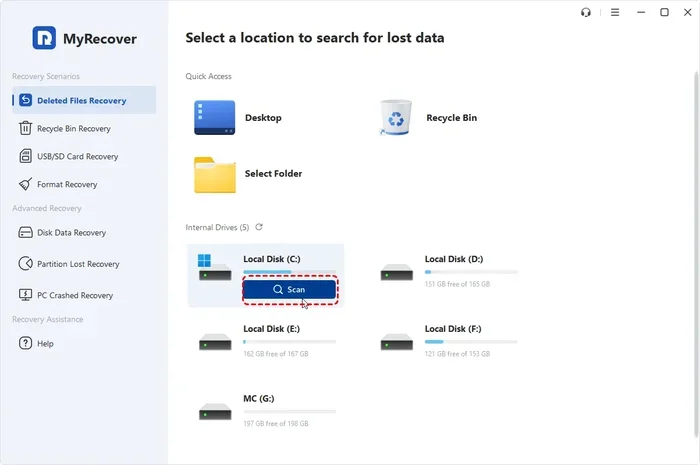
Featured image for how to recover deleted downloads windows 11
Image source: myrecover.com
If you accidentally removed important files from your Downloads folder, you still have several ways to get them back on Windows 11. This guide walks you through checking the Recycle Bin, using File Explorer search, restoring from File History, and trying reliable recovery options when other methods fail. Follow the steps in order to maximize your chances of recovering deleted downloads without paying for unnecessary software.
You downloaded a file, opened the folder, and then it was gone. Maybe you cleared space by mistake, or maybe a cleanup tool removed more than you expected. Either way, the good news is that Windows 11 gives you several ways to try to recover deleted downloads on Windows 11 without guessing.
In this guide, you will learn how to check the most likely places first, how to search more effectively, how to use backup features if they were already turned on, and what to do when the file still does not reappear. The steps are written for everyday users, so you do not need advanced technical skills to follow along.
📑 Table of Contents
- Start With the Recycle Bin
- Search File Explorer More Carefully
- Use File History if It Was Enabled
- Check Cloud Services and Browsers
- Use Windows Tools for Deleted File Recovery
- When Built-In Methods Are Not Enough
- A Practical Step-by-Step Recovery Order
- Troubleshooting Common Problems
- How to Lower the Risk of Losing Downloads Again
- Final Thoughts on Recovering Deleted Downloads
Start With the Recycle Bin
The Recycle Bin is the first place to look because it is the simplest recovery path. When you delete a file from most folders on Windows 11, it usually ends up there until you empty the bin.
How to check the Recycle Bin
Open the desktop and double-click the Recycle Bin icon. If you do not see it, you may have hidden desktop icons, so check your settings or use the search bar in the taskbar to find it.
Once the Recycle Bin opens, look through the list for the missing file. You can sort by date, type, or size to make the search easier. If the file is there, right-click it and choose Restore. The file should return to its original location, which is often the Downloads folder.
If you see many files and are not sure which one you need, use the search box inside the Recycle Bin. Type part of the filename or the file extension, such as pdf, xlsx, or zip. That can narrow the results quickly.
What if the Recycle Bin is empty?
An empty Recycle Bin does not always mean the file is unrecoverable. It may have been removed permanently, but there are still other places to check before assuming the worst. Some cleanup routines, storage sense settings, or manual deletions can bypass the Recycle Bin in certain situations.
If the file was removed this way, move on to the next steps and avoid writing large new files to the same drive until you finish checking.
Search File Explorer More Carefully
Sometimes a file is not deleted at all. It may have been moved, renamed, or saved in a different location. A careful search can save you from unnecessary worry.
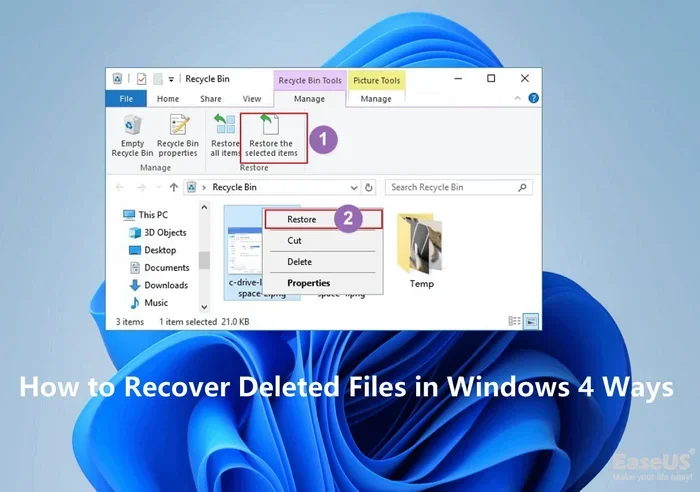
Visual guide about how to recover deleted downloads windows 11
Image source: easeus.com
Search the Downloads folder first
Open File Explorer by pressing Windows key + E, then go to Downloads. If the file is not visible, make sure you are not accidentally viewing a filtered view. Check the view settings and confirm that hidden items are not being excluded if you suspect that may matter.
You can also sort by date modified. If you remember when you downloaded the file, that can help you spot it faster.
Search the entire device
If the file is not in Downloads, type the name in the top-right search box in File Explorer and choose This PC or a broader location. Windows may take a moment to search, especially on larger drives.
If you only remember part of the name, use a wildcard by typing an asterisk before or after the word you remember. For example, if you remember “report,” you can search for *report*. This can help when the filename is incomplete or slightly different from what you expected.
Check other common locations
Downloads sometimes end up in other folders if a browser, app, or setting changed the default save location. Check Desktop, Documents, and any secondary folders you use for storage. If you use cloud sync folders, check those too, because some files may have been saved there automatically.
Use File History if It Was Enabled
If you previously turned on File History, you may be able to restore an earlier version of your Downloads folder or the missing file itself. This feature is useful when it was active before the file disappeared.
How to check for File History backups
Open Settings and look for backup options. In Windows 11, you can search for “File History” or “backup” to locate the relevant controls. If you see a backup drive listed and the feature was active, you may be able to browse previous versions of folders.
Select the folder you want to check, then look through the available versions. If you find the file in a backup copy, restore it to a location you can access easily.
If File History was not enabled
If you never set up File History or another backup, this method will not help. That does not mean recovery is impossible, but it does mean you will need to rely on other approaches. In that case, focus on the Recycle Bin, careful searching, and any other backup source you may have, such as a cloud service or external drive.
Check Cloud Services and Browsers
Many people save files to local folders without realizing that a browser or cloud app may have stored a copy elsewhere. This can be helpful when a local file seems missing.
Browser download records
Open the browser you used and check its download history. In most browsers, you can press Ctrl + J to view downloads. Even if the file is no longer on your computer, the record may show where it was saved or whether it was downloaded again later.
If the browser shows a recent download, try downloading the file once more from the original source if you still have the link. That is often the fastest fix when the file itself is still available online.
Cloud storage and sync folders
If you use OneDrive, Google Drive, Dropbox, or another sync service, check whether the file was stored there automatically. Some apps save to a synced folder by default. If the file is in the cloud, you may be able to restore it from the service’s web interface or from a version history feature.
Use Windows Tools for Deleted File Recovery
When basic checks do not work, Windows still offers some tools that can help depending on your setup. These methods are not magic, but they are worth trying before moving to third-party software.
Check Previous Versions of a folder
Right-click the Downloads folder or the parent folder and look for Properties. If previous versions are available, you may see a list of older copies. This works only if system protection or a backup mechanism created snapshots or copies before the deletion.
If a previous version appears, open it and look for the file. If you find it, copy it to a safe location.
Use system restore points carefully
System restore points are mainly designed for system files and settings, not personal documents. They may not recover a deleted download in most cases, so do not rely on them as your main method. Still, if the missing item is tied to a larger system issue, a restore point might help with broader stability problems.
When Built-In Methods Are Not Enough
If the file is not in the Recycle Bin, not in backups, and not in cloud storage, you may consider recovery software. This is where many users become uncertain, because results vary and no tool can promise a successful recovery in every case.
How recovery software generally works
Recovery tools scan a drive for traces of deleted files. When a file is deleted, the data may remain on the disk until it is overwritten by new data. If that has not happened, a scan may find the file or fragments of it.
If the file was deleted a long time ago, or if the drive has been used heavily since then, the chances of recovery can be lower. That is why it is better to act quickly and avoid saving new large files to the same drive.
What to look for before using any tool
Before installing or running recovery software, read the product description carefully. Look for clear information about supported file types, the kinds of scans it performs, and whether it can recover files from the drive you are using. If possible, choose tools that let you preview files before recovery.
Also pay attention to whether the tool requires installation or can run in a way that reduces writing to the affected drive. The less activity on the drive, the better the chances of preserving recoverable data.
Be realistic about expectations
Recovery software may help in some situations, but it is not guaranteed. If a file has been overwritten or the storage sector has changed, the file may not be recoverable. Treat this as a last-resort option rather than a sure fix.
If the file is especially important, you may also want to stop and evaluate whether the file can be recreated or re-downloaded from the original source. Sometimes that is faster and safer than trying multiple recovery methods.
A Practical Step-by-Step Recovery Order
When you are trying to recover deleted downloads on Windows 11, it helps to follow a simple order instead of jumping from one method to another. This reduces wasted time and lowers the chance of making the problem worse.
Step 1: Stop and think about the deletion
Ask yourself when the file disappeared, how it was deleted, and whether you may have moved it instead. This quick reflection can point you toward the right next step.
Step 2: Check the Recycle Bin
Restore the file from the Recycle Bin if it is there. This is the easiest and most common fix.
Step 3: Search broadly
Use File Explorer search, check other folders, and review browser download history. Many “missing” files are simply misplaced.
Step 4: Look for backups
Check File History, previous versions, external drives, and cloud services. A backup may already contain the file.
Step 5: Consider recovery software only if needed
If the file is still missing and you believe it may still exist on the drive, try a reputable recovery tool carefully. Keep your expectations realistic.
Step 6: Re-download or recreate if possible
If the file is available from the original website, app, or sender, getting a fresh copy may be the simplest solution.
Troubleshooting Common Problems
Even when you follow the right steps, recovery can be frustrating. Here are some common issues and what they usually mean.
The file does not appear anywhere
If a thorough search turns up nothing, the file may have been permanently deleted or stored in a location you have not checked yet. Try searching by file type as well as by name. For example, search for *.pdf or *.docx if you know the format.
The file name is only partly remembered
Use partial names, wildcards, and date filters. If you know the approximate download date, that can narrow the search significantly.
The Recycle Bin was emptied
Once the Recycle Bin is emptied, recovery becomes less certain. You can still try backup sources and recovery software, but do not assume the file is definitely recoverable.
The drive is full or heavily used
A busy drive is more likely to overwrite deleted data. If possible, reduce new write activity on the same drive while you continue checking for the file.
The file was on an external drive
If the downloads were saved to a USB drive or external disk, the same general principles apply, but recovery options may differ depending on how the drive is formatted and whether it has been used since the deletion.
How to Lower the Risk of Losing Downloads Again
Once you recover a file, or even if you do not, it is smart to reduce the chance of the same problem happening again. A few small habits can make a big difference.
Keep a cleaner folder structure
Use a predictable folder system for important downloads. For example, you might keep installers in one folder, documents in another, and personal files in a separate location. That makes it easier to find files later and easier to notice when something is missing.
Turn on a backup habit
If you care about the files in your Downloads folder, consider backing them up regularly. That could mean File History, an external drive, a cloud service, or a manual copy to another location. The best option depends on how often you download important files and how much storage you have available.
Be careful with cleanup tools
Storage cleanup features and third-party cleaners can be useful, but they can also remove files you meant to keep. Review what will be deleted before you confirm a cleanup run, especially if you are not fully sure which files are safe to remove.
Save important files elsewhere
If a download matters, move it out of the Downloads folder after you use it. Storing important files in a dedicated folder or backup location makes them less likely to disappear during routine cleaning.
Final Thoughts on Recovering Deleted Downloads
Losing a file from the Downloads folder is frustrating, but it is often fixable if you move quickly and check the right places. Start with the Recycle Bin, then search carefully, then check backups and cloud services, and only after that consider recovery software if the file still matters and may still exist on the drive.
The most important habit is to avoid panic and avoid unnecessary writing to the same drive while you search. A calm, orderly approach gives you the best chance to recover deleted downloads on Windows 11 without wasting time or making the situation harder to fix.
If the file turns out to be unavailable, do not assume you did something wrong. In many cases, the fastest solution is simply to re-download it or restore it from another copy. That is why good backup habits matter so much in the first place.