
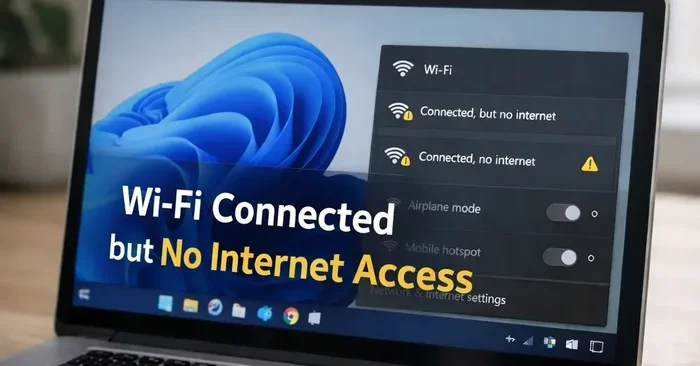
Featured image for how to wifi connected but no internet windows 11
Image source: magnetclicks.com
When your WiFi shows connected but websites still will not load, the problem is often a small network glitch rather than a broken connection. In this guide, you will learn practical ways to fix WiFi connected but no internet on Windows 11 without advanced technical skills. Start with the quickest checks first, then move through driver updates, network resets, and router fixes until your connection returns.
It is frustrating when your taskbar says WiFi is connected, but browsers still refuse to load pages. You may see the connected icon, yet email, streaming, and searches all fail at the same time. In many cases, this means your computer has joined the wireless network but has not received a working path to the internet. The good news is that this is often fixable with a few careful checks.
This guide explains how to fix WiFi connected but no internet on Windows 11 in a simple, organized way. You will learn how to test whether the problem is your computer, your router, or your internet provider. You will also see how to refresh network settings, update drivers, and clear common configuration problems that can block online access.
Before you begin, it helps to stay calm and work through the steps in order. The fastest fix is not always the most technical one. Sometimes the issue is temporary, and a short restart is enough. Other times, you may need to reset a setting that has become corrupted or outdated.
📑 Table of Contents
- Check the Basics First
- Use the Windows 11 Network Troubleshooter
- Check Your WiFi Signal and Connection Quality
- Update Your WiFi Driver
- Reset IP and DNS Settings
- Reset Network Settings in Windows 11
- Inspect the Router and ISP Connection
- Check for Windows 11 Updates
- Common Mistakes That Make This Problem Worse
- When to Seek More Help
- Final Thoughts on Getting Back Online
Check the Basics First
The easiest problems are often the real ones. Before changing settings, confirm that the issue is not something simple like a paused connection, a weak signal, or a router that needs a fresh start.
Confirm Whether Other Devices Have Internet
Look at another phone, tablet, or laptop on the same WiFi network. If every device is offline, the issue may be with the router, the modem, or the service from your internet provider. If only your Windows 11 PC is affected, the problem is more likely on the computer itself.
This one check can save you a lot of time. If the whole network is down, you can focus on the router and ISP instead of adjusting PC settings.
Restart Your Router and Modem
Many connection problems clear up after a short power cycle. Unplug the router and modem, wait for about 30 seconds, and then plug them back in. Let them fully restart before testing again.
A restart can help when the router has temporarily lost its connection to the ISP or when its internal memory needs a fresh start. It is a simple step, but it solves more issues than many people expect.
Restart Your Windows 11 PC
If the router seems fine, restart your computer next. A full shutdown and fresh boot can clear temporary network glitches and reload system services that handle connectivity.
After the restart, reconnect to the WiFi network and try loading a few websites. If the problem disappears, you may not need any further troubleshooting.
Use the Windows 11 Network Troubleshooter
Windows 11 includes a built-in tool that can spot common problems and apply small fixes automatically. It is a good next step if the basic restart did not help.
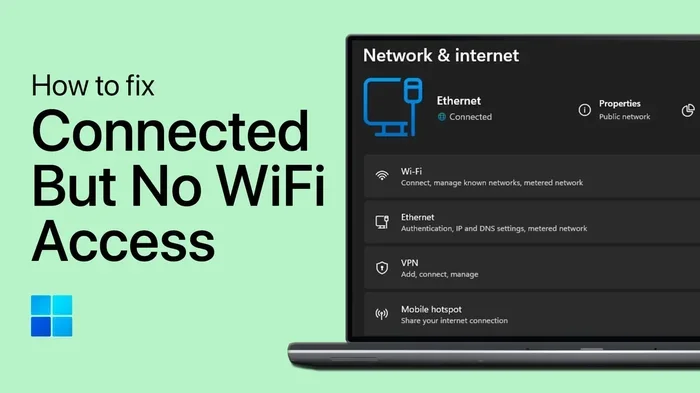
Visual guide about how to wifi connected but no internet windows 11
Image source: images.squarespace-cdn.com
How to Run the Troubleshooter
Open Settings, go to System, and select Troubleshoot. From there, choose Internet Connections or Network Adapter, depending on what appears in your version of Windows 11. Follow the prompts and let the tool scan for issues.
The troubleshooter may suggest repairs, reset a connection, or point out a specific problem. Even if it does not fully solve the issue, it can give you a useful clue about where to look next.
When the Troubleshooter Helps Most
This tool works best for simple configuration problems, such as a stale connection or a misbehaving network adapter. It is less likely to help if the real issue is a router outage, a billing problem with your ISP, or damaged hardware.
If the troubleshooter reports that it could not fix the issue, do not stop there. Move on to the next checks so you can narrow down the cause.
Check Your WiFi Signal and Connection Quality
Sometimes a PC connects to a weak or unstable network and still shows the connected icon. The result can be a connection that looks active but does not actually carry internet traffic well.
Move Closer to the Router
If you are far from the router or behind several walls, your signal may be too weak for reliable internet use. Try moving closer and testing again. A stronger signal can make a noticeable difference.
This is especially useful if other devices also seem slow or if the connection drops repeatedly.
Forget and Rejoin the Network
If the saved network profile has become confused, Windows 11 may keep trying to use bad settings. In that case, forget the network and join it again.
Open Settings, go to Network and internet, then open WiFi settings or Manage known networks. Find the network, choose Forget, and reconnect by entering the password again. This creates a fresh connection profile and can remove hidden errors.
Update Your WiFi Driver
A network adapter driver helps your computer communicate with the WiFi hardware. If the driver is outdated, damaged, or missing after a Windows update, you may connect to the wireless network but still fail to reach the internet.
Check Device Manager
Open Device Manager and expand Network adapters. Look for your WiFi adapter and see whether it has a warning icon or an error message. A yellow mark can suggest a driver or hardware issue.
If you see a problem, try updating the driver through the Driver tab or by using Windows Update. If Windows cannot find a better version, you may need to check the PC or motherboard manufacturer’s support page for the latest driver.
Reinstall the Network Adapter Driver
Sometimes updating is not enough. If the driver is corrupted, uninstalling and reinstalling it can force Windows 11 to rebuild the network configuration more cleanly.
In Device Manager, right-click the WiFi adapter and choose Uninstall device. Then restart your computer. After the restart, Windows often reinstalls the adapter automatically. This can help when the driver has become unstable.
If your WiFi disappears after this step, that is a sign you should install the correct driver from the manufacturer’s support site rather than leaving the adapter without software.
Reset IP and DNS Settings
Windows 11 uses IP addresses and DNS settings to send and receive internet traffic. If those settings are wrong or stuck, you may stay connected to WiFi while still failing to reach websites.
Renew the IP Address
Open Command Prompt as administrator and run a few network commands. You can try releasing and renewing the IP address, which asks the router to assign a fresh connection.
This is useful when your computer has kept an old or invalid address. After renewing, test a website again to see whether the internet returns.
Flush the DNS Cache
Old DNS information can cause lookup failures, where the computer cannot translate website names into addresses. Flushing the DNS cache clears that stored information so Windows can request fresh details.
This step is safe and often helpful after a network change, a router restart, or a Windows update.
Try a Different DNS Server
If your default DNS service is slow or failing, switching to another DNS server may improve connectivity. Some users choose a public DNS option from a well-known provider, while others keep the router’s default.
If you change DNS settings, do it carefully and write down the original values. That way, you can return to the previous setup if the new one does not help.
Reset Network Settings in Windows 11
When smaller fixes do not work, a broader network reset can clear stacked configuration problems. This is one of the more effective steps for persistent WiFi issues.
What a Network Reset Does
A Windows 11 network reset can remove and reinstall network adapters, clear saved network settings, and reset components that handle connectivity. It is designed for situations where the network stack has become corrupted or inconsistent.
Because this is a stronger step, it is best to try the simpler fixes first. If you are unsure, back up any important network details, such as custom DNS settings or VPN configurations, before resetting.
How to Perform the Reset
Go to Settings, then Network and internet, and look for Network reset. Follow the on-screen instructions and allow the computer to restart when prompted. After the restart, reconnect to your WiFi network and test your internet again.
Many people find that this resolves stubborn cases where the PC keeps connecting but never reaches the internet. If the problem remains after the reset, the cause may be outside the PC.
Inspect the Router and ISP Connection
If your Windows 11 device still cannot get online, the next step is to check the equipment that provides your internet. A healthy PC cannot fix a router or service outage by itself.
Look for Router Status Lights
Most routers have indicator lights that show power, internet, and WiFi status. If the internet light is off or blinking in an unusual way, the router may not have a valid connection from the modem or ISP.
Consult the router’s labels or support documentation if you are unsure what the lights mean. Different models use different patterns, so the manufacturer’s guide can be helpful.
Test With a Wired Connection
If possible, connect a computer directly to the modem or router with an Ethernet cable. A wired test can tell you whether the issue is with the wireless side of the network or the internet connection itself.
If the wired connection works but WiFi does not, the problem may be related to the router’s wireless settings, interference, or the PC’s WiFi adapter. If both wired and wireless fail, the issue is more likely with the modem or ISP.
Check for Windows 11 Updates
Sometimes a system update fixes a network bug that is causing the connected-but-no-internet problem. Windows 11 may include driver improvements, stability fixes, or other changes that affect connectivity.
Install Pending Updates
Open Settings, go to Windows Update, and check for available updates. Install anything relevant, then restart if needed. After the update, test the connection again.
This is especially worth trying if the issue started after a recent change, update, or new installation.
Review Optional Driver and Feature Updates
Some updates appear as optional driver improvements or feature packages. If your WiFi adapter is acting strangely, these updates may include a more stable driver version.
Even if an update is not guaranteed to fix the issue, keeping the system current is a sensible part of troubleshooting.
Common Mistakes That Make This Problem Worse
When people are in a hurry, they sometimes make changes that create new problems. A few careful habits can prevent that.
Changing Too Many Settings at Once
If you adjust DNS, IP, adapter settings, and router settings all at the same time, it becomes hard to tell what actually helped. Make one change, test it, and then move on.
This slower approach is more efficient than guessing through several settings at once.
Ignoring the Possibility of an ISP Outage
Not every WiFi problem lives inside your home. Service interruptions, account issues, or modem problems can also cause a connected-but-no-internet situation.
If multiple devices are offline and the router seems healthy, contact your ISP or check its outage information if available.
Forgetting to Test After Each Fix
It is easy to lose track of what you have already tried. After each step, test a few websites or apps so you know whether the issue improved.
That simple habit helps you avoid repeating steps and makes the process much clearer.
When to Seek More Help
If you have tried the main fixes and still have no internet on Windows 11, the issue may need deeper attention. At that point, the cause could be hardware, account-related, or tied to a larger network problem.
Hardware Issues to Consider
A failing WiFi adapter, damaged router, or bad Ethernet cable can all interfere with connectivity. If the adapter keeps disappearing from Device Manager or the router behaves inconsistently, hardware may be part of the problem.
In that case, testing with different equipment can help you narrow down the cause.
Contact the Right Support Source
If the issue seems to be with your internet service, your ISP is the best place to start. If the issue seems limited to your PC, the computer manufacturer or a technical support professional may be more helpful.
Choose the support path that matches the symptom. That usually leads to faster answers than trying every fix at random.
Final Thoughts on Getting Back Online
A WiFi connection that looks active but does not bring internet access is annoying, but it is usually solvable. Most of the time, the answer is one of a few common fixes: restart the equipment, refresh the connection, update the driver, or reset the network settings. By checking the problem methodically, you can avoid confusion and get back online faster.
Remember to test after each step and to compare your PC’s behavior with other devices on the same network. That simple approach often reveals whether the issue is your Windows 11 computer, your router, or the internet service itself. Once you know where the problem lives, the right fix becomes much easier to choose.