
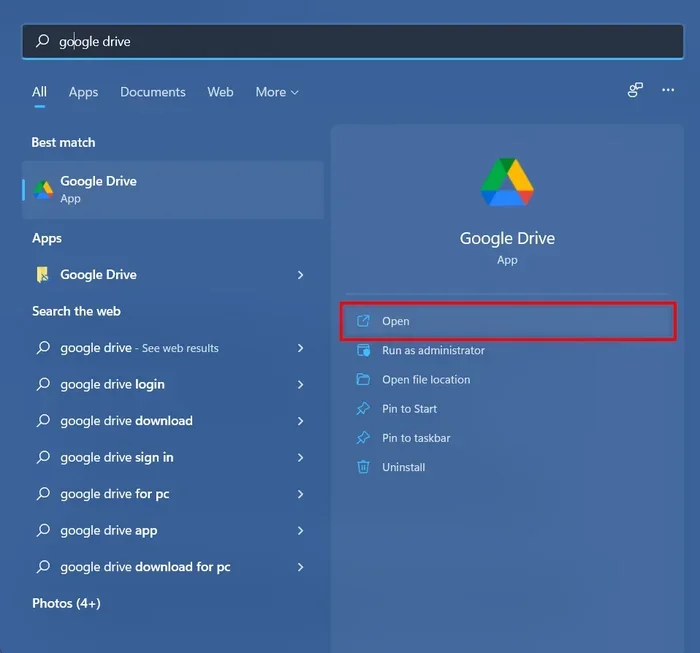
Featured image for how to google drive not syncing windows fix
Image source: bytesbin.com
If Google Drive not syncing on Windows is slowing your work, this guide shows you how to fix it fast. You will learn practical steps to restart the sync app, check your internet, and clear common sync errors. Follow these tips to get your files back in sync without stress.
📑 Table of Contents
Start With the Basics
When Google Drive stops syncing, it helps to begin with the simplest fixes first. Many sync problems are temporary and can be solved with a quick restart or a network check. Before you spend time on advanced troubleshooting, try the easy steps that often clear the issue right away.
Think of this like rebooting a router when your internet slows down. Sometimes the app just needs a fresh start. Sometimes your computer needs a moment to reconnect. Either way, starting simple saves time and helps you avoid unnecessary changes.
Restart Google Drive for Desktop
The first step is to close and reopen the sync app. This can clear small glitches that build up while the app runs for a long time.
Here is a simple way to do it:
- Look for the Google Drive icon in your system tray or menu bar.
- Open the menu and choose the option to quit or sign out.
- Wait a few seconds, then open the app again.
- Sign in if needed and let it reconnect.
After it restarts, watch the icon for a while. If the sync status changes from paused or error to active, the restart may have solved the problem.
Check Your Internet Connection
Sync needs a stable connection. If your Wi-Fi drops, slows down, or disconnects often, Google Drive may not be able to upload or download files properly.
A good quick check is to open a webpage and see if it loads normally. You can also try loading a few different sites. If browsing feels slow or inconsistent, your connection may be part of the problem.
If possible, try these small adjustments:
- Move closer to your router if you use Wi-Fi.
- Restart your router or modem if the connection seems unstable.
- Switch to a wired connection if available.
- Pause other heavy downloads or streams that may be using bandwidth.
Once your connection is steady, let Google Drive run for a few minutes and see whether it begins syncing again.
Check the Sync App Status
The next step is to look at what the app is actually telling you. Google Drive for Desktop usually shows sync status, alerts, or error messages. These clues can point you toward the real issue.
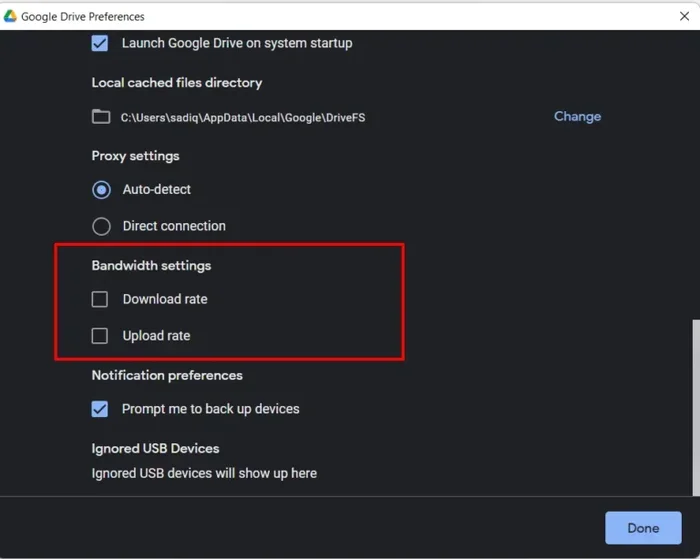
Visual guide about how to google drive not syncing windows fix
Image source: bytesbin.com
For example, the app may show that sync is paused, that a file is waiting, or that there is a problem with a specific file. Reading those messages carefully can save you from guessing.
Read the Error Messages Carefully
If you see an error, do not skip over it. Even a short message can be useful. It may tell you that a file is too large, that access is blocked, or that the app cannot reach the server.
Try this approach:
- Open the Google Drive menu or settings panel.
- Look for the sync status or error notice.
- Write down the exact wording if possible.
- Search for that message in the app help or support resources.
Exact wording matters because different errors often need different fixes. A network error is not the same as a file conflict error, and treating them the same way can waste time.
Make Sure Sync Is Not Paused
Sometimes sync is paused on purpose, either by you or by a setting you may have changed without noticing. If sync is paused, the app will not update files until it is resumed.
Check the app menu and look for any pause or resume option. If sync is paused, resume it and give the app time to catch up. Large folders may take a while, so patience matters here.
Look for File and Folder Issues
Not every sync problem is about the app itself. Sometimes the issue is with a file or folder that cannot sync normally. This is especially common when a file is open, locked, very large, or has a naming problem.
If one file is causing trouble, the app may wait on it while everything else seems stuck. That can make it feel like the whole sync process has stopped.
Check for Open or Locked Files
If a file is open in another program, sync may not be able to finish its work. This can happen with documents, spreadsheets, or other files that another app is using.
A simple check is to close the file in any program you are using and then watch whether sync continues. If you are not sure which file is open, try closing likely candidates one at a time.
This is often one of the easiest fixes because it does not require changing settings or reinstalling anything.
Watch for File Name or Path Problems
Some files do not sync well if their names or folder paths create conflicts. Special characters, extremely long paths, or duplicate names can sometimes cause issues.
If you suspect this kind of problem, look for files with unusual names or files that were recently added to a deeply nested folder. You can try moving the file to a simpler location or renaming it to see whether sync improves.
A few practical habits can reduce these problems over time:
- Use clear, simple file names.
- Avoid unnecessary special characters in names.
- Keep folder structures manageable instead of overly deep.
- Check for duplicate files that may cause confusion.
Update or Reinstall the App
If the basics and file checks do not help, the app itself may need attention. An outdated version can create sync problems, especially if a bug was fixed in a newer release. A damaged installation can also cause odd behavior.
Before doing anything drastic, check whether an update is available. If the app is already current, then a reinstall may be the next logical step.
Install Updates First
Updates are usually the safest first step. They can fix known issues and improve stability without removing your settings.
To check for updates, open the app and look for a settings or help option. If an update is available, install it and restart the app when prompted. After that, let it reconnect and monitor the sync status.
This is a good time to also check that your operating system is up to date. Sometimes app issues are made worse by an older system environment, even if the app itself is fine.
Reinstall if Needed
If updating does not help, reinstalling can give the app a clean start. This is especially helpful if files are corrupted, settings are causing trouble, or the app no longer behaves normally.
A careful reinstall usually looks like this:
- Back up any important local files if you are unsure about the current state of sync.
- Remove the app from your computer.
- Download the latest version from the official source.
- Install it and sign back in.
- Allow time for sync to rebuild and reconnect.
Reinstalling can feel like a bigger step, but it often resolves persistent issues that smaller fixes cannot.
Review Account and Permission Settings
Sometimes the problem is not technical in the sense of a broken app. It may be related to your account, your sign-in session, or permissions on a file or folder. If your account session has timed out or become unstable, sync may struggle.
This is why signing out and back in can help. It gives the app a fresh connection to your account and can clear session-related problems.
Sign Out and Back In
If you suspect an account issue, try signing out of the app and then signing in again. This can refresh your connection and resolve odd sync behavior.
Before you do this, make sure you know your account details and that you can sign in safely. After signing back in, let the app reconnect and check whether files begin syncing again.
Check Shared Files and Access
If you are trying to sync files that belong to someone else or that are part of a shared folder, access may be part of the issue. Sharing settings can change, and files may no longer be available in the way you expect.
If a shared file is not syncing, check whether you still have access. If needed, contact the owner or check the sharing settings to confirm that your access is still active.
Use Task Manager and Background Services
Google Drive for Desktop relies on background processes to keep files in sync. If one of those processes is stuck, the app may look like it is working while actually waiting on something in the background.
This is where task management can help. You do not need to force anything aggressively. The goal is to make sure the app and its related processes are running normally.
Close and Restart Related Processes
If the app is open but not syncing, you can check whether the main process is active. If it looks stuck, closing it and letting the app restart can help.
A careful approach is best:
- Open the task manager on your computer.
- Look for the Google Drive process or related sync processes.
- End the task only if the app is not responding normally.
- Let the app reopen and reconnect on its own.
If you are not comfortable ending tasks, restarting the whole computer is a simpler alternative. That can clear stuck processes without requiring you to manage them manually.
Restart the Computer
A full restart is one of the most reliable quick fixes for many technology problems. It clears temporary states, restarts background services, and gives apps a fresh environment.
If you have tried the other steps and sync still will not start, restart your computer and then open Google Drive again. This often resolves issues that are hard to diagnose because they involve more than one system layer.
Troubleshooting Special Cases
Some sync problems are not generic. They show up in specific situations, such as large uploads, selective sync choices, or files that keep returning with conflicts. In these cases, the fix may be more targeted.
The key is to match the solution to the situation instead of applying the same step to every problem.
Large Files and Slow Uploads
Large files can take a long time to sync, especially if your connection is not very fast. Sometimes the app looks stuck when it is really just working slowly.
If a large file is involved, give it time before assuming something is broken. You can also check whether the file is actually progressing by watching the sync status over a few minutes or longer.
If the file never moves, try:
- Checking your connection stability.
- Closing other apps that may be using bandwidth.
- Waiting and retrying after a restart.
- Looking for error messages tied to that specific file.
Selective Sync and Missing Folders
If you use selective sync, you may have chosen not to sync certain folders. In that case, some files will not appear on your computer even though they are available online. That can be confusing if you expect everything to sync automatically.
Check your sync settings to see which folders are included. If a folder is missing, you may simply need to adjust the selection rather than fix a technical error.
Repeated File Conflicts
If you see repeated conflict copies or sync retries, the app may be struggling to decide which version to keep. This can happen when a file is edited in multiple places or when sync keeps interrupting a file.
In that situation, compare the versions carefully before deleting anything. It is easy to lose important changes if you rush to clean up conflicts.
When to Seek More Help
Most sync problems can be handled with the steps above. Still, there are times when the issue may need deeper support. If the same error keeps coming back after you have tried several fixes, it may be time to look for more specific help.
Good next steps include:
- Checking official help resources for the exact error.
- Reviewing any status updates that may affect service.
- Asking for help from someone who can look at your system more closely.
- Contacting support if the problem continues and affects important files.
If your files are critical, do not keep retrying randomly. Take a moment to back up what you can and then work through the issue methodically.
Helpful Habits to Prevent Future Sync Problems
Once your sync is working again, a few habits can reduce the chance of the same issue returning. These are not complicated changes. They are small routines that make sync more reliable over time.
For example, it helps to keep the app updated, avoid leaving huge numbers of files open at once, and watch for unusual error messages early instead of waiting until the problem grows.
A few simple habits include:
- Restarting the app now and then if it has been running for a long time.
- Keeping your computer and app updated.
- Using clear file names and manageable folder structures.
- Checking sync status after major file changes.
- Making sure important files are backed up in more than one place when possible.
These habits do not guarantee that sync will never have issues, but they can make problems less frequent and easier to solve.
Final Thoughts
Fixing Google Drive not syncing on Windows usually comes down to a few practical checks. Start with the simple stuff, like restarting the app and confirming your internet is working. Then move on to file issues, account settings, updates, and background processes if needed.
The best approach is calm and systematic. Sync problems can be frustrating, especially when you need files quickly, but most of them have a straightforward solution. By checking the most common causes one at a time, you can usually get back to work without a long delay.