
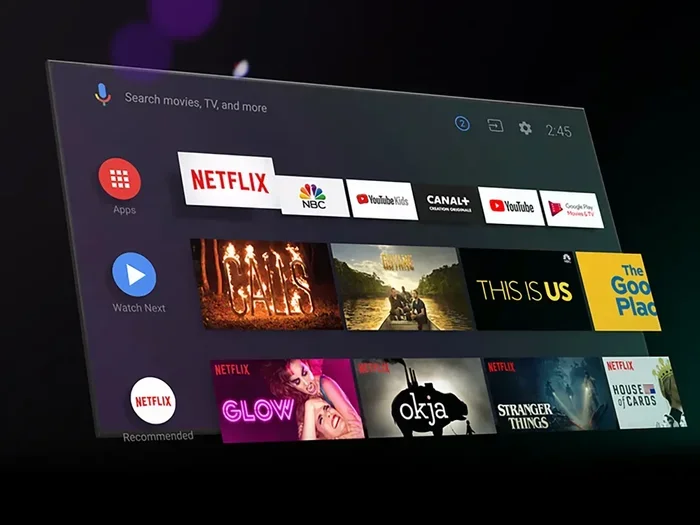
Featured image for how to streaming TV show search
Image source: popsci.com
Finding the right streaming home for a show can feel frustrating when titles move between platforms. In this guide, you will learn practical search methods, free tracking tools, and quick checks that help you locate where a TV show is streaming without wasting time. Use these steps to stream smarter, avoid dead ends, and pick the best available option for your favorite series.
📑 Table of Contents
- Why Finding a Streaming Home Can Feel Hard
- Step 1: Gather the Exact Show Details
- Step 2: Use a Streaming Search Tool First
- Step 3: Check the Official Network or Studio Page
- Step 4: Search the Platform Apps Directly
- Step 5: Verify Regional Availability
- Step 6: Confirm Whether You Need a Subscription, Rental, or Purchase
- Step 7: Use Free Trials With a Plan
- Step 8: Keep Track of Where Your Shows Live
- Troubleshooting: What to Do When a Show Still Seems Missing
- A Fast Workflow You Can Use Every Time
- Tips for Smarter Streaming Searches
- When a Show Is Not Streaming Anywhere Obvious
- Conclusion
Why Finding a Streaming Home Can Feel Hard
You hear about a great new series, or you finally want to revisit an old favorite, and then the search begins. One platform says it has the show. Another platform says it does not. A friend insists it moved last month. Suddenly, a simple viewing plan turns into a scavenger hunt.
The reason this happens is simple. Streaming rights are complicated. A show may be licensed to one service in the United States and a different service elsewhere. It may leave one platform and arrive on another. It may be included with a subscription, or it may require a separate rental or purchase. All of that means the fastest way to find where a TV show is streaming is to use a repeatable method instead of guessing.
In this guide, you will learn how to find where a TV show is streaming fast, using clear search steps, reliable tools, and a few smart checks that reduce frustration. The goal is not just to locate a show once. The goal is to build a quick process you can use every time.
If you want a fast answer, start with the exact title and the word streaming, then confirm the result on more than one source. That one habit alone will save you a lot of time.
Step 1: Gather the Exact Show Details
Before you search, make sure you know exactly what you are looking for. This sounds obvious, but it matters more than many people realize. TV show titles can be similar, and some series have multiple versions, remakes, or international titles.
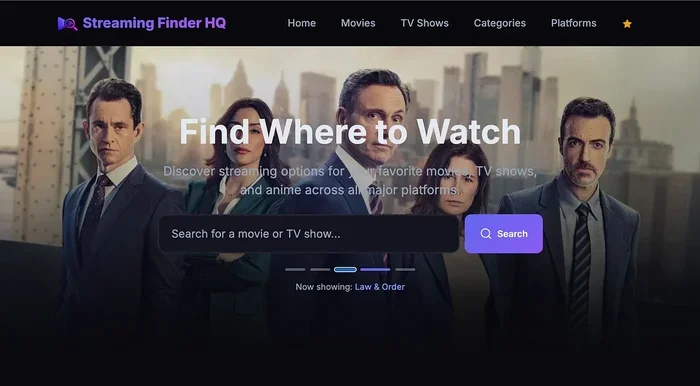
Visual guide about how to streaming TV show search
Image source: resize.imagekit.co
Start by collecting a few basic details:
- The full title: Use the official name, not a nickname.
- The network or original platform: This can help narrow the search if the title is common.
- The genre or premise: A short description can help when the title returns mixed results.
- The season or episode: If you only want a specific season, note that before you search.
For example, if you are trying to find a comedy series that aired on a cable network, the word streaming alone may return too many unrelated results. Adding the network name or the year can make the search cleaner.
If you are unsure about the exact title, a quick check on a reputable entertainment database or the show’s official page can help you confirm the name and spelling. This is especially useful for older shows, international series, or programs with similar names.
Step 2: Use a Streaming Search Tool First
The fastest way to find where a TV show is streaming is often a streaming search tool. These services are built to answer one question: which platform currently has this title? Instead of opening five apps and searching each one, you can check a single source and compare options.
How to use a streaming search tool effectively
Type the show title into the search box and look for the most specific match. Then review the listed platforms carefully. Some tools show subscription options, rental options, or free ad-supported availability. That distinction matters because a show may appear on a service but only as a paid title.
When you use these tools, keep a few things in mind:
- Check the region: Make sure the results match your country or viewing location.
- Look for multiple sources: If one tool lists a platform, confirm it with another source when possible.
- Note the access type: Subscription, rental, purchase, and free ad-supported are not the same thing.
This step is helpful because it gives you a starting point. Even if the information is not perfect, it usually points you in the right direction much faster than random searching.
Step 3: Check the Official Network or Studio Page
If a search tool gives you several options, the next smart move is to check the official source. Many networks, studios, and production companies list where their shows are available. This can be especially useful for newer series or shows that are part of a specific brand.
An official page may tell you:
- Where the show is streaming in the United States.
- Whether it is included with a subscription.
- Whether it is available for rent or purchase.
- Whether the show has moved to a different platform.
This is also a good place to confirm the show you are looking for is the right one. Sometimes a title search returns a remake, a reboot, or a similar-sounding program. The official page helps you avoid that confusion.
If the show is part of a larger franchise, the studio page may also mention related titles. That can be useful if you want to watch a series in order or find the next season.
Step 4: Search the Platform Apps Directly
After you have a likely platform or two, open the apps or websites directly and search inside them. This is a simple step, but it is one of the most reliable. A show may appear in a search tool result and still not be available in your account or region.
What to look for inside the app
Search the title, then check the details page. Look for signs that the show is included with your plan, locked behind an add-on, or available only for rent. Also check whether the season you want is actually listed. Some services carry a show but only certain seasons.
If you do not see the show, do not assume the first result was wrong. It may be that:
- The show is available in a different country.
- The show requires a premium add-on.
- The show left the platform after the search result was published.
- The title is listed under a different profile or kids section.
Searching directly inside the platform helps you confirm the details before you commit time or money.
Step 5: Verify Regional Availability
Streaming availability is not always the same everywhere. A show that is easy to find in one country may be missing in another. That is why it helps to confirm your region before you get too far into the search.
If you are in the United States, focus on U.S. availability first. If you are using a tool or page that shows international results, make sure you are reading the correct catalog. This is especially important when a title appears to be available, but your app says otherwise.
A few practical checks can help:
- Use the region filter if the tool offers one.
- Compare the listed platform with the app you actually use.
- Look for notes about local licensing if available.
Regional limits can be annoying, but they are a major reason why a show may seem missing. Checking this early can save you from chasing the wrong answer.
Step 6: Confirm Whether You Need a Subscription, Rental, or Purchase
Not every streaming result means the same thing. One platform may include the show with a subscription. Another may let you rent it. Another may offer it as a purchase. If you are trying to find where a TV show is streaming fast, you should know which type of access you are willing to use.
Here is a simple way to think about it:
- Subscription included: You can watch as long as your plan is active, if the show remains on the service.
- Rental: You pay for temporary access, usually for a limited window.
- Purchase: You pay for longer access, though platform terms still apply.
- Free ad-supported: You may not pay directly, but you will likely see ads.
This matters because a show may be available in more than one form. You might find it on a subscription service you already use, or you might decide rental is the fastest option for a single episode or season.
If you are comparing options, think about how many episodes you plan to watch. A subscription may make sense if you want the full series. A rental may be enough if you only want to sample it.
Step 7: Use Free Trials With a Plan
If a show is behind a subscription you do not currently have, a free trial can be a practical way to watch it. That said, trials work best when you use them deliberately. The goal is to watch the show, not to forget that you signed up for something new.
How to use a trial responsibly
Before starting a trial, check the cancellation terms and the trial length. Set a reminder for when the trial ends. If you only want to watch one season, make a plan for when you will cancel. This keeps the process simple and avoids surprises.
Also confirm that the show is actually included with the trial. Some services offer trials, but certain content may still require an extra package or a different tier. A quick check of the show’s details page can prevent that confusion.
If you use this option, treat it like a short-term tool. It can help you access a show quickly, but it should be managed carefully.
Step 8: Keep Track of Where Your Shows Live
Once you find where a TV show is streaming, save that information. This is one of the easiest ways to make future searches faster. If you build a small list of shows and their streaming homes, you will spend less time searching later.
A simple note can include:
- The show title.
- The platform.
- Whether it is subscription, rental, or free.
- The region or account details if relevant.
You can keep this in a notes app, a spreadsheet, or a bookmark folder. The format does not matter much. What matters is that you create a habit of recording the answer once you find it.
This is especially helpful if you follow several series across different services. When a show moves, you will have a starting point for checking the new location.
Troubleshooting: What to Do When a Show Still Seems Missing
Sometimes you do everything right and the show still does not appear where you expected. That can be frustrating, but there are a few common reasons and a few practical fixes.
The show may have moved recently
Streaming rights change. A series that was on one platform last month may now be elsewhere. If a result feels outdated, check a second source or the platform directly.
The title may be listed differently
Some shows appear under a slightly different name, especially if there are seasons, spin-offs, or international versions. Try a broader search or add the network name.
The show may be limited to certain accounts or tiers
A platform may carry the show, but only for certain subscription levels or add-ons. Check the details page carefully before assuming it is unavailable.
The app may need a refresh
Sometimes the issue is simple. Update the app, restart the device, or log out and back in. If the show is available in your region, these basic steps can solve display problems.
You may be looking at the wrong region
If you are traveling or using a different account, the catalog may not match what you expected. Confirm your location and account settings, then search again.
If you still cannot find the show, step back and verify the title, the platform, and the region one more time. Most missing-show problems come from one of those three things.
A Fast Workflow You Can Use Every Time
If you want a simple routine, use this order:
- Search the exact title with the word streaming.
- Check a streaming search tool for a quick overview.
- Confirm the result on the official network or studio page.
- Open the platform app and verify the show, season, and access type.
- Check regional availability and subscription details.
- Save the result so you can find it again later.
This workflow is not complicated, but it is effective. It helps you avoid random clicking and gives you a clear path from question to answer.
The more you use it, the faster it becomes. Eventually, you will spend less time searching and more time watching.
Tips for Smarter Streaming Searches
A few small habits can make a big difference. These tips are simple, but they help you find where a TV show is streaming faster and with less effort.
- Use the full title first, then refine if needed.
- Compare at least two sources before deciding.
- Check whether the show is included or extra-cost.
- Confirm the season you want is actually available.
- Note regional limits before getting attached to one result.
- Keep a short list of where your favorite shows are located.
These habits are useful because streaming availability is always changing. A show that is easy to find today may move next month. A method that works now will still work later.
When a Show Is Not Streaming Anywhere Obvious
Sometimes a show is not on a major subscription service, and it is not easy to rent either. In that case, your options may be more limited. You might find it on a smaller platform, through a digital purchase, or via a physical copy.
If that happens, broaden the search carefully. Try the title with different terms, check the production company, and look for official announcements about where the show is distributed. If the show is older, it may also be available through library services or other licensed sources depending on your area.
The key is to stay organized. Even if the show is harder to find, a methodical search is still better than guessing.
Conclusion
Learning how to find where a TV show is streaming fast is mostly about using a clear process. Start with the exact title, check a streaming search tool, confirm the details on the platform, and verify region and access type. Those steps will help you avoid confusion and cut down on wasted time.
The best part is that this process works for new shows, older shows, and series that move between services. Once you get used to checking a few reliable sources and saving your results, the whole search becomes much easier.
So the next time you want to watch something, do not start by opening every app you have. Start with a focused search, verify the result, and then press play. That simple change can make streaming feel a lot more straightforward.