
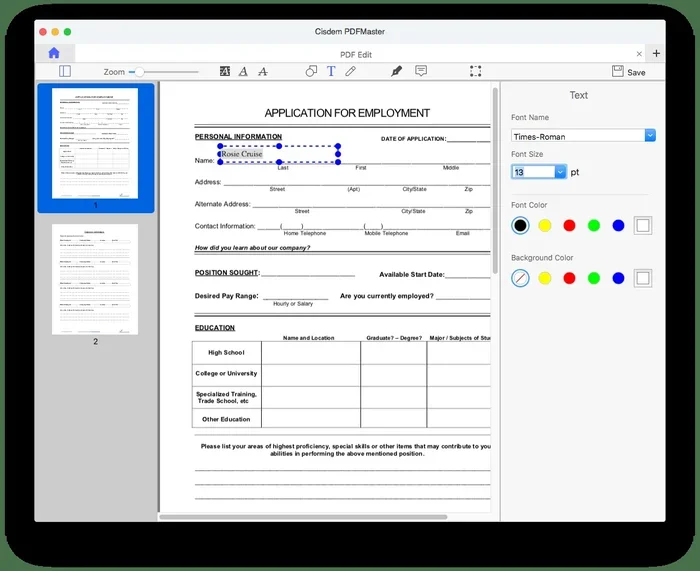
Featured image for how to create fillable pdf form free
Image source: cisdem.com
Creating a fillable PDF form does not have to cost money or require advanced design skills. In this guide, you will learn how to turn a plain document into an interactive form using free tools that run in your browser or on your desktop. By the end, you will know how to add text fields, checkboxes, and drop-down menus, then share the finished form with others.
📑 Table of Contents
- What You Will Learn in This Guide
- What Is a Fillable PDF Form?
- What You Need Before You Start
- Choosing the Right Free Tool
- Step-by-Step: How to Create a Fillable PDF Form for Free
- Tips for Making Your Form Easier to Use
- How to Test Your Fillable PDF Before Sharing
- Common Problems and How to Fix Them
- When a Free Tool May Not Be Enough
- Best Practices for Sharing Your Form
- A Simple Example Workflow
- Final Thoughts on Building Fillable PDFs Without Paying
What You Will Learn in This Guide
If you have ever needed to collect information from clients, students, coworkers, or customers, you have probably thought about using a form. Paper forms are slow, easy to lose, and annoying to sort through. A fillable PDF solves many of those problems because people can complete it on a computer, tablet, or phone without printing anything.
This guide explains how to create a fillable PDF form for free in a simple, practical way. You will learn what a fillable PDF is, which free tools can help, how to add different field types, how to test your form, and what to do if something does not look right. The goal is to help you build a form that is easy for you to create and easy for others to use.
You do not need expensive software or a design degree. You only need a document to start with, a free tool that supports form fields, and a little patience. Once you understand the basics, the process becomes much easier.
What Is a Fillable PDF Form?
A fillable PDF form is a PDF document that contains interactive fields. Instead of printing a page and writing on it, a person can click into each field and type an answer, select a checkbox, choose an option from a list, or make a selection from radio buttons.
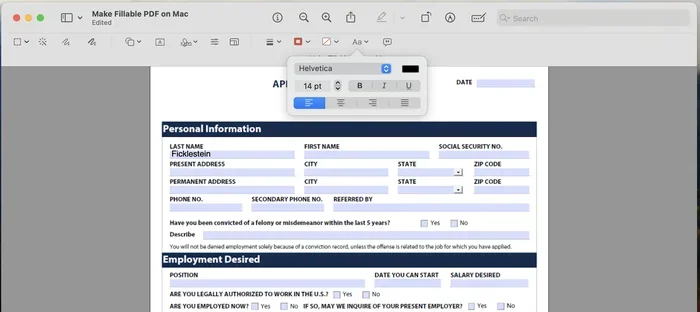
Visual guide about how to create fillable pdf form free
Image source: images.ctfassets.net
These forms are useful because they keep everything in one file. They also make it easier to collect consistent information. For example, if you ask for a name, email address, and phone number in the same places every time, the responses are easier to read and organize.
A fillable PDF is different from a flat PDF. A flat PDF is just a document with text and images. A fillable PDF includes form elements that allow input. That difference matters because many free tools can view a PDF, but not every tool can create interactive fields.
When people talk about how to create a fillable PDF form for free, they usually mean one of two things:
- Turning a document into a form with fields you can place manually
- Using an existing template or form builder that generates the fields automatically
Both approaches can work. The best choice depends on how much control you want and how complex your form needs to be.
What You Need Before You Start
Before you build a form, it helps to gather a few things. The more prepared you are, the smoother the process will be.
A Clear Purpose
Decide what information you want to collect. A form for event registration looks different from a form for feedback, an application, or an order request. Write down the exact questions you need answered. Keep them short and specific whenever possible.
A Starting Document
Most fillable forms begin as a basic document. You might already have a letter, worksheet, survey, or application draft. If you do not, you can create one in a word processor, then export it as a PDF later. A clean layout makes the next steps much easier.
A Free Form-Creation Tool
You will need a tool that supports form fields. There are browser-based options and desktop options. Some let you draw fields directly onto a PDF, while others help you build a form from scratch. You do not need paid software to get started, but you should choose a tool that matches your comfort level.
Time to Test
After you create the form, you should test it. Testing helps you find problems before you send the form to other people. It also helps you see whether the fields are easy to use on different screen sizes.
Choosing the Right Free Tool
There are several ways to create a fillable PDF without paying. The best option depends on whether you want a quick solution or more control over the design.
Browser-Based Tools
Browser-based tools are convenient because you do not need to install anything. They are often a good choice if you want to work from different devices or if you are not comfortable installing desktop software. These tools usually let you upload a PDF, add fields, and download the finished version.
When using a browser-based tool, pay attention to privacy and file storage. If the document contains sensitive information, make sure you understand where the file is processed and whether you can delete it afterward.
Desktop PDF Software
Some desktop PDF readers and editors include form-creation features. This can be helpful if you want to work offline or if you already have a PDF program installed. A desktop tool may give you more direct control over field placement and appearance.
Form Builders That Export to PDF
Another approach is to build a form in a separate form builder and then export or save it as a PDF. This can be useful if you want a more guided form-building experience. Some builders are designed for surveys, registrations, or simple data collection. If your main goal is to gather responses in a structured way, this may be worth considering.
What to Look For
When comparing free tools, look for these features:
- The ability to add text fields, checkboxes, and drop-down menus
- Easy field placement and resizing
- Clear labeling options
- A way to test the form before sharing it
- Export or download in a fillable PDF format
If a tool looks promising but seems limited, try a small test form first. That will tell you quickly whether the tool meets your needs.
Step-by-Step: How to Create a Fillable PDF Form for Free
Now let’s walk through the general process. The exact buttons and menus will vary by tool, but the overall steps are usually similar.
Step 1: Prepare Your Base Document
Start with the document you want to turn into a form. Keep the layout simple and leave enough space for fields. If the document is crowded, it can be hard to place fields neatly.
If you are starting from scratch, write your questions or labels first. For example, you might include lines for a name, address, email, and comments. Think of this stage as planning the form before you build it.
If your document already exists as a PDF, open it in your chosen tool and check that the text is readable. If the PDF was scanned as an image, you may need to prepare it differently before adding fields.
Step 2: Open the Document in Your Free Tool
Upload or open the file in the tool you chose. Make sure you can see the page clearly and that you have access to the form-creation or form-editing mode.
If the tool asks you to choose a mode, look for options such as form editing, prepare form, or add fields. The wording depends on the program.
Step 3: Add Text Fields
Text fields are the most common form element. They let people type names, addresses, comments, and other written answers.
To add a text field, place it where the response should appear. Then give it a clear name or label. For example, instead of leaving the field as “Field1,” name it something like “Full Name” or “Email Address.”
When placing text fields, keep these tips in mind:
- Leave enough room for the answer
- Align fields neatly with the layout
- Use consistent spacing between fields
- Avoid placing fields too close to important text
Step 4: Add Checkboxes
Checkboxes work well when a person can select more than one option. For example, you might use them for interests, preferences, or service choices.
When you add a checkbox, make sure the label next to it explains what the box means. A checkbox without a clear label can confuse people.
Step 5: Add Radio Buttons for Single Choices
Radio buttons are useful when the user should pick only one option from a group. For example, if you ask someone to choose a preferred contact method, radio buttons can help make that clear.
A common mistake is using radio buttons when multiple selections are allowed. In that case, checkboxes are usually better.
Step 6: Add Drop-Down Menus If Needed
Drop-down menus help when there are many possible answers and you want to keep the form compact. They are often used for states, departments, categories, or standardized choices.
Make sure the list of options is complete and accurate. If the list is too short or missing common choices, people may get frustrated.
Step 7: Set Field Labels and Instructions
Good labels make a form easier to use. Place instructions near the field if the user needs guidance. For example, you might add a short note like “Enter your email as it appears on your account.”
Keep instructions brief. Too much text can make the form feel complicated.
Step 8: Review Tab Order and Field Behavior
If your form has many fields, the order in which the user moves through them matters. A logical tab order helps people fill out the form smoothly using a keyboard or assistive technology.
Some tools let you set the order of fields or adjust how they behave. If that option is available, use it to make the experience more natural.
Step 9: Save the Form Correctly
After you finish adding fields, save or export the file as a fillable PDF. This step is important because a form that is not saved correctly may lose its interactive features.
If the tool gives you a choice between a flat PDF and a fillable PDF, choose the fillable version. If you are unsure which option to pick, test the downloaded file by opening it and trying to type into a field.
Tips for Making Your Form Easier to Use
A form can be functional and still be frustrating to use. A few small improvements can make a big difference.
Keep It Simple
Only ask for the information you truly need. The more fields you add, the longer the form takes to complete. If a question is optional, say so clearly.
Use Clear Labels
People should understand each field without guessing. Instead of vague labels, use specific ones. For example, “Work Email” is clearer than “Email” if you specifically need a work address.
Group Related Questions
If your form has several sections, group related items together. For example, put contact details in one section and preferences in another. This makes the form feel more organized.
Leave Visual Clues
Use spacing, borders, and headings to guide the eye. A clean layout helps users understand where one section ends and the next begins.
Think About Mobile Users
Some people will open your form on a phone or tablet. Fields that look fine on a computer may feel cramped on a smaller screen. If possible, test the form on more than one device.
How to Test Your Fillable PDF Before Sharing
Testing is one of the most important parts of the process. It helps you catch problems before other people see the form.
Fill It Out Yourself
Go through the form as if you were the respondent. Type in every field, select checkboxes, and use the drop-down menus. This will show you whether the fields are active and whether the labels make sense.
Check for Missing or Misplaced Fields
Look for fields that overlap, sit too far from their labels, or are hard to select. Also check whether any required questions were left out.
Try a Second Device
Open the form on another computer or a mobile device if you can. A field that works well on one screen may be harder to use on another.
Ask One Trusted Person to Try It
If the form is important, ask a colleague, friend, or family member to test it. A fresh pair of eyes often notices confusion that you missed.
Verify the File Still Works After Saving
Sometimes a form looks correct during editing but behaves differently after downloading or sending it. Open the final file and confirm that the interactive features still work.
Common Problems and How to Fix Them
Even a simple form can run into small issues. Here are some common ones and practical ways to handle them.
Fields Are Not Clickable
If you cannot type into a field, the file may have been saved as a flat PDF. Reopen the original project or editor and export it again as a fillable PDF.
Text Overlaps or Looks Misaligned
This usually means the field placement needs adjustment. Move the field, resize it, or adjust the spacing around it. A clean layout often solves the problem.
The Form Looks Different on Another Device
PDFs can display differently depending on the viewer or screen size. Test the form in more than one place, and simplify the layout if it seems cramped.
Drop-Down Options Are Incomplete
If people cannot find the answer they need, update the list. A drop-down menu should include the most likely choices and avoid unnecessary confusion.
The File Size Is Too Large
If the file is too big to share easily, look for a way to reduce its size without losing the form fields. Some tools include optimization or compression options.
People Submit the Wrong Information
If respondents keep misunderstanding a question, rewrite the label or add a short instruction. Clearer wording often solves the issue faster than changing the design.
When a Free Tool May Not Be Enough
Free tools are a great starting point, but they are not always the best fit for every situation. You may need a more advanced option if your form has special requirements.
For example, if you need complex calculations, conditional logic, or a large number of fields, a basic free editor may feel limiting. If you need a more polished workflow or a stronger way to collect and store responses, you might explore other form platforms.
It is also worth remembering that a fillable PDF is mainly a file people complete. If your real goal is to gather responses into a spreadsheet or database, you may want a form system that handles that part for you. In that case, the PDF may be only one part of the solution.
That does not mean free tools are useless. It simply means you should match the tool to the task. For many simple forms, a free fillable PDF is perfectly enough.
Best Practices for Sharing Your Form
Once your form is ready, think carefully about how you send it. A good sharing process makes the form easier to use and reduces confusion.
Use a Clear File Name
Choose a name that describes the form. A file named “Registration-Form.pdf” is easier to understand than a vague name with random numbers.
Give Instructions When You Send It
Tell people what to do and what you expect from them. If the form needs to be returned by a certain date, mention that. If a section is optional, say so.
Keep a Copy for Yourself
Save the original editable version in a safe place. That way, you can update the form later without starting over.
Be Careful With Sensitive Information
If the form asks for personal details, think about how it will be stored and who can access it. Use a sharing method that feels appropriate for the type of information you are collecting.
A Simple Example Workflow
To make the process more concrete, here is a simple example of how you might build a basic feedback form.
First, write down the questions you want to ask. For a short feedback form, you might include the person’s name, email, overall rating, and comments.
Next, create a clean document with those questions and leave space for answers. Export it as a PDF if it is not already in that format.
Then open the PDF in your chosen free tool and add a text field for the name and email, a drop-down or radio group for the rating, and a larger text field for comments. Label each field clearly.
After that, test the form by filling it out yourself. Check that every field works and that the layout is easy to follow.
Finally, save the fillable PDF and share it with the people who need it. If you later need to make changes, open the original file and adjust the fields.
This same basic workflow can be adapted for many other forms, from simple surveys to intake sheets and request forms.
Final Thoughts on Building Fillable PDFs Without Paying
Learning how to create a fillable PDF form for free is a practical skill that can save time and make information collection much easier. Once you understand the basic steps, you can build forms that are clean, usable, and ready to share.
The key is to start with a clear purpose, choose a free tool that fits your needs, and build the form one field at a time. Testing matters just as much as design, because a form that works smoothly is better than one that looks polished but confuses people.
If you keep your questions simple, your labels clear, and your layout organized, you can create a fillable PDF that does its job well. That is often all you need.