
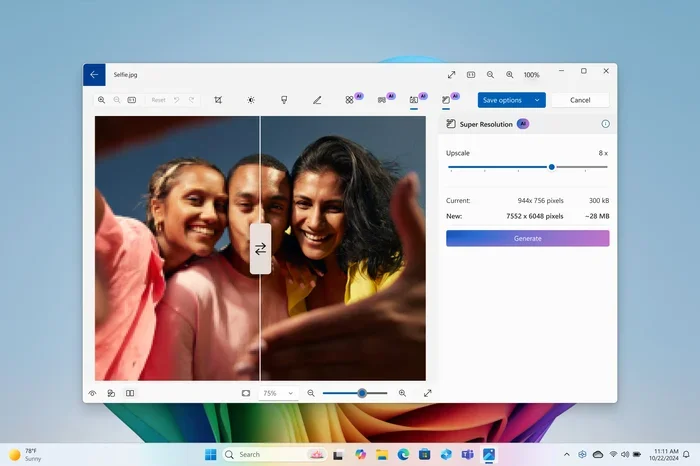
Featured image for Windows 11 photo conversion
Image source: cdn.neowin.com
If you just captured photos on your iPhone and need to share them on a Windows PC, you probably need to convert HEIC to JPG Windows 11. This guide shows you fast and free methods to change your files without hassle. You will learn about built-in Windows tools, trusted third-party apps, and simple online converters. By the end, you will know exactly how to handle HEIC to JPG conversion with confidence.
Key Takeaways
- Built-in Windows tools: Windows 11 can open HEIC files, but converting them to JPG often needs extra steps or apps.
- Free converter apps: Microsoft Store offers reliable free apps that batch convert HEIC to JPG quickly.
- Online converters: Web-based tools work well for small batches and require no software installation.
- Batch conversion: You can convert multiple HEIC files at once to save time and effort.
- Quality settings: JPG quality matters, so choose the right settings to keep your photos sharp.
- File size differences: JPG files are usually smaller and more compatible than HEIC files.
- Workflow tips: Organize your photos before converting to keep your folders clean and easy to manage.
📑 Table of Contents
- Why You Need to Convert HEIC to JPG Windows 11
- Best Built-In Ways to Convert HEIC to JPG Windows 11
- Free Third-Party Apps for HEIC to JPG Conversion
- Online Converters for Fast HEIC to JPG Windows 11
- Batch Conversion and Workflow Tips
- Quality, File Size, and Compatibility Considerations
- Common Mistakes to Avoid
- Expert Insights
- Final Thoughts on Converting HEIC to JPG Windows 11
Why You Need to Convert HEIC to JPG Windows 11
Modern iPhones save photos in HEIC format by default. This format keeps high quality and saves space. But many Windows programs do not support HEIC files well. That is why people often need to convert HEIC to JPG Windows 11.
JPG is the most common image format in the world. It works in almost every app, website, and device. If you send a HEIC file to a Windows user, they might not open it. If you upload it to a website, it may fail. Converting to JPG solves these problems fast.
You may also need JPG for printing, editing, or sharing on social media. Many printers expect JPG. Many editors work better with JPG. So, changing your HEIC files to JPG is a smart move.
The good news is that Windows 11 makes this process easier than before. You still may need a few extra tools. But you do not need to pay for expensive software. You can convert HEIC to JPG Windows 11 with free methods that are simple and safe.
What Is HEIC and Why It Causes Trouble
HEIC stands for High Efficiency Image Container. Apple uses it to store more image data in smaller files. That sounds great. But Windows does not always read HEIC files naturally.
Some Windows 11 PCs can open HEIC files after you install a free extension. Even then, many apps still struggle. Word processors, email clients, and older photo tools may reject HEIC files. This creates frustration for everyday users.
JPG does not have this problem. JPG is widely supported. It opens in browsers, editors, and messaging apps. It also loads faster on many platforms. That is why converting HEIC to JPG Windows 11 is such a common task.
Why JPG Is Still the Best Choice for Compatibility
JPG has been around for a long time. Almost every device understands it. If you share a JPG file, the recipient can view it without extra software. That makes JPG a safe choice for daily use.
JPG also works well for web use. Websites load images faster when they use JPG. Social platforms often prefer JPG too. If you want smooth sharing, JPG is usually the easiest path.
Another benefit is editing compatibility. Many free editors handle JPG better than HEIC. If you want to crop, resize, or adjust colors, JPG gives you fewer roadblocks. So, converting HEIC to JPG Windows 11 helps you work faster.
Best Built-In Ways to Convert HEIC to JPG Windows 11
Windows 11 does not include a direct one-click HEIC-to-JPG converter in File Explorer. But it does offer helpful built-in options. You can use Photos, Paint, and screen capture tools. These methods are free and already on your PC.
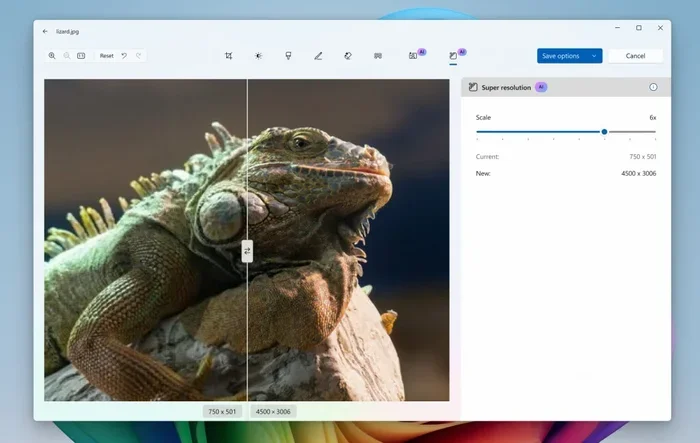
Visual guide about Windows 11 photo conversion
Image source: cdn.neowin.com
The built-in approach works well for a few files. If you only need to convert one or two images, you may not want to install anything. That is when these native tools come in handy.
Let’s look at the most practical built-in methods. Each one has pros and cons. Choose the one that fits your workflow.
Using the Photos App to Save a JPG Copy
Windows 11 can often open HEIC files in the Photos app. If your PC supports HEIC, you can view the image without extra software. Once the file opens, you can save a copy in another format.
Here is the basic idea:
- Open the HEIC file in the Photos app.
- Choose the save or export option if available.
- Select JPG as the output format.
- Save the new file to your desired folder.
This method is simple. But it may not work on every PC. Some Windows 11 systems need the HEIF extension before they can display HEIC files. If the file will not open, you will need another method.
Still, this is a good first step. It uses tools you already have. It also keeps your original HEIC file safe. You get a new JPG copy without changing the source image.
Using Paint to Convert HEIC to JPG Windows 11
Paint is another built-in option. If the Photos app cannot export JPG directly, Paint may help. You can open the HEIC file in Paint, then save it as JPG.
The process is easy:
- Open Paint on your Windows 11 PC.
- Load the HEIC file into Paint.
- Click File and choose Save As.
- Select JPG format and save the file.
Paint works well for single images. It is also useful if you want to resize the photo at the same time. You can crop, rotate, or reduce the size before saving. That makes Paint a flexible built-in tool.
Keep in mind that Paint may not preserve every bit of HEIC data. But for everyday use, the result is usually fine. If you need quick conversions without installing apps, Paint is a solid choice.
When Built-In Methods Are Enough
Built-in tools are best when you have only a few files. They are free, simple, and fast. You do not need to download anything. You also do not need to learn a new interface.
However, built-in methods are not ideal for large batches. If you have dozens of HEIC photos, doing them one by one takes too long. In that case, a dedicated converter makes more sense.
So, use built-in tools for quick jobs. Use batch tools for bigger projects. That balance keeps your work efficient.
Free Third-Party Apps for HEIC to JPG Conversion
If you want faster and easier conversion, third-party apps can help. The Microsoft Store has several free options. These apps are designed for Windows 11 and usually support batch conversion.
A good app saves time. It also reduces manual effort. Instead of opening each file separately, you can convert many at once. That is a big win if you work with lots of photos.
Let’s look at the types of apps you can use. You will also learn what features to look for before you install anything.
Microsoft Store Apps That Convert HEIC to JPG Windows 11
Many free apps in the Microsoft Store handle HEIC files. Some focus on simple conversion. Others include editing tools and batch features. The right app depends on your needs.
Look for these useful features:
- Batch conversion for multiple files
- Simple drag-and-drop interface
- Folder-based import options
- Output settings for JPG quality
- Preview before saving
A clean interface matters too. You do not want a cluttered tool with confusing buttons. The best apps let you select files, choose JPG, and start the conversion in a few clicks.
Before installing any app, read the recent reviews. Check whether the app still works on Windows 11. Also confirm that it is free or clearly shows any paid features. This helps you avoid surprise costs.
Desktop Software Options for More Control
Some users prefer desktop software instead of Store apps. Desktop programs often give more control over output quality and file naming. They may also support advanced options like resizing and metadata handling.
This can be helpful if you want consistent results. For example, you may want all JPG files to have the same resolution. Or you may want to keep your folder structure organized. Desktop tools can handle these tasks well.
If you choose desktop software, start with a free version. Test it with a few HEIC files first. Make sure the conversion quality meets your needs. If it does, you can safely process more files later.
Quick Tips for Choosing a Converter App
Not every app is equally useful. Some are slow. Some add unwanted extras. Some confuse users with too many settings. Here are a few quick tips to help you pick a good one:
- Choose an app with a simple workflow.
- Confirm it supports batch conversion.
- Check if it lets you set JPG quality.
- Read user feedback about speed and reliability.
- Avoid apps that ask for unnecessary permissions.
A trustworthy app should make your life easier. It should not create extra steps. If the app feels clunky, try another one. There are plenty of free options for converting HEIC to JPG Windows 11.
Online Converters for Fast HEIC to JPG Windows 11
Online converters are another easy option. They run in your browser, so you do not need to install anything. This is useful if you are on a shared PC or do not want to add new software.
Online tools work best for small batches. If you have a few HEIC files, you can upload them and get JPG versions quickly. Many sites also let you download the converted files in a zip folder.
This method is simple. But it has limits. File size restrictions, upload time, and privacy concerns can matter. Let’s break it down.
How Online Conversion Works
Most online converters follow the same pattern. You visit the site, upload your HEIC files, choose JPG, and download the results. Some tools convert one file at a time. Others support multiple files.
The main advantage is convenience. You can use an online converter from any modern browser. You do not need to configure settings or learn a new app. For quick jobs, that is a big benefit.
Many online tools also work on different operating systems. So, if you switch between Windows, Mac, and mobile devices, the same website can still help. That flexibility makes online converters popular.
When Online Tools Are the Best Option
Online converters are ideal when you need speed and simplicity. They are also helpful if you only convert images occasionally. You can use them and then move on without installing anything.
They are also useful when you do not have administrator access to install apps. In shared work environments, this can be a real advantage. You can still convert HEIC to JPG Windows 11 without extra setup.
Just remember to check the site’s file limits. Some services restrict upload size. Others may slow down with large batches. If your files are small, online tools are often the fastest route.
Privacy and File Size Considerations
Privacy matters when you upload personal photos. If your images contain sensitive content, think carefully before using an online converter. Check whether the site deletes files after processing. A reputable service should explain its privacy approach clearly.
File size also matters. HEIC files can be large, especially if they come from high-resolution cameras. If the site has a size limit, you may need to split your work into smaller batches. That can take extra time.
For highly sensitive images, local tools are usually safer. They keep your files on your own PC. That reduces exposure and gives you more control. So, choose online tools for convenience, and local tools for privacy.
Batch Conversion and Workflow Tips
If you handle many photos, batch conversion is a game changer. Converting files one by one wastes time. Batch tools let you process many HEIC images at once. That makes your workflow much smoother.
A good batch process also keeps your files organized. You can rename files, sort them into folders, and keep your JPG output neat. This matters if you are preparing images for a project, website, or archive.
Here are some practical workflow tips to make batch conversion easier.
Organize Your HEIC Files First
Before converting, sort your HEIC files into a clean folder. Remove duplicates. Rename files if needed. This makes the conversion step faster and less confusing.
You can also separate images by event or date. For example, you might have one folder for family photos and another for work images. Clear organization helps you avoid mistakes during conversion.
This small step saves time later. You will not need to search through messy folders for the right files. Everything will be ready when you start the batch process.
Use Batch Mode for Large Photo Sets
Batch mode is the best choice for large sets of HEIC files. Instead of opening each image, you select the whole folder and convert it in one go. This is much faster and less tedious.
When using batch mode, check the output settings first. Make sure the JPG quality matches your needs. If you convert hundreds of files, you do not want to redo them later because the quality was too low.
Batch conversion also reduces the chance of human error. You do not need to repeat the same steps over and over. That means less frustration and more consistent results.
Keep Your Original HEIC Files Safe
Always keep your original HEIC files until you confirm the JPG output is good. Do not delete the source images right away. It is safer to verify the converted files first.
Check a few sample images after conversion. Look for sharpness, color, and file size. If everything looks fine, you can move or archive the originals. This protects you from accidental data loss.
A good habit is to use a separate output folder. Keep HEIC files in one place and JPG files in another. That way, you always know which version is which.
Quality, File Size, and Compatibility Considerations
Converting HEIC to JPG Windows 11 is not just about changing the file extension. It also affects quality and file size. JPG compression can reduce file size, but it may also soften fine details if the settings are too aggressive.
That is why output settings matter. A balanced JPG setting gives you a manageable file size without hurting image quality too much. If you use a converter app, check whether it lets you control quality.
Compatibility is another key point. JPG works almost everywhere, but different platforms may prefer different resolutions. If you plan to share images online, you may want to optimize them for web use. If you plan to print, you may want higher quality.
How JPG Quality Affects Your Photos
JPG uses compression to reduce file size. Higher compression means smaller files, but it can also create visible artifacts. Lower compression keeps more detail, but the file size grows.
For everyday sharing, medium quality is usually enough. For prints or professional use, higher quality is better. If you are converting HEIC to JPG Windows 11 for general purposes, aim for a balance.
The right setting depends on your goal. If you only need images for messaging or social posts, smaller JPG files may be fine. If you need crisp photos for presentations or printing, choose a higher-quality setting.
File Size Differences Between HEIC and JPG
HEIC files are often smaller than JPG files for the same visual quality. That is one reason Apple uses HEIC. But JPG files are more compatible, which is why conversion is still useful.
After conversion, your JPG files may be larger than the original HEIC files. This is normal. You can manage the size by adjusting quality settings or resizing the image if needed.
If file size matters for email or upload limits, check the final JPG size before sending. You may want to compress the image a little more or reduce its dimensions. That keeps your workflow smooth.
Matching the Right Format to the Right Use
Not every image needs the same format. Use HEIC for storage on Apple devices if that suits your workflow. Use JPG when sharing with Windows users, uploading to websites, or working with compatible software.
This simple rule helps you avoid extra conversions later. If you know where the image will be used, you can choose the best format from the start. That saves time and keeps your files practical.
In short, converting HEIC to JPG Windows 11 is about convenience and compatibility. Once you understand the trade-offs, you can pick the best method for each situation.
Common Mistakes to Avoid
Many people run into the same problems when converting HEIC files. Most of these mistakes are easy to avoid. A little care goes a long way.
Here are the most common issues and how to prevent them.
- Converting without checking quality: Always review a few output files before batch processing everything.
- Deleting original HEIC files too soon: Keep the source images until you confirm the JPG files are correct.
- Using random online tools without checking privacy: Choose reputable sites and read their policies.
- Ignoring batch settings: If you convert many files, make sure the settings apply to all of them consistently.
- Forgetting to organize output folders: Separate HEIC and JPG files to avoid confusion later.
Avoiding these mistakes keeps your conversion process clean and reliable. It also saves you from redoing work later.
Expert Insights
Experienced users usually keep the process simple. They do not overcomplicate conversion. They choose the right method based on the number of files and the level of privacy needed.
If you only have a few images, built-in tools or an online converter may be enough. If you handle large sets, a batch app is usually the better choice. The goal is to reduce friction, not add it.
Another smart habit is to test with a small sample first. Try one or two HEIC files before converting a full folder. This helps you confirm quality, file size, and format compatibility before you commit to a large batch.
A steady workflow also helps. Keep your source files organized. Use clear folder names. Save JPG output in a separate location. These small habits make a big difference over time.
Final Thoughts on Converting HEIC to JPG Windows 11
Converting HEIC to JPG Windows 11 is a simple task once you know your options. You can use built-in tools for quick jobs. You can use free apps for batch work. You can also use online converters for fast, no-install conversions.
The best method depends on your situation. Think about file count, privacy, quality, and convenience. Then choose the approach that fits your needs. That way, you get good results without wasting time.
With the right workflow, HEIC files no longer slow you down. You can share, edit, and store your photos in a format that works everywhere. That is the real benefit of learning how to convert HEIC to JPG Windows 11.
Frequently Asked Questions
Can I convert HEIC to JPG Windows 11 without installing anything?
Yes, you can use built-in tools like Paint or the Photos app if your PC supports HEIC files. You can also use a reputable online converter for quick jobs without installing software.
Is there a free way to batch convert HEIC to JPG on Windows 11?
Yes, many free Microsoft Store apps and desktop tools support batch conversion. Look for a simple app that lets you select multiple HEIC files and save them as JPG in one go.
Will converting HEIC to JPG reduce image quality?
It can, depending on the JPG quality settings you choose. If you use a moderate or high-quality setting, the difference is usually small for everyday use.
Why do my iPhone photos open as HEIC instead of JPG?
iPhones often save images in HEIC format by default because it stores high quality in smaller files. If you need JPG, you can change your camera settings or convert the files later on Windows.
Are online HEIC to JPG converters safe to use?
Many are safe, but you should choose a reputable site and check its privacy policy. If the photos are sensitive, it is usually better to use a local converter on your own PC.
What is the fastest method to convert HEIC to JPG Windows 11?
For a few files, an online converter or built-in app is often fastest. For many files, a free batch converter app usually saves the most time and effort.