
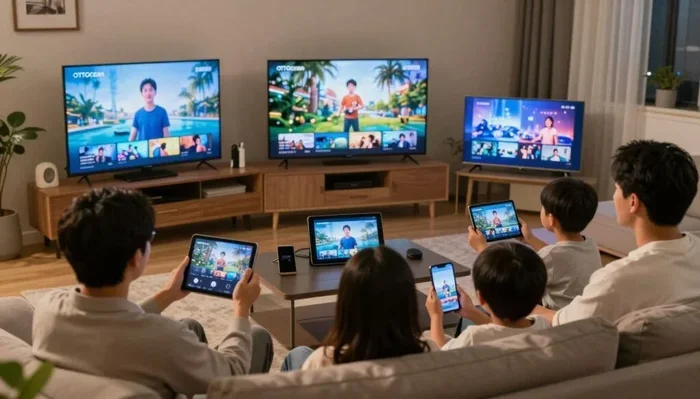
Featured image for how to family watching tv on multiple devices
Image source: solidiptv.store
Watching your favorite shows across a phone, tablet, laptop, and TV is simple when you use the right accounts, apps, and sync tools. Start by choosing a streaming service that supports multiple devices, then sign in on each screen and keep your progress connected. With a few quick settings, you can move from one device to another without losing your place.
Watching TV shows today is a lot easier when every screen in your home can pick up where you left off. You might start a show on your phone during a commute, continue it on a tablet at lunch, and finish it on the living room TV at night. That kind of flexibility is one of the biggest reasons people stream instead of relying on old-school cable alone.
If you have ever wondered how to watch TV shows on multiple devices without losing your place, dealing with login headaches, or fighting buffering issues, this guide is for you. It walks you through the practical steps you can take so your shows follow you from one device to another. You will learn how to set up your accounts, connect your screens, keep your progress synchronized, and solve the most common problems that interrupt playback.
The goal is simple: make your viewing feel smooth, flexible, and personal. You do not need to be a tech expert to do this. You just need a clear plan and a little patience while you test what works best in your home.
📑 Table of Contents
- Step 1: Choose the Right Streaming Setup for Multiple Devices
- Step 2: Sign In on Each Device the Right Way
- Step 3: Use Apps, Casting, and Screen Sharing to Move Between Screens
- Step 4: Keep Watch Progress and Preferences in Sync
- Step 5: Manage Multiple Viewers and Simultaneous Streams
- Step 6: Improve Playback Quality and Reduce Buffering
- Troubleshooting: What to Do When Multi-Device Viewing Breaks
- Tips for Making Multi-Device Viewing Feel Effortless
- When a Multi-Device Setup May Not Be Worth the Effort
- Conclusion
Step 1: Choose the Right Streaming Setup for Multiple Devices
Before you worry about syncing or casting, it helps to understand what kind of viewing setup you already have. Different services work differently, and the best choice depends on where and how you like to watch.
Built-in streaming apps
Many people start with apps that are already available on their devices. These apps are often the easiest option because they are designed to work on phones, tablets, computers, smart TVs, and streaming players. If you already use a subscription service, check whether it has a native app for each device you want to use.
A built-in app usually gives you the most stable experience. It can save your watch history, remember your preferences, and let you resume a show in the right place. That matters when you want to move between devices without starting over.
Cable or TV provider logins
Some viewers still use a cable, satellite, or TV provider login to access live TV or on-demand shows. In that case, the provider’s app may let you sign in on several devices, but the rules can vary. Some providers limit how many devices can be connected at the same time, or they may only allow certain features on specific screens.
If you use a provider login, read the sign-in instructions carefully. Make sure the app on each device accepts the same credentials, and pay attention to any messages about device limits or extra verification.
Free and ad-supported options
Not every multi-device setup requires a paid subscription. Free, ad-supported services can also be installed on multiple devices, which is useful if different people in your home want their own shortcuts to different shows. These services may be simpler to use, but the experience can vary depending on the device and the available content.
If you are building a multi-device setup from scratch, it often helps to pick one main account or service first. That gives you a central place to test what works before you add more apps or screens.
Step 2: Sign In on Each Device the Right Way
Once you know which service or services you want to use, the next step is to sign in on every device you plan to watch on. This sounds basic, but doing it carefully can save you a lot of frustration later.
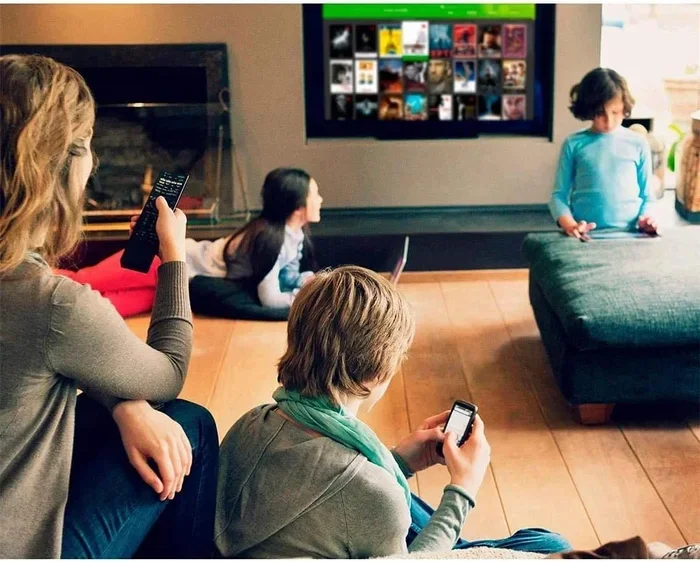
Visual guide about how to family watching tv on multiple devices
Image source: m.media-amazon.com
Use the same account everywhere
The easiest way to keep your viewing connected is to use the same account on every device. That usually means the same email address, username, or provider login. When you do this, your watch history, favorites, and recommended content are more likely to stay aligned.
If you have more than one account for different reasons, keep them organized. For example, one account may be for the main household profile, while another may be for a child or another viewer. Just make sure each person knows which account belongs to which profile.
Install the correct app or access the right website
On a phone or tablet, install the official app from the device’s app store whenever possible. On a computer, use the official website if a desktop app is not available or if the website gives you the features you need. On a smart TV or streaming device, open the app from the device’s app store and sign in there.
It is worth checking that you are using the current version of the app. Older versions can sometimes cause login errors, missing features, or playback problems. If an app looks outdated or is not working correctly, updating it is often the first fix.
Save login details carefully
If you plan to use several devices, it helps to keep your login information in a safe place. A password manager can make this easier, especially if you have different passwords for different services. The goal is not to memorize everything, but to avoid getting locked out when you switch screens.
If your service uses two-step verification, be ready to complete that step on each new device. Some devices may ask for a code sent to your phone or email, which can be annoying at first but is useful for account security.
Step 3: Use Apps, Casting, and Screen Sharing to Move Between Screens
After you are signed in, the next question is how to actually move a show from one device to another. There are a few common ways to do this, and the best one depends on your devices and how you like to watch.
Start directly in the app
The simplest method is to open the app on the device you want to use and pick up the show from your continue watching list, library, or favorites. This works well when every device has the app installed and you are signed in. It also tends to give the most reliable playback because the app is built for that device.
If you are switching from a phone to a TV, look for a continue watching section first. Many services place recently watched episodes there so you do not have to search again.
Casting to a TV or speaker
Casting is a handy way to send a show from a phone, tablet, or computer to a larger screen. Instead of the other device playing the content directly, your current device tells the TV or speaker what to play. This can be useful when you want to start on a small screen and move to the living room TV without searching for the show again.
To cast successfully, both devices usually need to be on the same network and the receiving device needs to support the casting feature you are using. If casting fails, it is often because the devices are not connected the way they need to be, or the app does not support casting on that screen.
AirPlay and similar wireless options
Some devices use their own wireless sharing tools to send video to a TV or speaker. These tools can work well when your devices are made by the same ecosystem or when both screens support the same connection type. They are especially useful if you want to mirror what is on your phone or tablet to a bigger display.
Wireless sharing can be convenient, but it is not always the best choice for every situation. If the video looks choppy or the audio falls out of sync, try a different method or move closer to the network source.
Screen mirroring as a fallback
Screen mirroring shows exactly what is on your phone or computer on another screen. It can be helpful when an app does not have a TV version or when you want to display something that is not easy to cast. The tradeoff is that mirroring can use more battery, more bandwidth, and sometimes more processing power than a direct app or cast.
If you use mirroring, keep an eye on playback quality. If the image stutters or the sound lags, it may be a sign that your network or device needs a quick adjustment.
Step 4: Keep Watch Progress and Preferences in Sync
One of the best parts of a multi-device setup is being able to continue a show without hunting for the exact episode again. To make that happen, it helps to understand how progress and preferences are saved.
Rely on account-based progress
Many services save your place in a show based on the account you are using. That means if you stop on one device and open the same account on another, you may see your recent activity or continue watching list. This is most reliable when you stay signed in and use the same profile.
If your progress does not seem to follow you, check whether you are using the same account and profile on both devices. A different profile can sometimes act like a separate viewing space, even if the login looks similar.
Use profiles when several people share the account
Profiles can make a household setup much easier. They help separate recommendations, watch history, and parental settings so one person’s viewing does not mix too much with another’s. If different people in your home watch on different devices, profiles can keep everything more organized.
When you set up profiles, make sure each person knows which one is theirs. That reduces confusion when someone opens a device and expects to see their own shows.
Check settings that affect the viewing experience
Some apps let you adjust playback quality, captions, audio language, or download options. If you want a smooth experience across devices, it is worth looking through these settings once instead of fixing the same issue repeatedly later. For example, turning on captions on one device may not automatically apply the same preference everywhere, depending on the service.
If a device has limited storage, downloads or cached videos may also affect how the app behaves. Clearing space can sometimes improve performance when apps feel slow or unresponsive.
Step 5: Manage Multiple Viewers and Simultaneous Streams
If more than one person in your home wants to watch at the same time, you should understand how your service handles multiple streams. This is one of the most common reasons people think their multi-device setup is broken when it is actually just limited by the service rules.
Know the limits of your service
Some services allow several devices to be signed in at once, but only a certain number may play content at the same time. Others may allow more flexibility for household use. The exact rules depend on the service, so it is smart to check the terms or help pages for the account you are using.
If two people try to watch the same account at the same time and one gets blocked or asked to sign out, that does not necessarily mean anything is wrong with your devices. It may simply be a stream limit.
Plan for household viewing
A good way to reduce conflict is to decide who uses which device and which profile. If everyone knows the general plan, you are less likely to run into sudden sign-out prompts or playback interruptions. This is especially helpful during evenings when many people want to watch at once.
If your household watches a lot of content on different screens, you may also want to think about Wi-Fi capacity. Multiple streams can demand more from your network, especially if other devices are downloading large files at the same time.
Avoid unnecessary account sharing outside the home
It can be tempting to share login details widely, but that can create playback issues and account conflicts. If a service is meant for a household or a limited number of users, sharing it beyond that can lead to sign-in problems or extra verification steps. Keeping the account within the intended use usually makes the experience smoother.
Step 6: Improve Playback Quality and Reduce Buffering
Even a well-set-up multi-device system can feel frustrating if the video keeps pausing. Buffering, blurry video, or dropped audio often come from network or device issues rather than the streaming account itself.
Check your internet connection
A stable connection matters more than a fast one in some cases. If your Wi-Fi is weak in one room, a show may play fine on one device and struggle on another. Try moving closer to the router, using a wired connection on a computer when possible, or restarting the router if performance suddenly drops.
If several devices are streaming at once, the network has to divide its attention. That can make each stream less reliable, especially during peak times in your home.
Lower playback quality when needed
Most apps let you adjust video quality. If your connection is unstable, lowering the quality can make playback smoother. That is often better than waiting through repeated buffering.
This is a useful trick when you are on mobile data or watching in a room with poor Wi-Fi. You may not need the highest setting to enjoy the show, especially on a smaller screen.
Close other apps and pause heavy downloads
If a phone, tablet, or computer is doing a lot of other work, playback can suffer. Large downloads, backups, game updates, or too many open apps can compete for resources. Closing what you do not need can help the streaming app perform better.
On TVs and streaming devices, too many background features can sometimes slow things down as well. If a device feels sluggish, a restart can help clear temporary issues.
Troubleshooting: What to Do When Multi-Device Viewing Breaks
Even with a good setup, problems happen. The good news is that many multi-device viewing issues are fixable with a few simple steps.
If a device will not sign in
First, confirm that you are entering the correct username and password. If that fails, try logging out of the app completely and signing in again. If the service uses a web browser for login, try that route instead of the app for a moment to see whether the account itself is working.
If you are still stuck, check whether the app needs an update or whether the device needs a restart. Old software and temporary glitches are common causes of login trouble.
If progress is not syncing
Make sure both devices are using the same account and, if applicable, the same profile. Then check whether the app shows your continue watching list on either screen. If one device is signed into a different profile or a different account, the progress may not match.
In some cases, signing out and back in can refresh the connection and bring recent activity back into view.
If casting or mirroring fails
Confirm that both devices are on the same network and that the receiving device supports the casting or sharing method you are trying to use. If the option is missing, the app may not support that feature on that screen. Trying a different method, such as opening the app directly on the TV, can be faster than continuing to troubleshoot a cast that is not working.
If the cast starts but playback is poor, reduce video quality, move closer to the network, or restart the casting session.
If playback is buffering or freezing
Start by checking whether other devices on the same network are also having trouble. If yes, the issue may be with the internet connection rather than one device. Restarting the router or modem can help. If only one device is affected, update the app, restart the device, and close other programs or apps that may be using resources.
If the problem continues, try playing a different show or switching between Wi-Fi and another connection option if available. That can help you figure out whether the issue is with the device, the network, or the content itself.
If audio and video are out of sync
This can happen with casting, mirroring, or older devices. Try switching to a direct app on the TV if possible. If you must keep using the current method, restart the playback, close and reopen the app, or lower the quality setting to see whether the sync improves.
If the issue only happens on one device, that device may be struggling to keep up with the stream. In that case, the simplest fix may be to use a different screen for that show.
Tips for Making Multi-Device Viewing Feel Effortless
Once the basics are working, a few habits can make the whole experience smoother. These are small things, but they add up over time.
Keep your apps organized
Put your most-used streaming apps in a convenient place on each device. On phones and tablets, that might mean grouping them on the home screen or in a folder. On a TV, it might mean placing the main apps near the top of the list so they are easy to find when you want to relax.
When apps are easy to find, you are more likely to use the same account and profiles consistently, which helps keep things synchronized.
Create a simple household routine
If several people use the same services, a loose routine can help. For example, decide which device is best for live TV, which one is best for downloaded shows, and which profiles belong to which viewers. You do not need a strict schedule, just enough clarity to avoid confusion.
This is especially helpful when someone wants to continue a show on a different device and needs to know where to look.
Test the setup before you rely on it
Do not wait until you are in the middle of a show to discover a problem. Try signing in, switching devices, casting, and resuming playback ahead of time. A quick test can reveal whether a certain device needs an update, whether the network is weak in one room, or whether one service does not work the way you expected.
A few minutes of testing can save you from a lot of frustration later.
Think about offline viewing when travel or weak internet is likely
If you know you will be somewhere with limited connectivity, downloads can be a useful backup. Some services let you save content for later viewing on certain devices. That can be helpful during trips, commutes, or moments when the network is unreliable.
Just remember that downloaded content may not always follow the same rules as streamed content, so check how each service handles offline viewing before you depend on it.
When a Multi-Device Setup May Not Be Worth the Effort
Multi-device viewing is convenient, but it is not perfect for everyone. In some situations, the setup may feel more complicated than it is worth.
If you only watch on one screen most of the time, you may not need a full multi-device system. If your household frequently runs into stream limits or if your internet connection is unreliable in the places where you watch, the experience may be frustrating no matter how carefully you set things up. And if different services do not work well on your older devices, you may spend more time troubleshooting than watching.
That does not mean you should give up on multi-device viewing entirely. It just means you should focus on the devices and services that genuinely make your life easier, rather than trying to make every screen work the same way.
Conclusion
Learning how to watch TV shows on multiple devices easily comes down to a few practical habits: use the same account, install the right apps, choose the best way to move between screens, and understand the limits of your service and your network. Once those pieces are in place, you can start a show on one device and continue it on another without much effort.
The best setup is the one that fits your home and your habits. For some people, that means a simple app-based setup with a few signed-in devices. For others, it means adding casting, profiles, downloads, or a stronger network to keep everything running smoothly. The key is to test what works, fix the small issues early, and keep the experience comfortable rather than overcomplicated.
If you want a more flexible way to enjoy your shows, start with one service, one account, and a couple of devices you use most often. Build from there only if you need to. That approach usually gives you the easiest path to watching TV shows across multiple devices without unnecessary hassle.